


1. How to Login and Check the Profile :
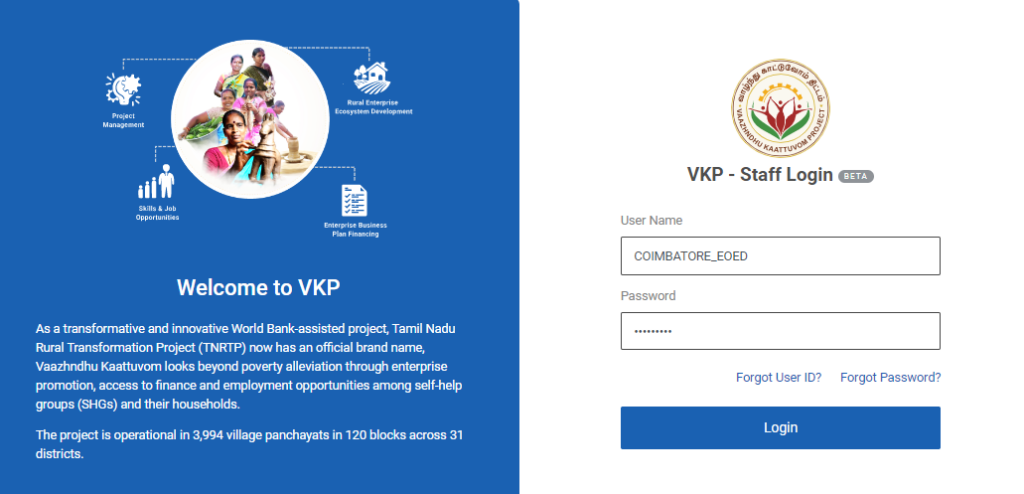
Step 1 : Log in with their respective EO-ED username and password and click Login
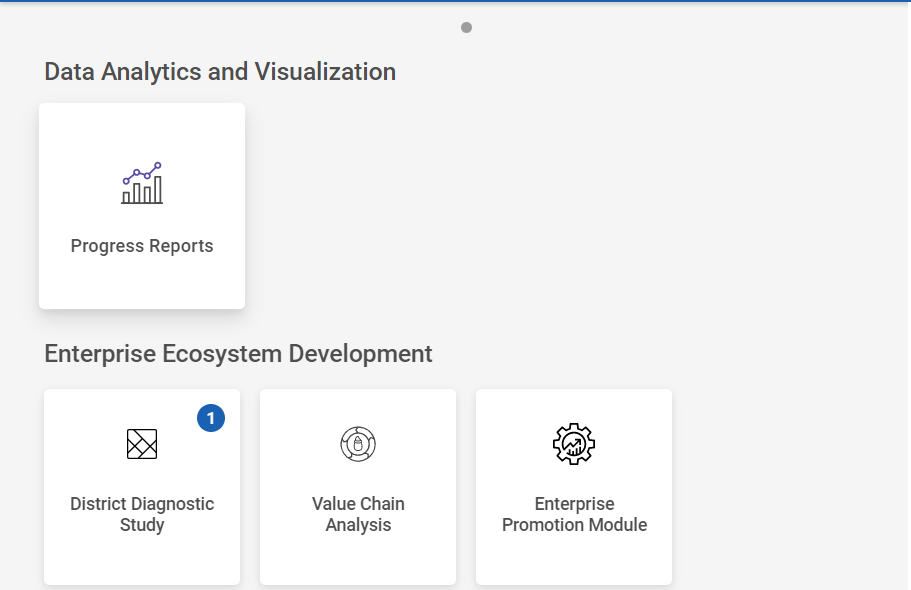
Step 2 : After logging in to the VKP staff portal, select the Enterprise Promotion Module name
Step 3 : After selecting the EPM module, the user will be redirected to the respective home page
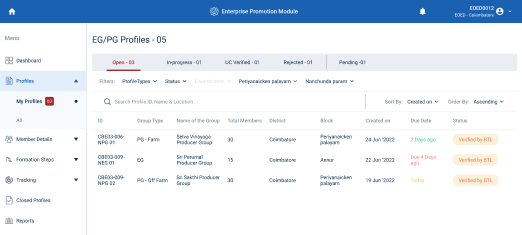
Step 4 : When logged in, click on the ‘Profile’ on the left side menu
Step 5 : On the ‘Profile’ tab, click the ‘My Profile’ tab to view the list of profiles verified by the BTL
Step 6 : You can view the list of verified profile by clicking the ‘Open’ tab
Step 7 : Upon the profile verified by BTL, the list of profiles will appear under the ‘Open’ tab and the status of the applicant will be displayed as ‘Verified BTL’
Step 8 : The EO-ED staff can view the Profile ID, Group Type, Group Name, Total Members, District Name, Block Name, Created Date, Due Date, and current status of the profile in the home page
2. How to Recommended the Profile :
Step 1 : Log in with their respective EO-ED username and password and click Login
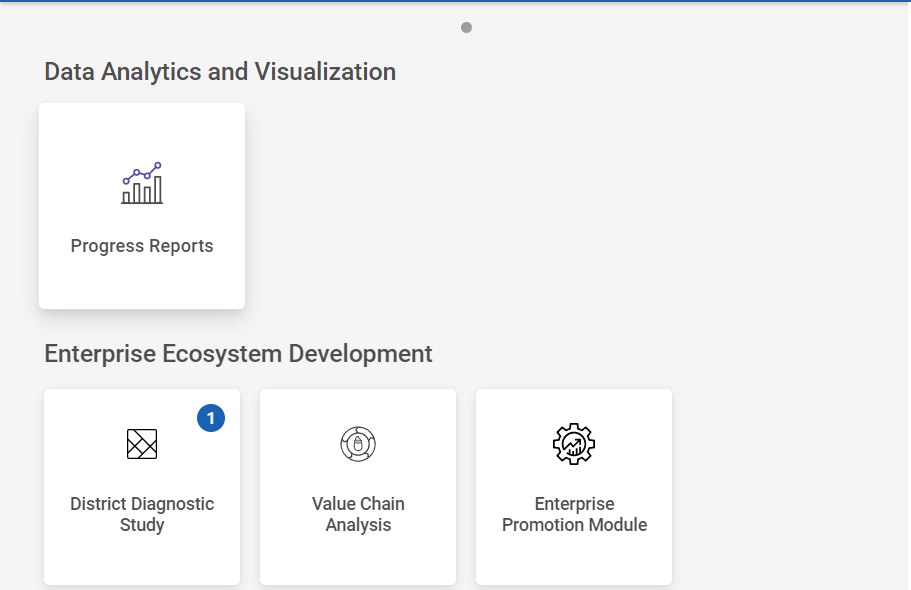
Step 2 : After logging in to the VKP staff portal, select the Enterprise Promotion Module name
Step 3 : After selecting the EPM module, the user will be redirected to the respective home page
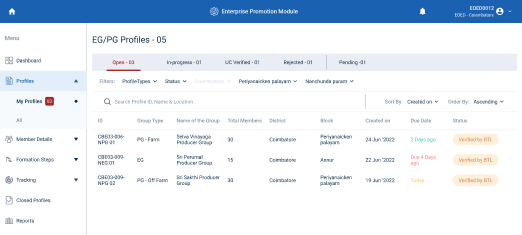
Step 4 : When logged in, click on the ‘Profile’ on the left side menu
Step 5 : On the ‘Profile’ tab, click the ‘My Profile’ tab to view the list of profiles verified by the BTL
Step 6 : To recommend the profile, Select the profile and for a detailed view, select the profile and the EO-ED can view the profile details, workflow tracker details
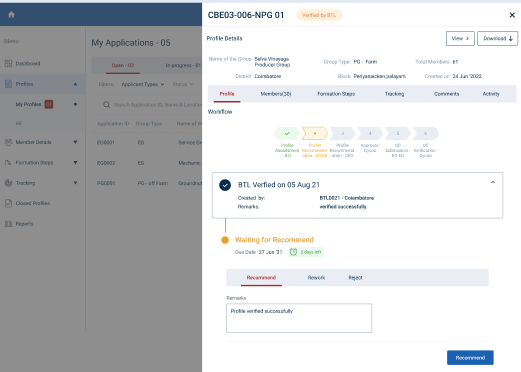
Step 7 : Once the profile has verified by BTL, the profile will be recommended by the EO-ED click ‘View’ to view the profile and click ‘Download’ to download the profile as PDF
Step 8 : To recommended the profile click ‘Recommend’
Step 9 : Remarks : Enter the remarks in the section and click ‘Recommend’
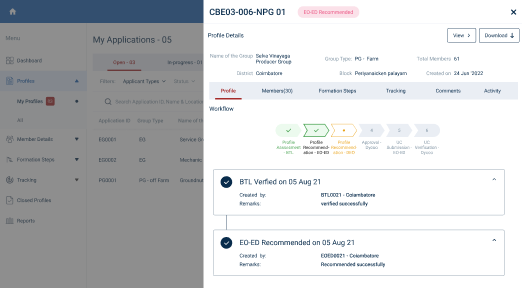
Step 9 : Once the EO-ED click recommendation the profile was recommended successfully and the the toast message like ‘The Profile Was Recommended Successfully’
Step 10 : Once the profile is recommended by the EO-ED the status of the application changes from “Verified by BTL” to “EO-ED Recommended” and the profile will be moved to Open to Inprogress.
3. How to View Recommended Profile :
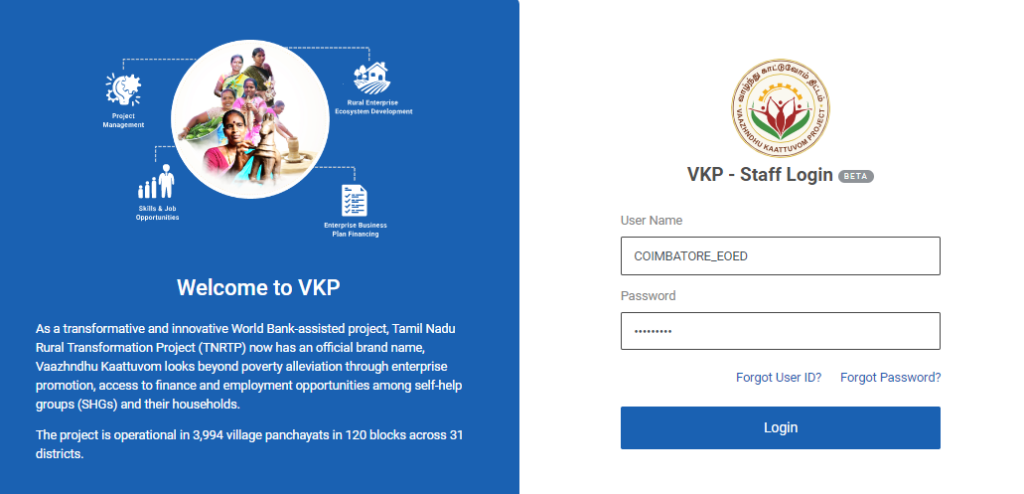
Step 1 : Log in with their respective EO-ED username and password and click Login
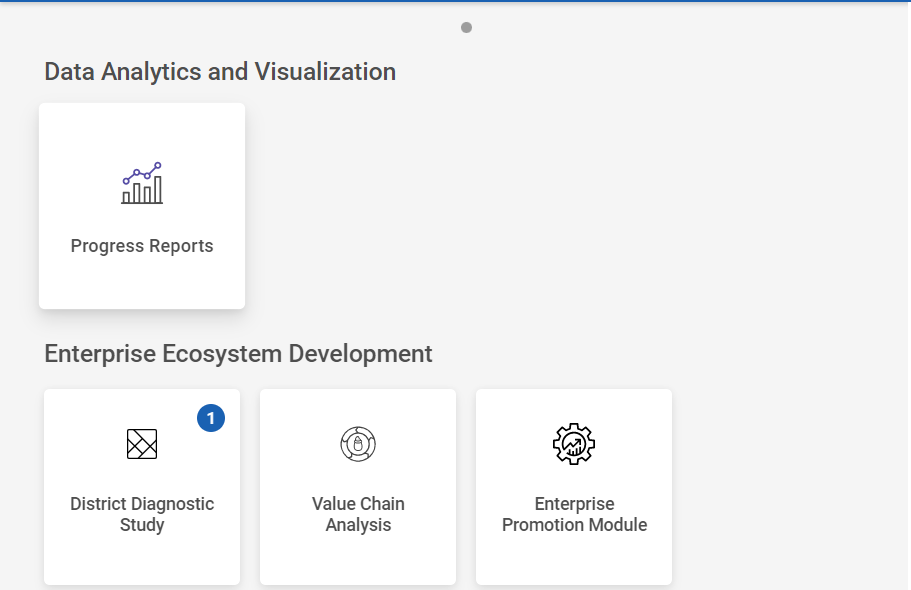
Step 2 : After logging in to the VKP staff portal, select the Enterprise Promotion Module name
Step 3 : After selecting the EPM module, the user will be redirected to the respective home page
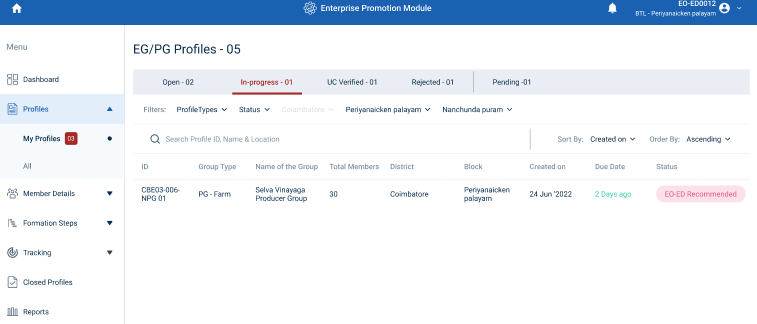
Step 4 : When logged in, click on the ‘Profile’ on the left side menu
Step 5 : On the ‘My Profile’ tab, click the ‘In-Progress’ tab to view the list of profiles recommended by the EO-ED
Step 6 : Select the profile to view the profile details more
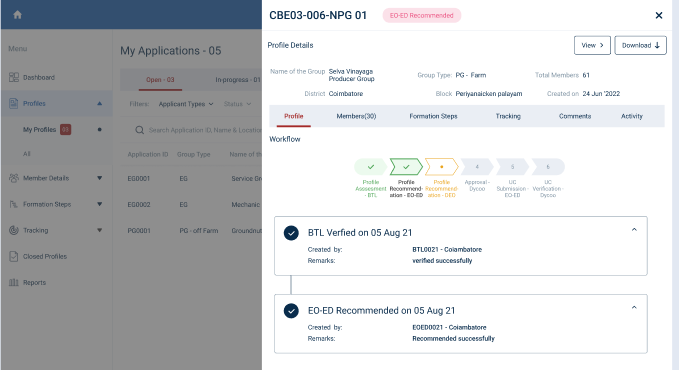
Step 7 : Once the profile has recommended by EO-ED, the EO-ED can view the profile details and updated workflow tracker
4. How to Send the Rework Profile :
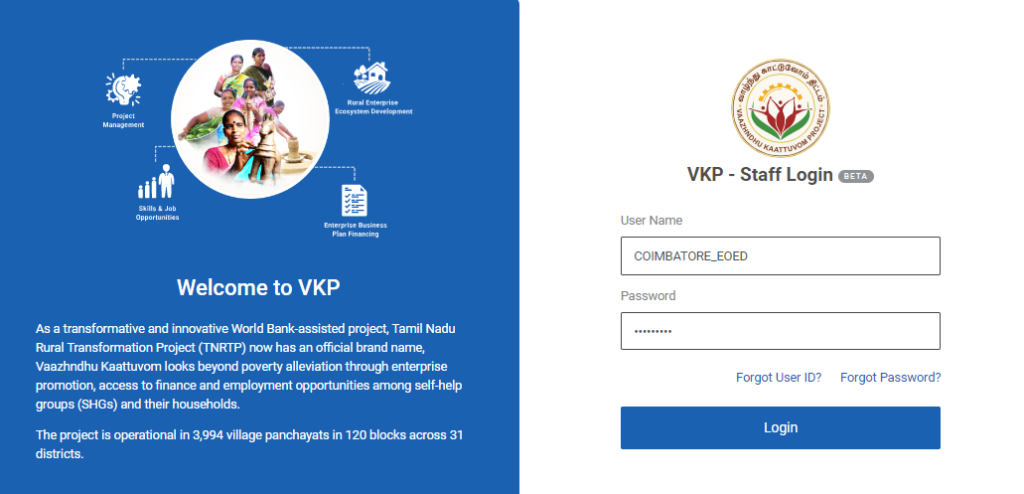
Step 1 : Log in with their respective EO-ED username and password and click Login
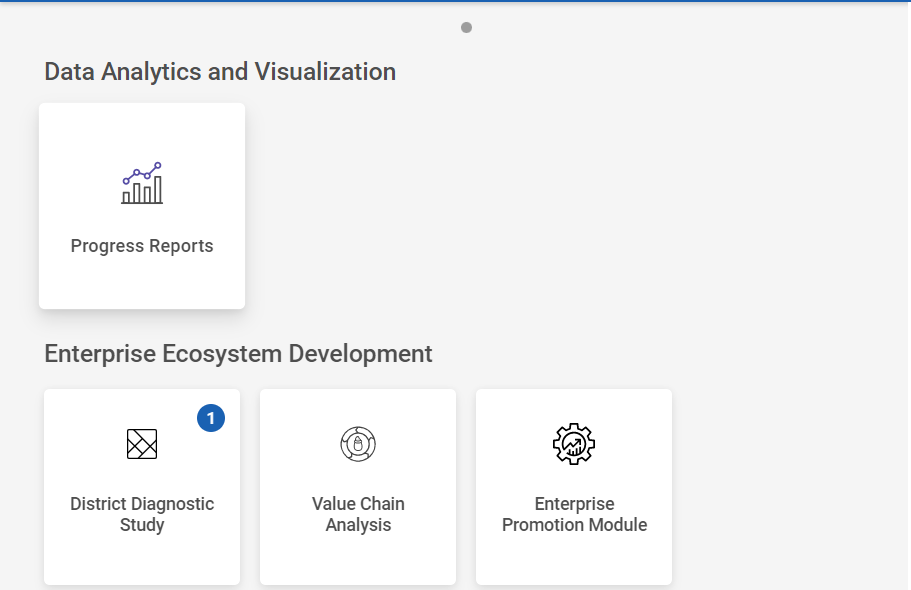
Step 2 : After logging in to the VKP staff portal, select the Enterprise Promotion Module name
Step 3 : After selecting the EPM module, the user will be redirected to the respective home page
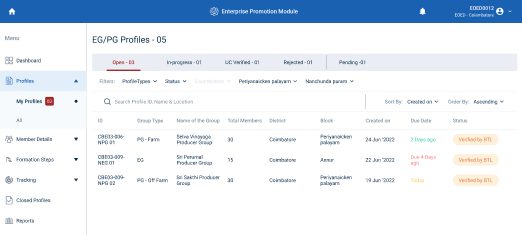
Step 4 : When logged in, click on the ‘Profile’ on the left side menu
Step 5 : On the ‘Profile’ tab, click the ‘My Profile’ tab to view the list of profiles verified by the BTL
Step 6 : To send the rework of the profile, Select the profile and for a detailed view, select the profile and the EO-ED can view the profile details, workflow tracker details
Step 7 : Once the profile has verified by BTL, the profile will be either recommended/reject/ rework by the EO-ED click ‘View’ to view the profile and click ‘Download’ to download the profile as PDF
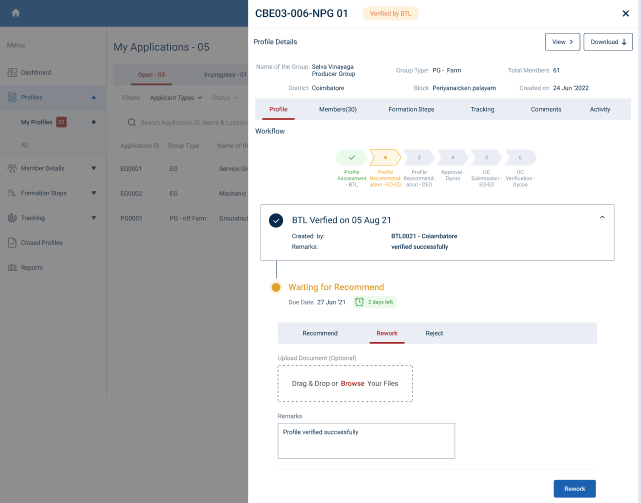
Step 8 : To rework the profile click ‘Rework’
Step 9 : Upload Document : Click ‘Browse’ to upload the document
Step 10 : Remarks : Enter the remarks in the section and click ‘Rework’
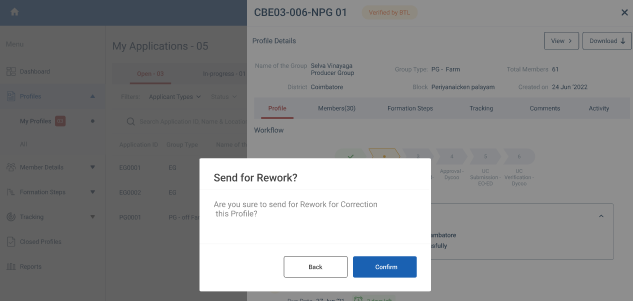
Step 11 : Once the EO-ED click ‘Rework’ an confirmation popup will appear on the screen and click ‘Confirm’
Step 12 : Once the EO-ED confirms the profile will send to rework to the ECP
5. How to Recommend/Rework the Reworked Profile :
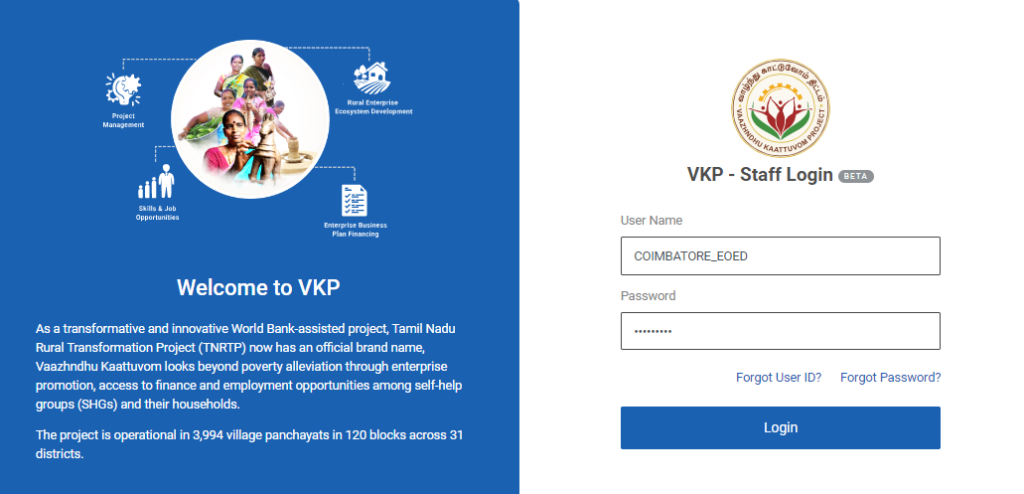
Step 1 : Log in with their respective EO-ED username and password and click Login
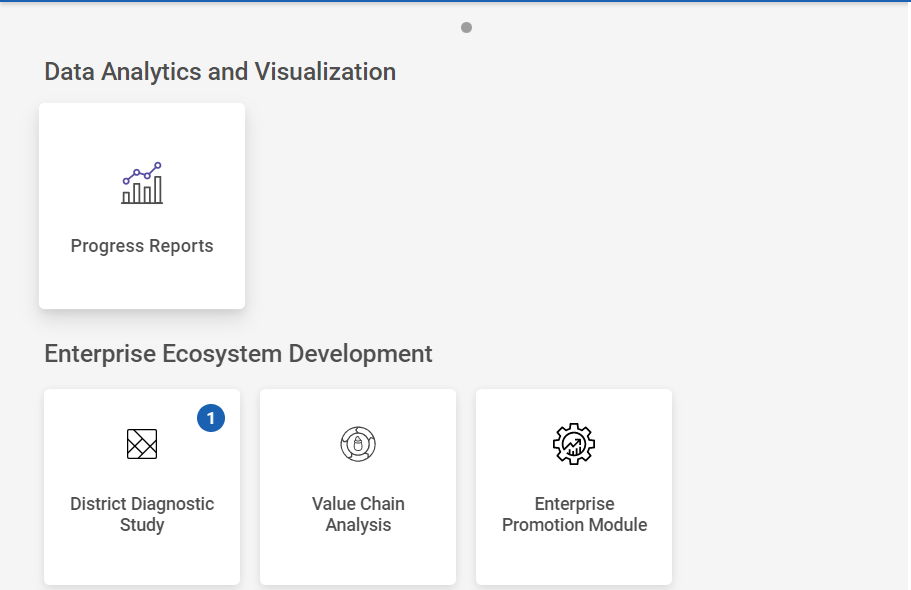
Step 2 : After logging in to the VKP staff portal, select the Enterprise Promotion Module name
Step 3 : After selecting the EPM module, the user will be redirected to the respective home page
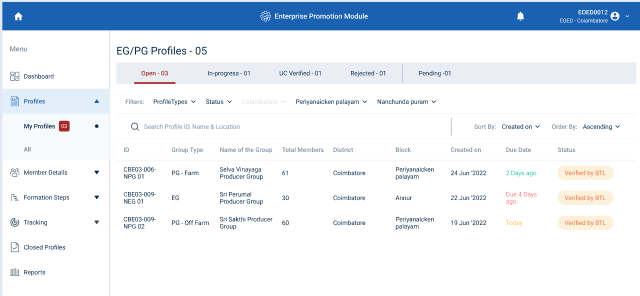
Step 4 : When logged in, click on the ‘EG/PG Profile’ on the left side menu
Step 5 : On the ‘EG/PG Profile’ tab, click the ‘My EG/PG Profile’ tab to view the list of profiles submitted/reworked by the ECP
Step 6 : To view the reworked profile, select the profile that has been reworked by the ECP
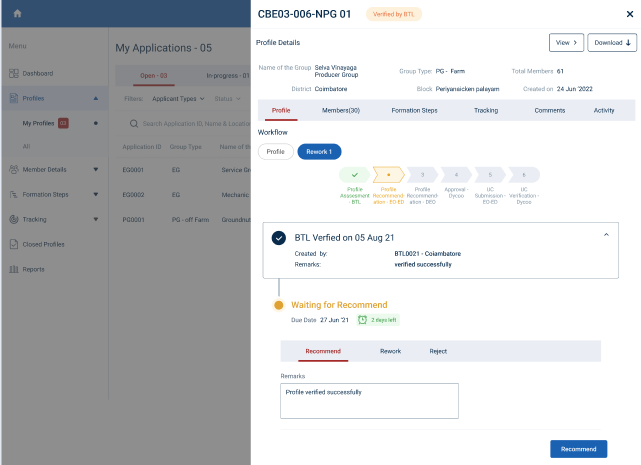
Step 7 : Once the profile has been reworked by the ECP, After that BTL will verify the reworked profile, click the Rework menu under the profile tracker the EO-ED can view the list of profile reworked by the ECP in detail
Step 8 : If the rework profile can recommend the EO-ED click ‘Recommend’ to recommend the reworked profile or if the EO-ED wish to rework the profile click ‘Rework’ and send the profile for the rework
6. How to Reject the Profile :
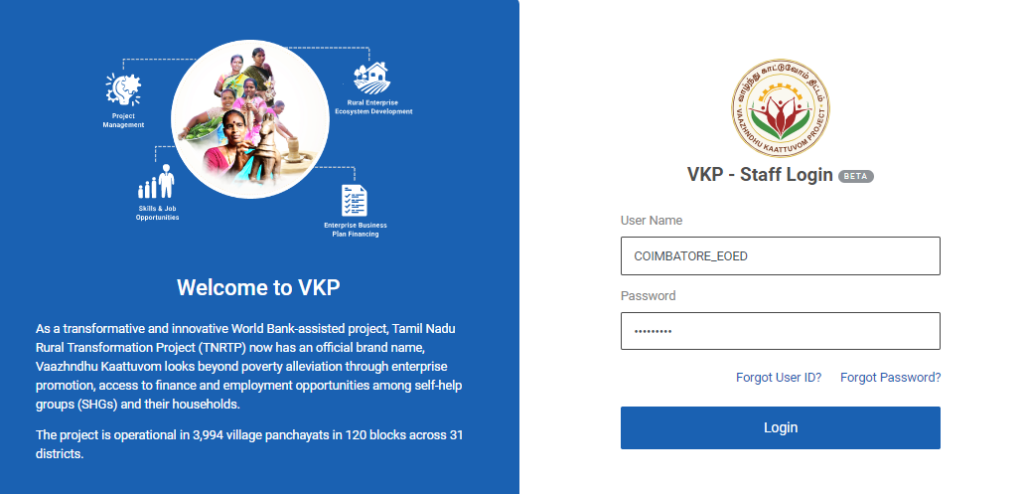
Step 1 : Log in with their respective EO-ED username and password and click Login
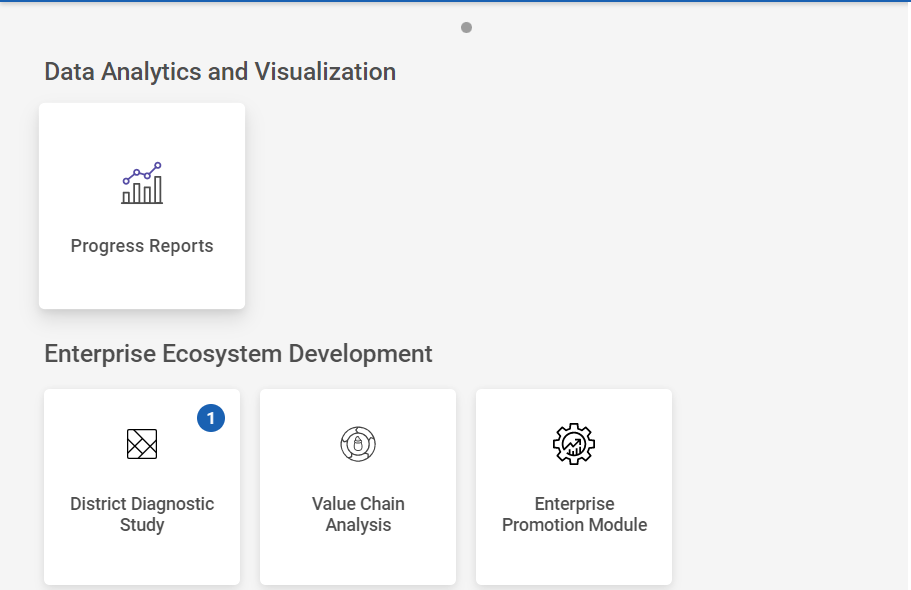
Step 2 : After logging in to the VKP staff portal, select the Enterprise Promotion Module name
Step 3 : After selecting the EPM module, the user will be redirected to the respective home page
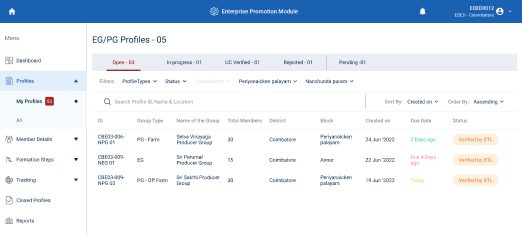
Step 4 : When logged in, click on the ‘Profile’ on the left side menu
Step 5 : On the ‘Profile’ tab, click the ‘My Profile’ tab to view the list of profiles verified by the BTL
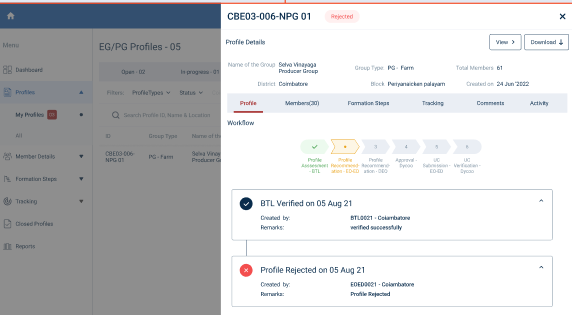
Step 6 : To reject the profile, Select the profile and for a detailed view, select the profile and the EO-ED can view the profile details, workflow tracker details
Step 7 : Once the profile has verified by BTL, the profile will be either recommended/reject/ rework by the EO-ED click ‘View’ to view the profile and click ‘Download’ to download the profile as PDF
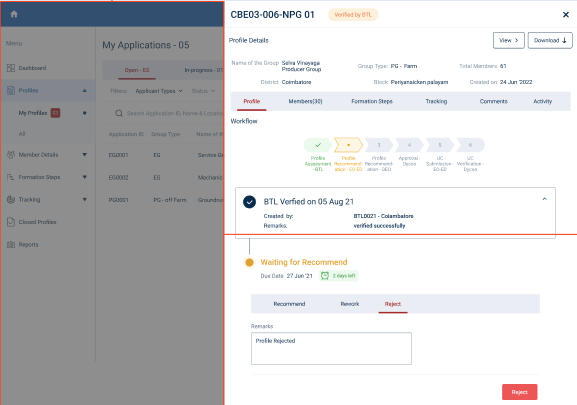
Step 8 : To reject the profile click ‘Reject’
Step 9 : Reject : Enter the rejected reason in the remarks section and click ‘Reject’
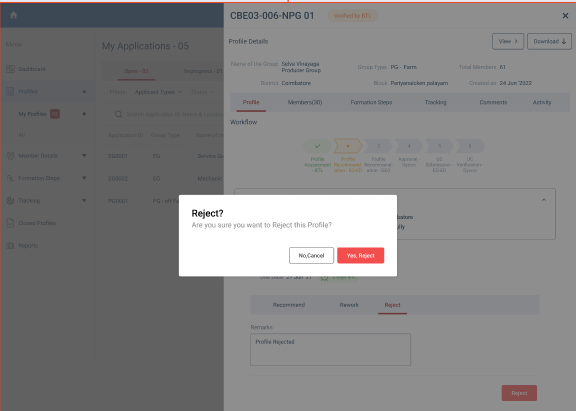
Step 9 : An confirmation popup will appear, If the EO-ED wants to reject the profile click ‘Yes Reject’ or click ‘No Cancel’
Step 10 : Once the EO-ED confirms the profile will be rejected.
7. How to View the Rejected Profile :
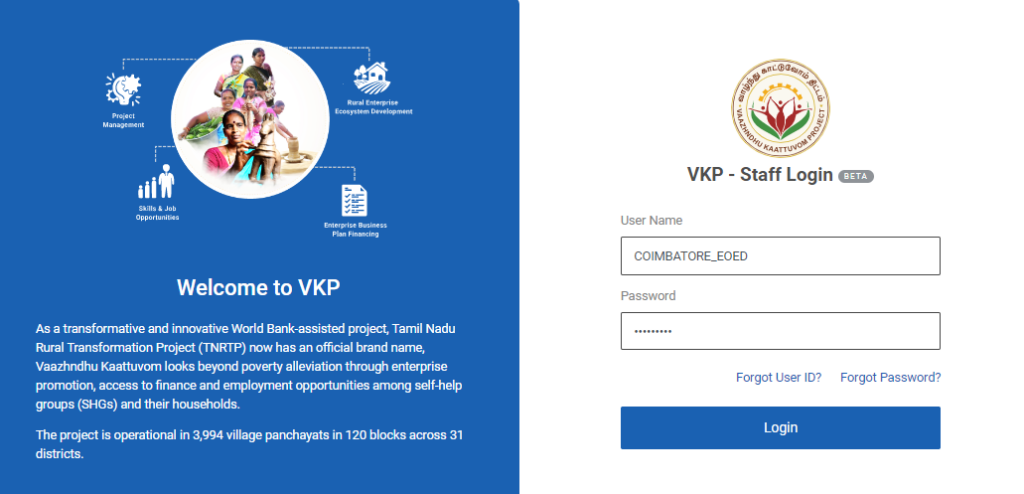
Step 1 : Log in with their respective EO-ED username and password and click Login
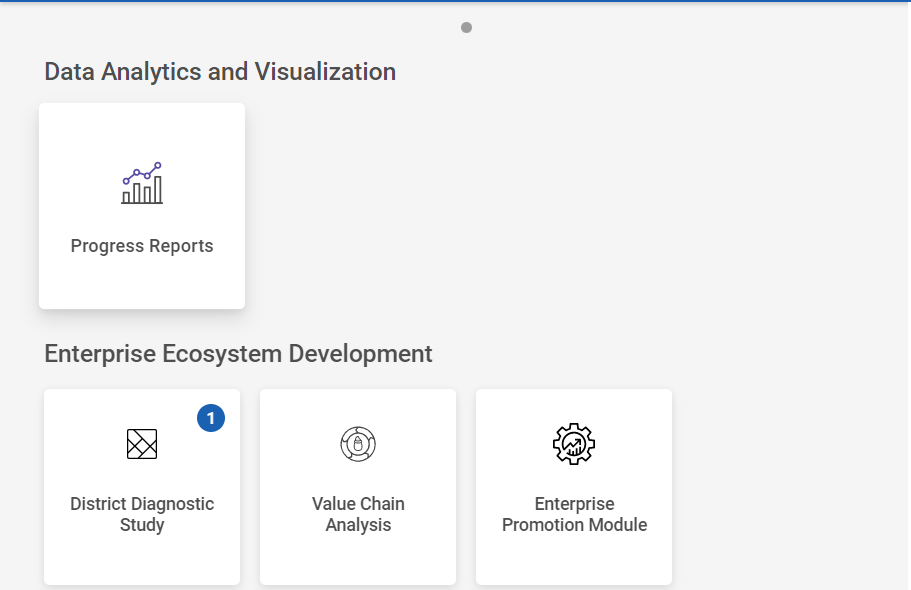
Step 2 : After logging in to the VKP staff portal, select the Enterprise Promotion Module name
Step 3 : After selecting the EPM module, the user will be redirected to the respective home page
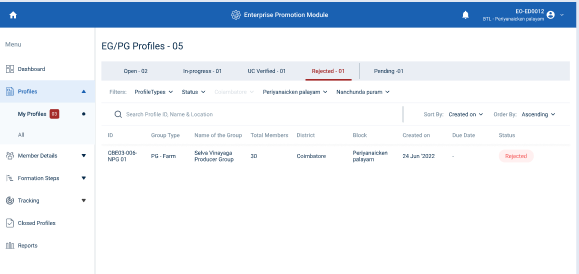
Step 4 : When logged in, click on the ‘Profile’ on the left side menu
Step 5 : To view the rejected profile click the ‘Rejected’ tab under the ‘My Profile’ section.
Step 6 : The EO-ED can view the list of rejected profiles under the tab, Select the profile to view the details more.
8. How to Submit the UC Submission :
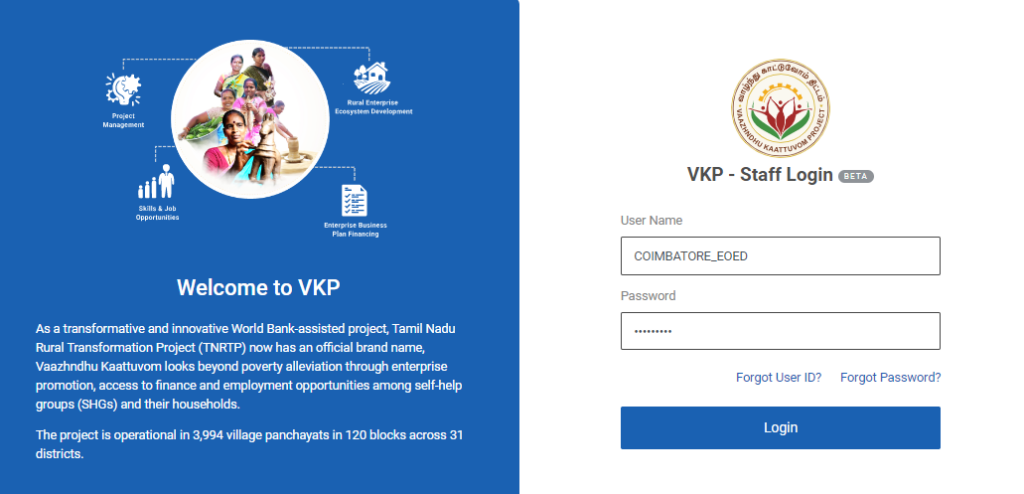
Step 1 : Log in with their respective EO-ED username and password and click Login
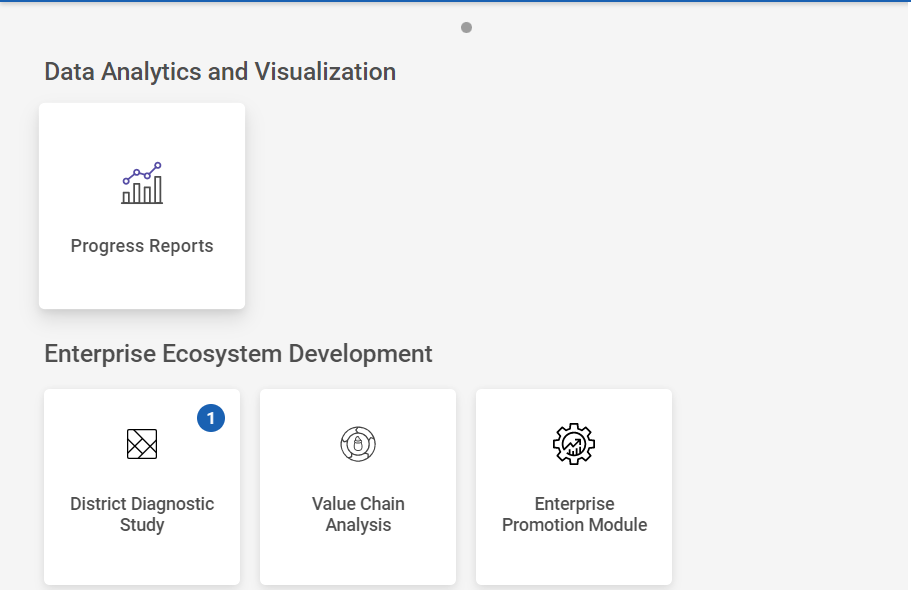
Step 2 : After logging in to the VKP staff portal, select the Enterprise Promotion Module name
Step 3 : After selecting the EPM module, the user will be redirected to the respective home page
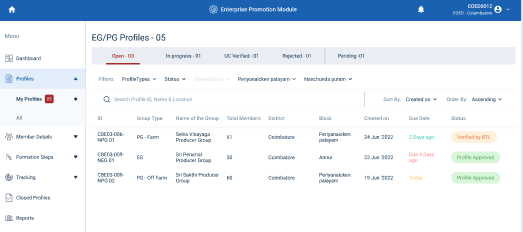
Step 4 : When logged in, click on the ‘Profile’ on the left side menu
Step 5 : On the ‘Profile’ tab, click the ‘My Profile’ tab to view the list of profiles approved by the DYCOO
Step 6 : Upon the profile approved by DYCOO, the list of profiles will appear under the ‘Open’ tab and the status of the applicant will be displayed as ‘Profile Approved’
Step 7 : The DYCOO staff can view the Profile ID, Group Type, Group Name, Total Members, District Name, Block Name, Created Date, Due Date, and current status of the profile in the home page
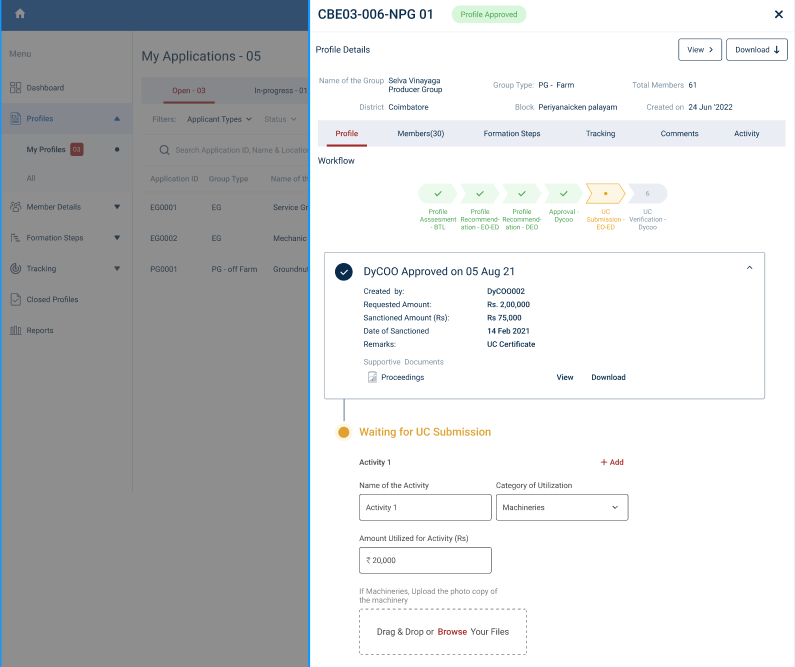
Step 8 : Name of the Activity : Enter the name of the activity
Step 9 : Category of Utilisation : By clicking the dropdown to choose the category of the utilisation
Step 10 : Amount Utilised for Activity : Enter the amount utilised for the activity
Step 11 : If Machineries click ‘Browse’ to upload the copy of the machinery
Step 12 : Click ‘Add’ to add the more activity
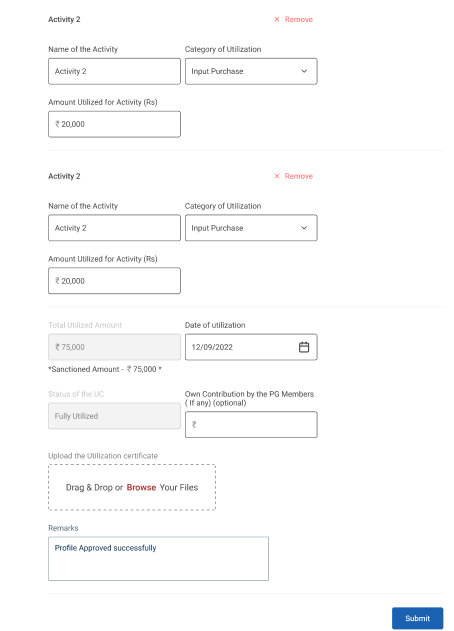
Step 13 : Total Utilised Amount : The total utilised amount will get auto populated based on the data entered in the activity
Step 14 : Date of Utilisation : By clicking the calendar to choose the utilisation date
Step 15 : Status of the UC : The status of the UC will get auto populated based on the utilisation amount
Step 16 : Upload UC Document : Click ‘Browse’ to upload the UC documents
Step 17 : Remarks : Enter the remarks in the remarks section and click ‘Submit’
Step 18 : Once the EO-ED upload the UC document and remarks click ‘Submit UC’
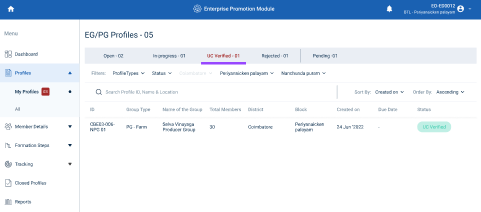
Step 11 : Once the EO-ED submitted the status of the application changed from ‘Profile Approved’ to ‘UC Submitted’ and the application is moved from ‘Open’ to ‘Inprogress’ tab
9. How to View the UC Submitted Profile :
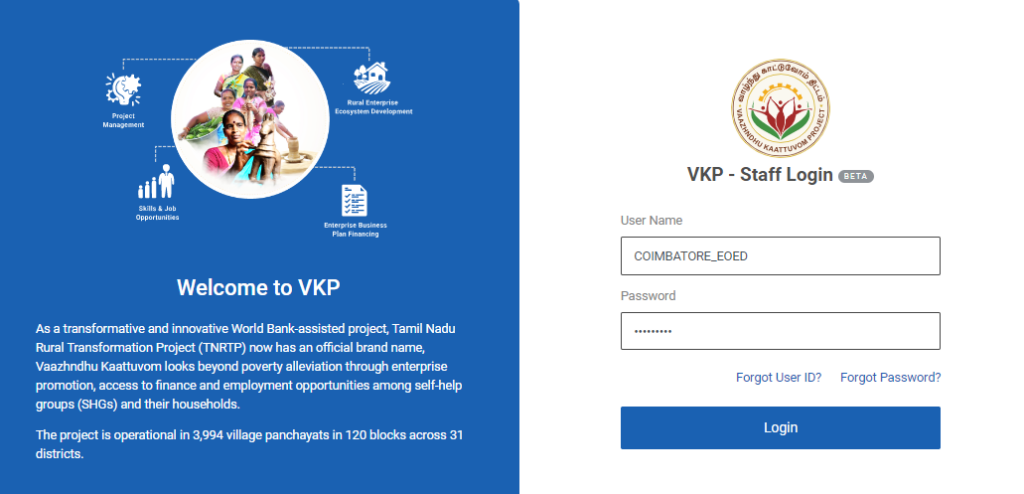
Step 1 : Log in with their respective EO-ED username and password and click Login
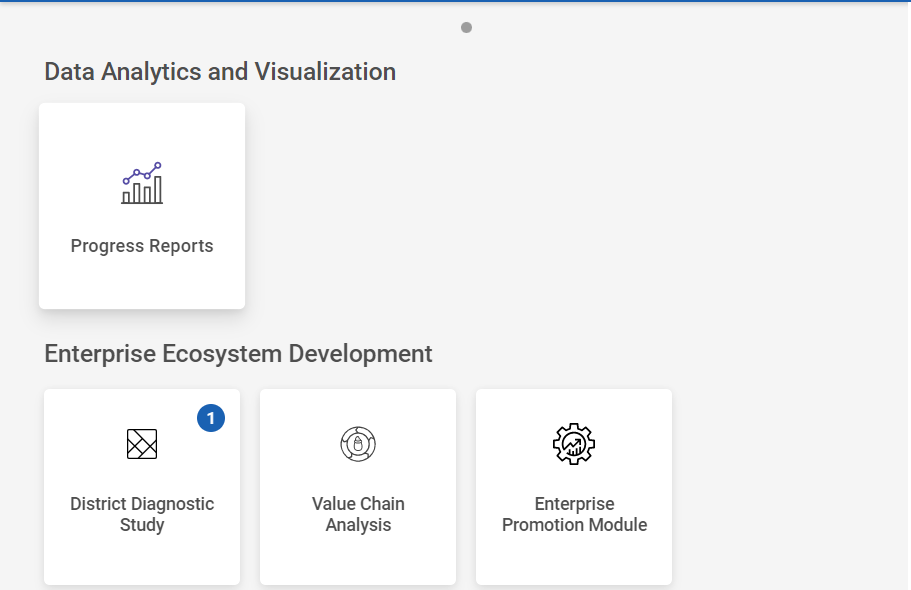
Step 2 : After logging in to the VKP staff portal, select the Enterprise Promotion Module name
Step 3 : After selecting the EPM module, the user will be redirected to the respective home page
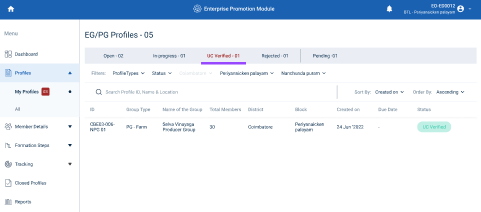
Step 4 : When logged in, click on the ‘Profile’ on the left side menu
Step 5 : To view the UC Verified profile click the ‘UC Verified’ tab under the ‘My Profile’ section.
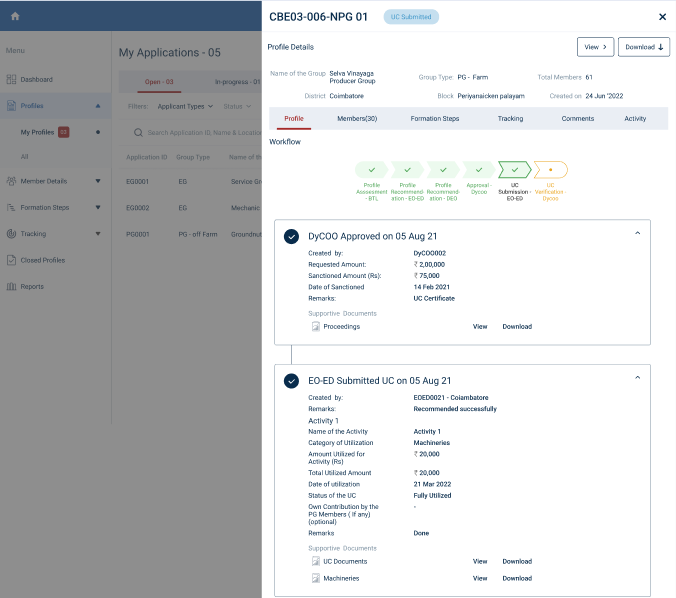
Step 6 : The EO-ED can view the list of UC Verified profiles under the tab, Select the profile to view the details more.Click ‘View’ to view the profile and click ‘Download’ to download the profile as PDF
10. How to Send the Rework for the UC Submission Profile :
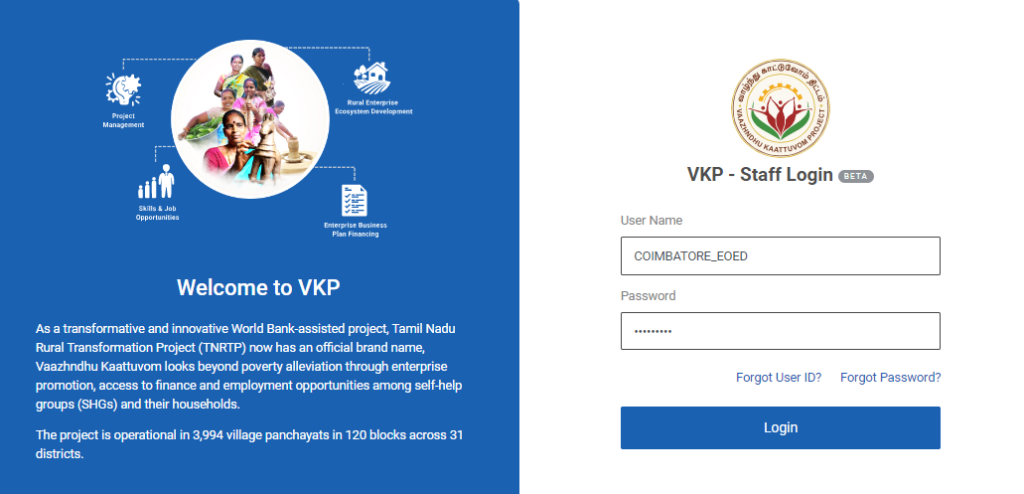
Step 1 : Log in with their respective EO-ED username and password and click Login
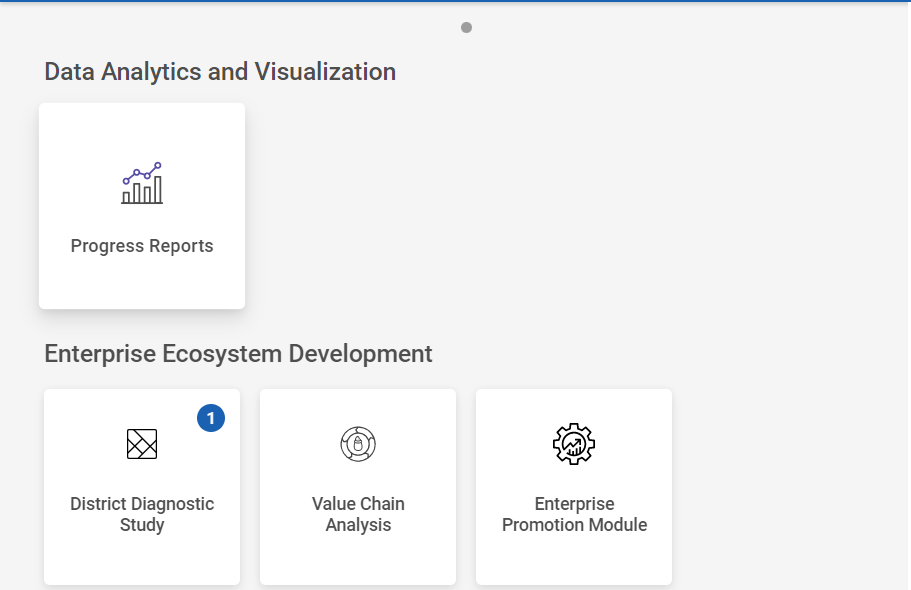
Step 2 : After logging in to the VKP staff portal, select the Enterprise Promotion Module name
Step 3 : After selecting the EPM module, the user will be redirected to the respective home page
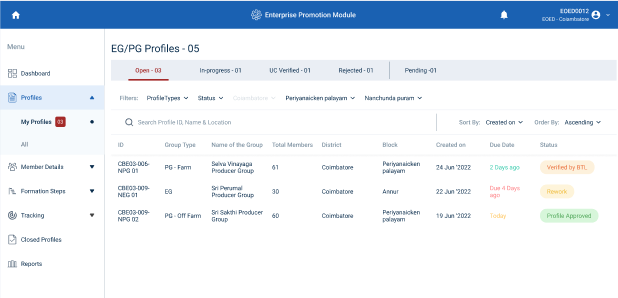
Step 4 : When logged in, click on the ‘Profile’ on the left side menu
Step 5 : On the ‘Profile’ tab, click the ‘My Profile’ tab to view the list of profiles
Step 6 : To send the rework of the profile, Select the profile and for a detailed view, select the profile and the EO-ED can view the profile details, workflow tracker details
Step 7 : Once the profile has been sent rework by the DCOO, the profile will be reworked and UC submitted by the EO-ED.
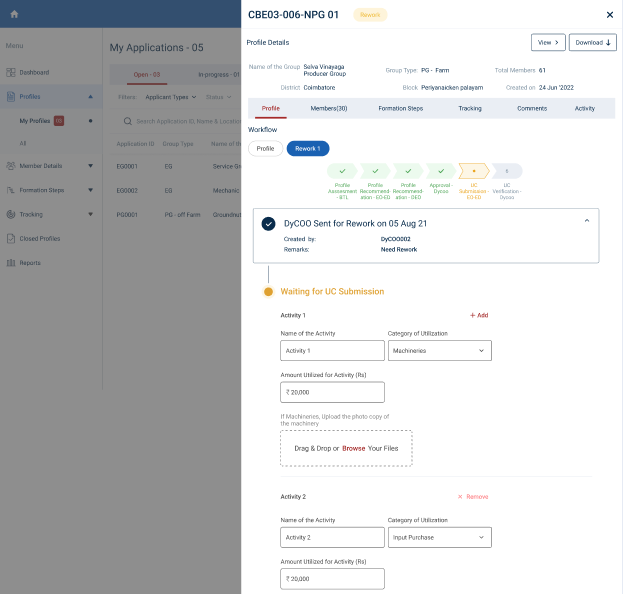
Step 8 : Name of the Activity : Enter the name of the activity
Step 9 : Category of Utilisation : By clicking the dropdown to choose the category of the utilisation
Step 10 : Amount Utilised for Activity : Enter the amount utilised for the activity
Step 11 : If Machineries click ‘Browse’ to upload the copy of the machinery
Step 12 : Click ‘Add’ to add the more activity
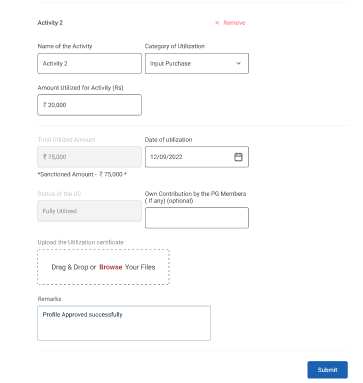
Step 13 : Total Utilised Amount : The total utilised amount will get auto populated based on the data entered in the activity
Step 14 : Date of Utilisation : By clicking the calendar to choose the utilisation date
Step 15 : Status of the UC : The status of the UC will get auto populated based on the utilisation amount
Step 16 : Upload UC Document : Click ‘Browse’ to upload the UC documents
Step 17 : Remarks : Enter the remarks in the remarks section and click ‘Submit’
Step 18 : Once the EO-ED submit the profile the status of the application has changed from ‘Rework’ to ‘Reworked’
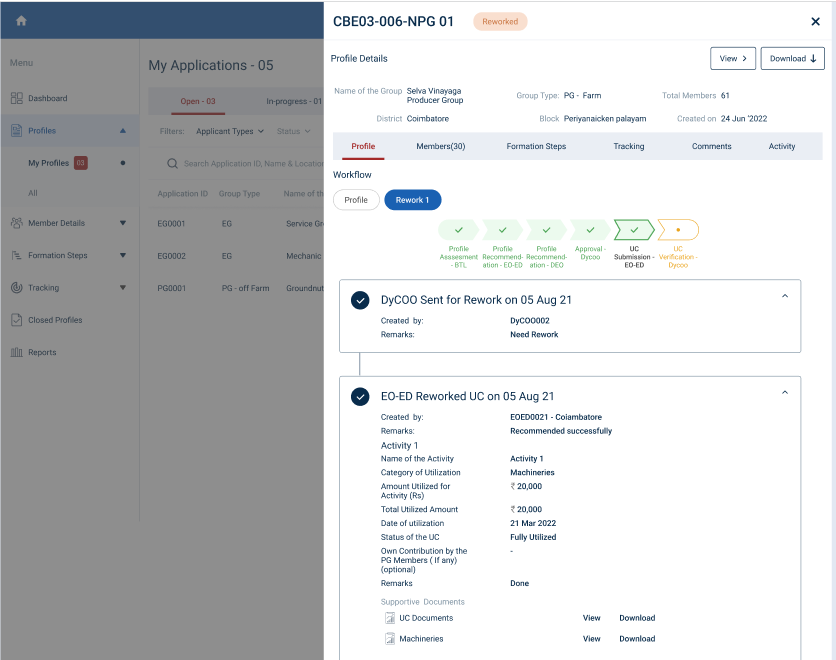
Step 19 : To view the reworked profile select the profile and view the reworked profile in detail
11. How to Approve the Monthly Tracking Capturing Details :
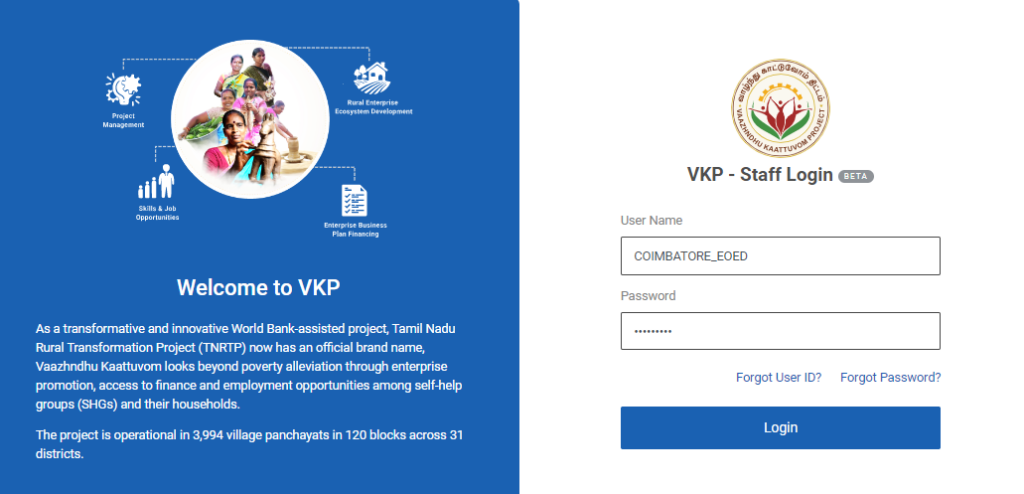
Step 1 : Log in with their respective EO-ED username and password and click Login
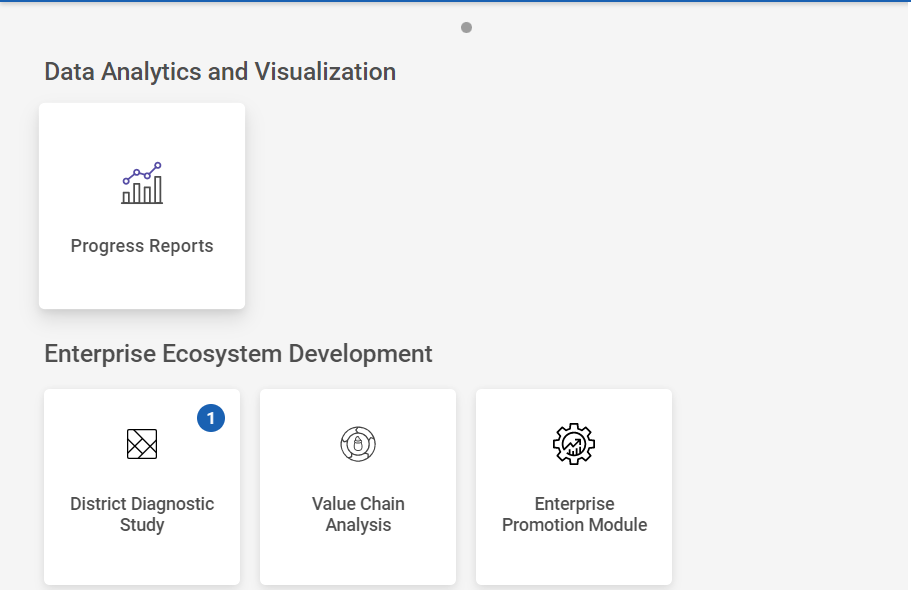
Step 2 : After logging in to the VKP staff portal, select the Enterprise Promotion Module name
Step 3 : After selecting the EPM module, the user will be redirected to the respective home page
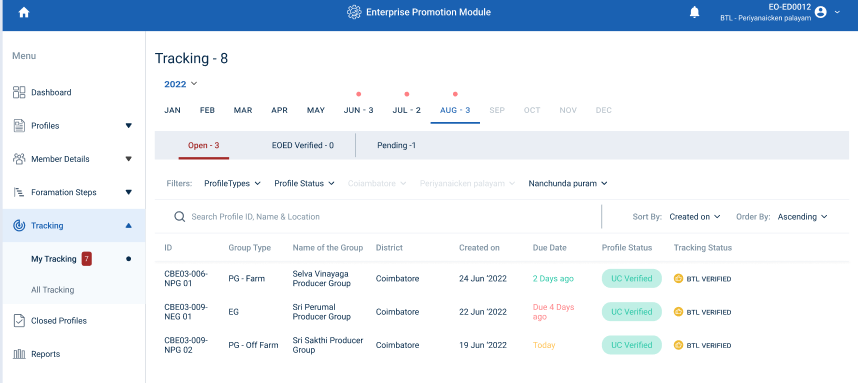
Step 4 : When logged in, click on the ‘Tracking’ on the left side menu
Step 5 : On the ‘Open’ tab, click the ‘My Tracking’ tab to view the list of monthly tracking details reworked or verified by the BTL and view the status of the tracking details as ‘BTL Verified’
Step 6 : Select the profile that has been updated with monthly capture details verified by the BTL.
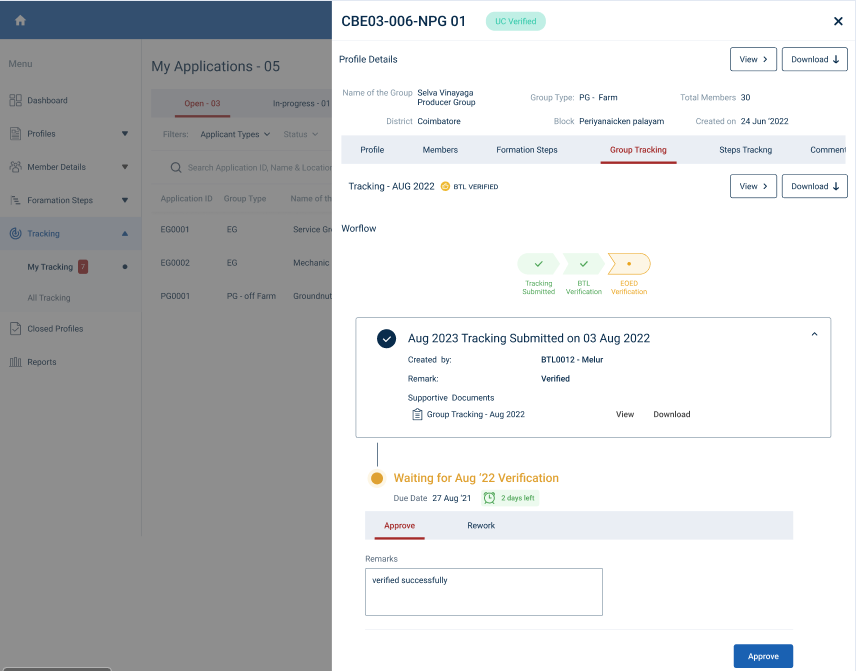
Step 7 : Select the ‘Group Tracking’, Once the EO-ED has selected the group tracking the EO-ED can view the workflow details
Step 8 : To approve the tracking details click ‘Approve’
Step 9 : Remarks : Enter the remarks in the remarks section
Step 10 : Once the EO-ED entered the remarks and click ‘Approve’
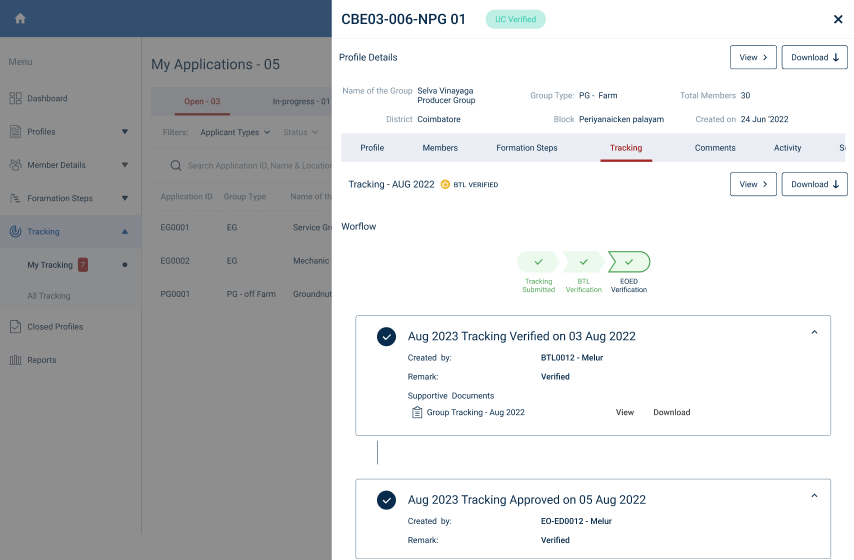
Step 10 : Once the EO-ED has approved the tracking the status of the application has changed from ‘BTL Verified’ to ‘EO-ED Verified’ and the tracking has moved from the ‘Open’ to ‘EO-ED Verified’
12. How to Send Rework to the Monthly Tracking Capturing Details :
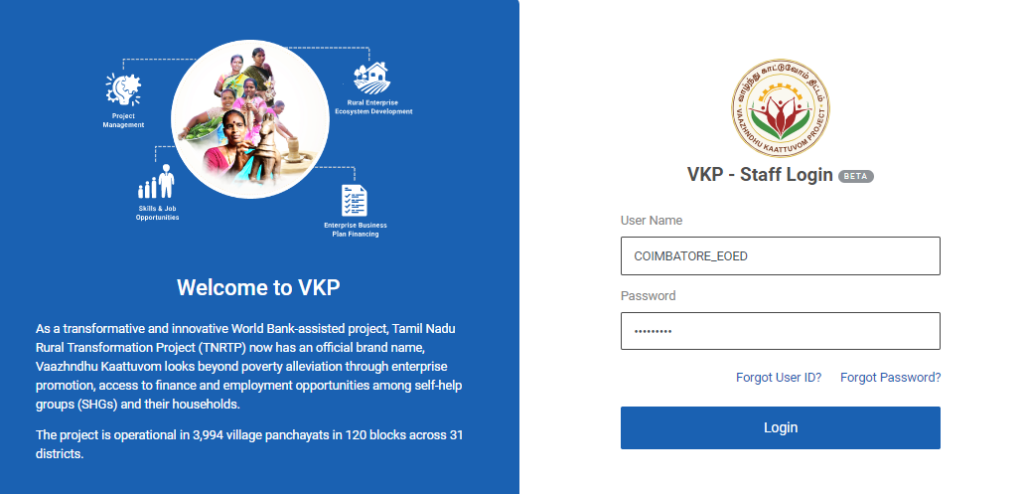
Step 1 : Log in with their respective EO-ED username and password and click Login
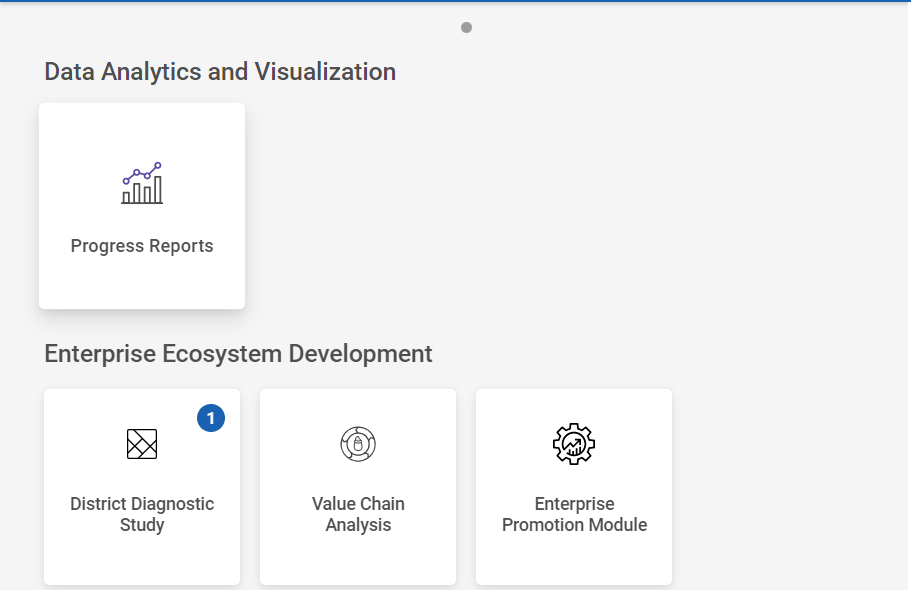
Step 2 : After logging in to the VKP staff portal, select the Enterprise Promotion Module name
Step 3 : After selecting the EPM module, the user will be redirected to the respective home page
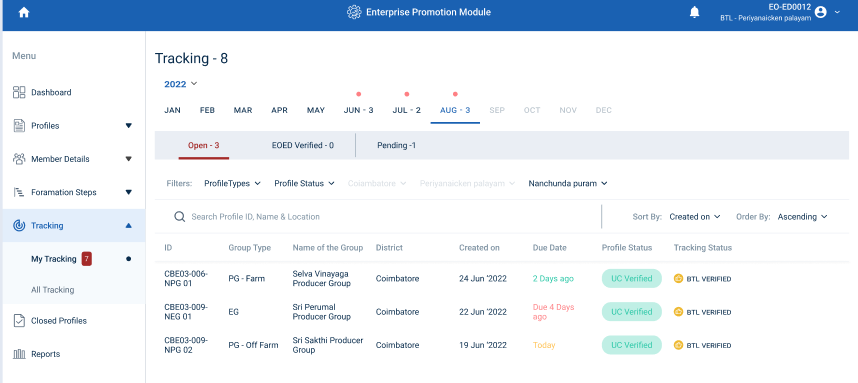
Step 4 : When logged in, click on the ‘Tracking’ on the left side menu
Step 5 : On the ‘Open’ tab, click the ‘My Tracking’ tab to view the list of monthly tracking details reworked or verified by the BTL and view the status of the tracking details as ‘BTL Verified’
Step 6 : Select the profile that has been updated with monthly capture details verified by the BTL.
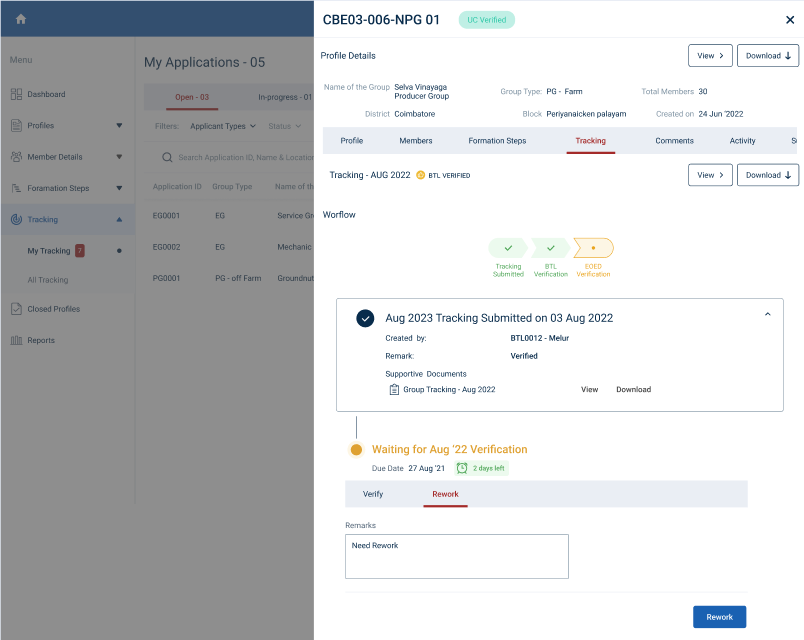
Step 7 : To rework the monthly tracking, click ‘Rework’ and enter the remarks in the remarks section
Step 8 : Once the remarks entered by the EO-ED, click ‘Send for Rework’ and a confirmation popup will appear if the EO-ED is given the tracking to rework then click ‘Confirm’ or choose ‘No’ the reworked profile will be sent to ECP.
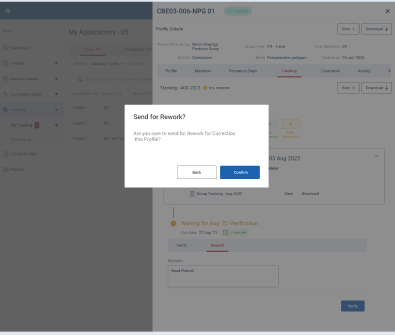
Step 9 : Once the BTL send rework the status of the profile has changed from ‘BTL Verified’ to ‘Rework’
13. How EO-ED Verify/Reworked the Monthly Tracking Capturing Details :
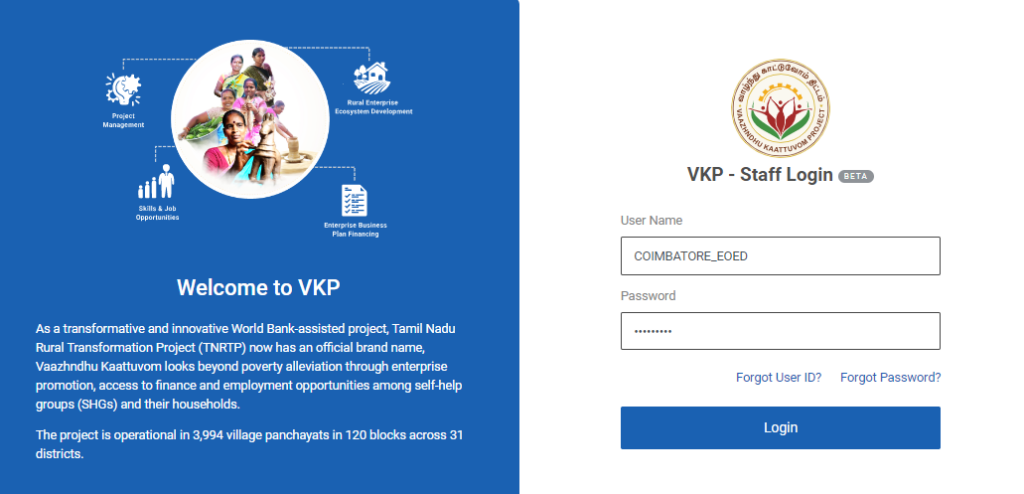
Step 1 : Log in with their respective EO-ED username and password and click Login
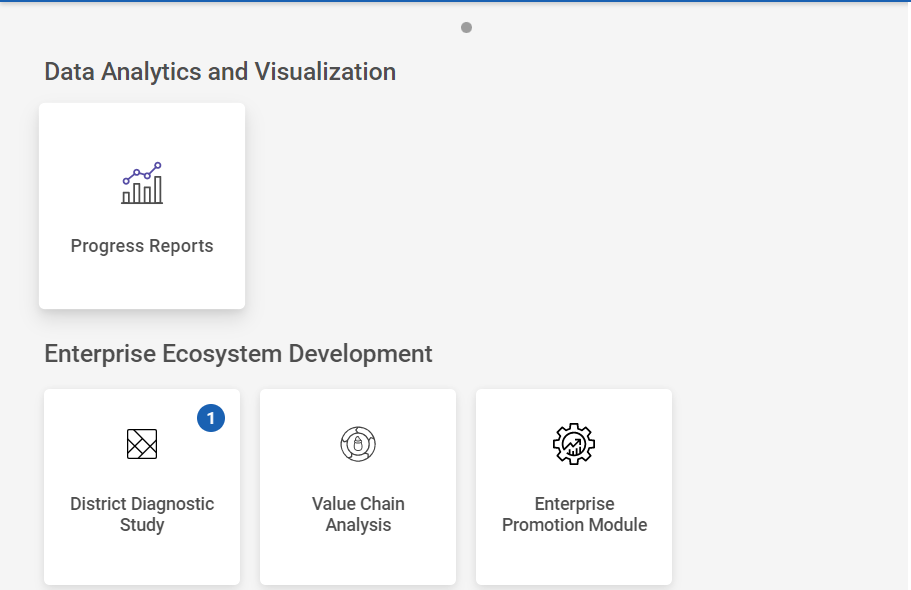
Step 2 : After logging in to the VKP staff portal, select the Enterprise Promotion Module name
Step 3 : After selecting the EPM module, the user will be redirected to the respective home page
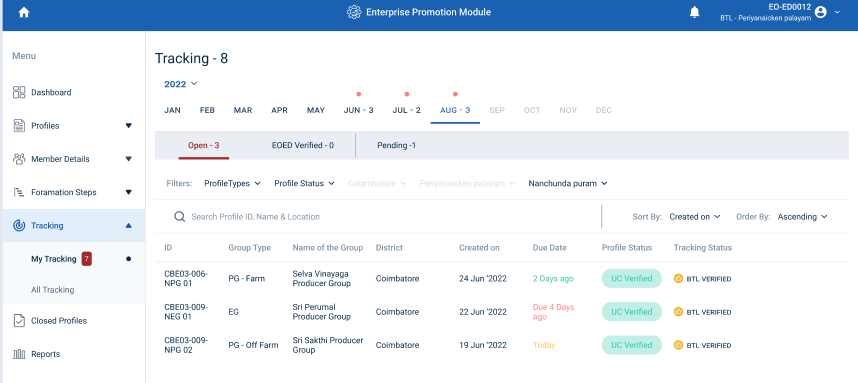
Step 4 : When logged in, click on the ‘Tracking’ on the left side menu
Step 5 : On the ‘Open’ tab, click the ‘My Tracking’ tab to view the list of monthly tracking details reworked or verified by the BTL and view the status of the tracking details as ‘BTL Verified’
Step 6 : To view the reworked profile, select the profile that has been reworked by the ECP
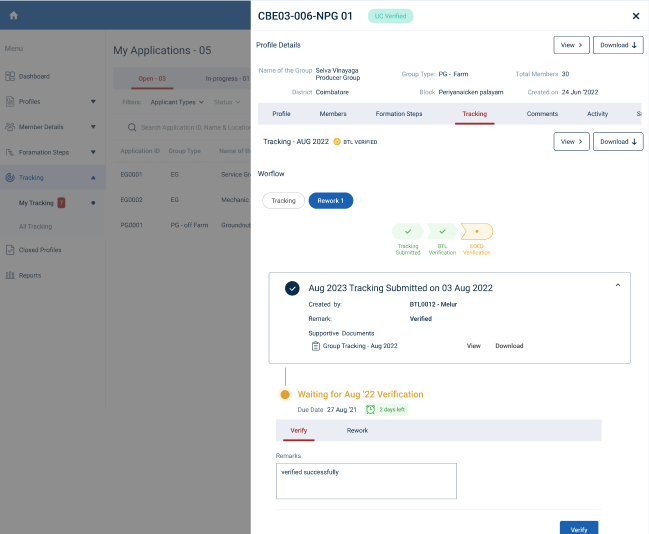
Step 7 : Once the profile has been reworked by the ECP, click the Tracking menu under the profile tracker the EO-ED can view the list of profile reworked by the ECP and the EO-ED can view the reworked fields in detail
Step 8 : If the rework profile can verify the EO-ED click ‘Verify’ to verify the reworked profile or if the EO-ED wish to rework the profile click ‘Rework’ and send the profile for the rework
14. How EO-ED Check the Pending Monthly Tracking Capturing Details :
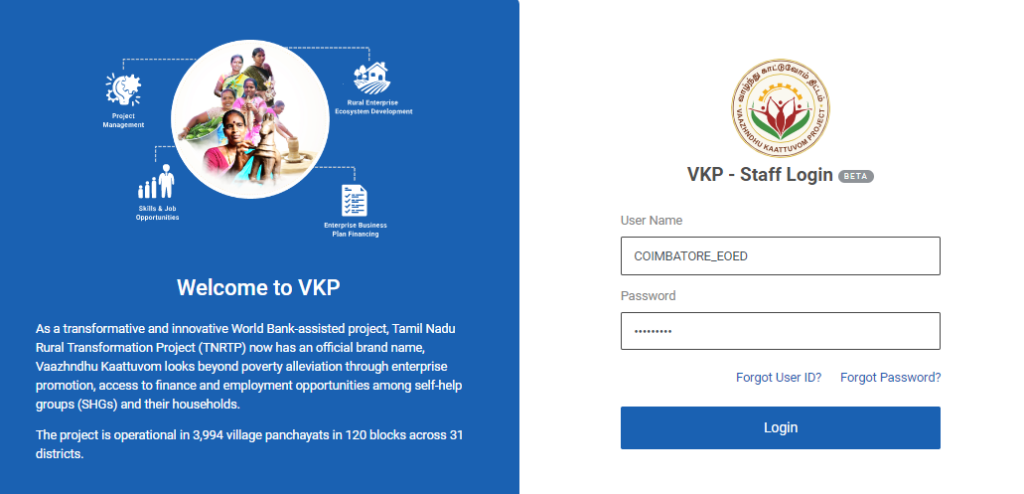
Step 1 : Log in with their respective EO-ED username and password and click Login
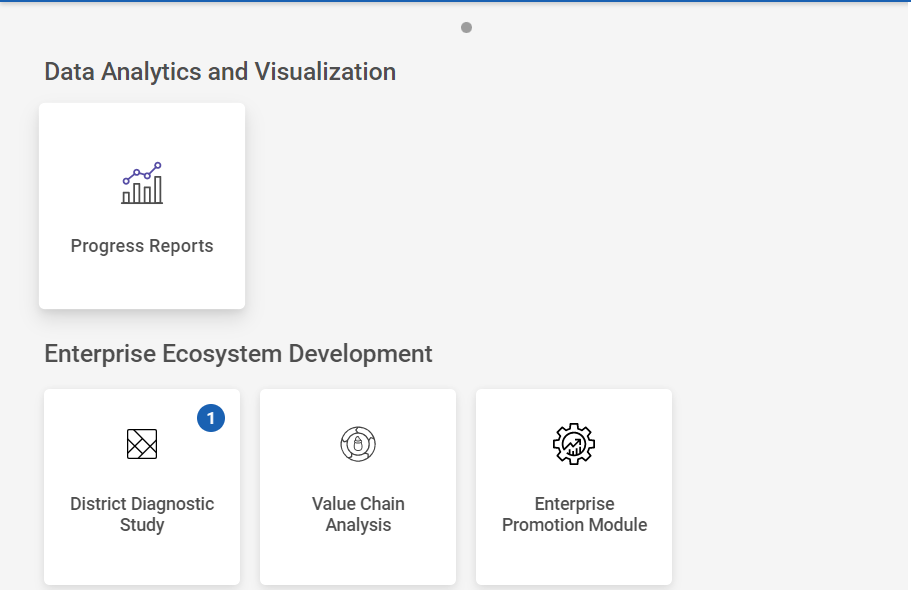
Step 2 : After logging in to the VKP staff portal, select the Enterprise Promotion Module name
Step 3 : After selecting the EPM module, the user will be redirected to the respective home page
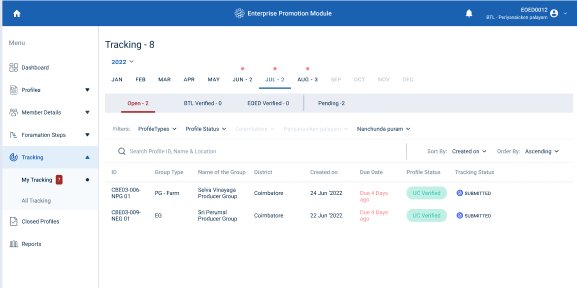
Step 4 : When logged in, click on the ‘Tracking’ on the left side menu
Step 5 : On the ‘Pending’ tab, click the ‘My Tracking’ tab to view the list of pending monthly tracking details reworked or Verified by the BTL and view the status of the tracking details
Step 6 : To view the pending profile, select the profile that has been pending by the EO-ED
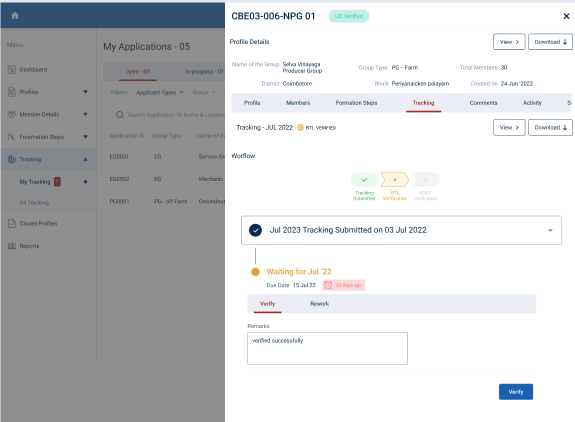
Step 7 : Once the profile has been forwarded by the ECP, click the Tracking menu under the profile tracker the EO-ED can view the list of profile forwarded by the ECP
Step 8 : If the forwarded profile can verify the EO-ED click ‘Verify’ to verify the reworked profile or if the EO-ED wish to rework the profile click ‘Rework’ and send the profile for the rework
15. How to Verify Level 1 Formation Steps EG :
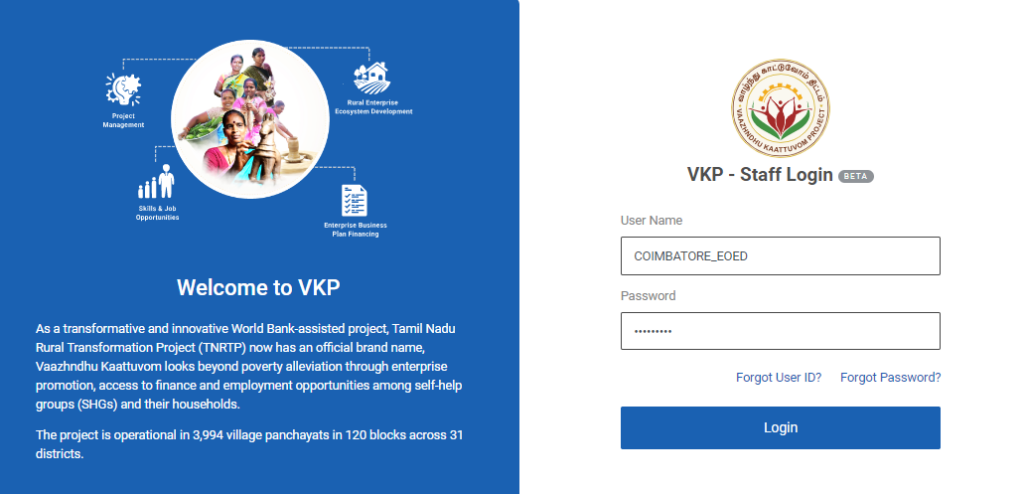
Step 1 : Log in with their respective EO-ED username and password and click Login
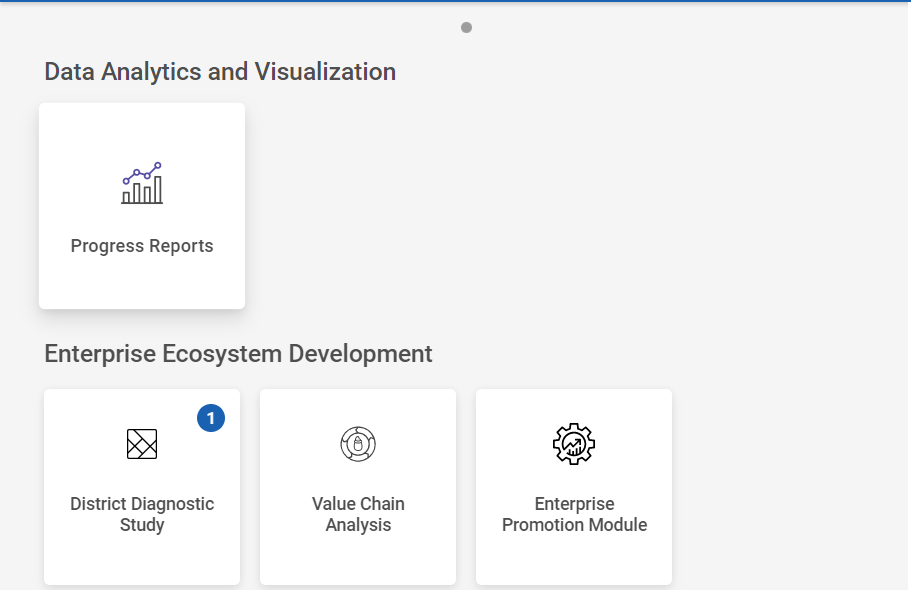
Step 2 : After logging in to the VKP staff portal, select the Enterprise Promotion Module name
Step 3 : After selecting the EPM module, the user will be redirected to the respective home page
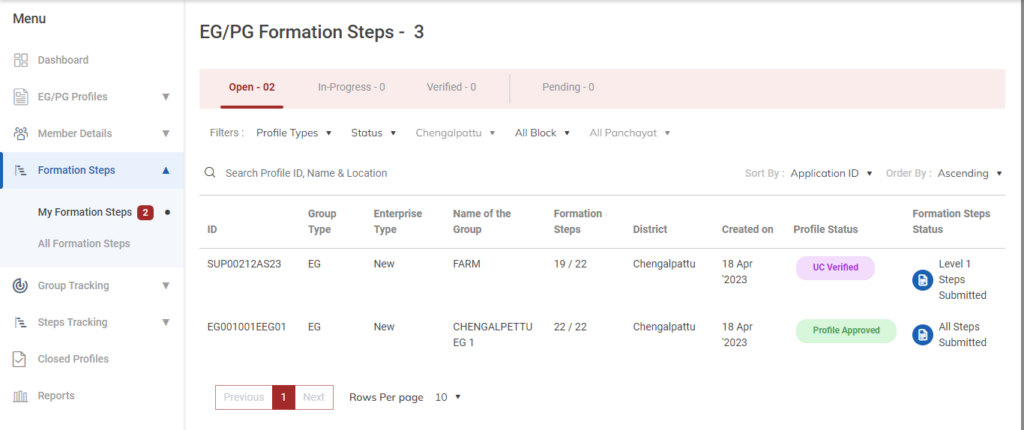
Step 4 : When logged in, click on the ‘Formation Steps’ on the left side menu
Step 5 : On the ‘Open’ tab, click the ‘My Formation Steps’ tab to view the list of Level 1 steps submitted or reworked by the BTL and view the status of the formation steps
Step 6 : To Verify profile, select the profile it will get redirected to the respective profile detail page
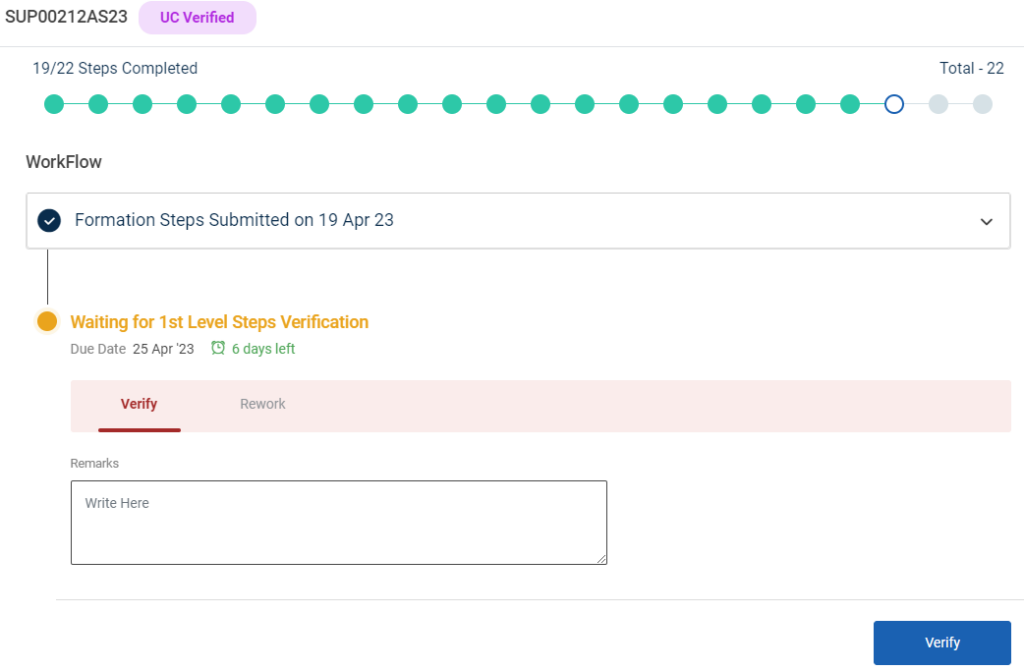
Step 7 : To verify the formation steps profile click ‘Verify’ and enter the remarks in the remarks section
Step 8 : Once the EO-ED entered the remarks click ‘Verify’ and the toast message like ‘Formation Steps Level 1 Verified Successfully’ and the status of the profile has changed from ‘Open’ to ‘Inprogress’ status of the steps has changed from ‘Level 1 Steps Verified’
16. How to View the Verified Level 1 Formation Steps EG :
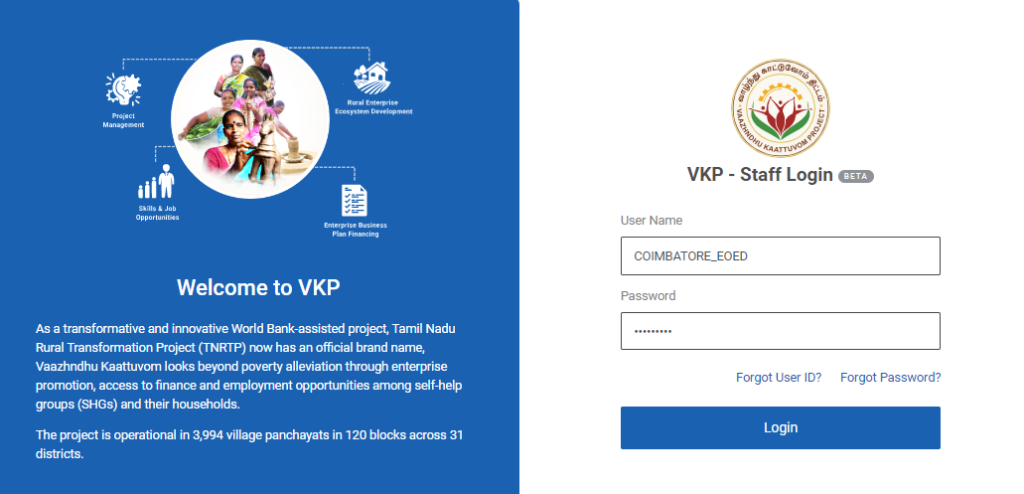
Step 1 : Log in with their respective EO-ED username and password and click Login
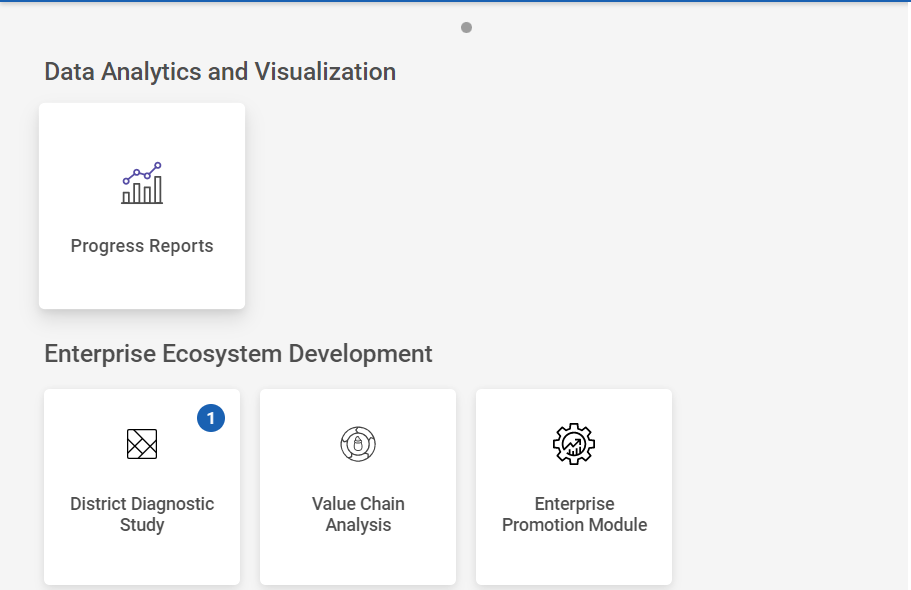
Step 2 : After logging in to the VKP staff portal, select the Enterprise Promotion Module name
Step 3 : After selecting the EPM module, the user will be redirected to the respective home page
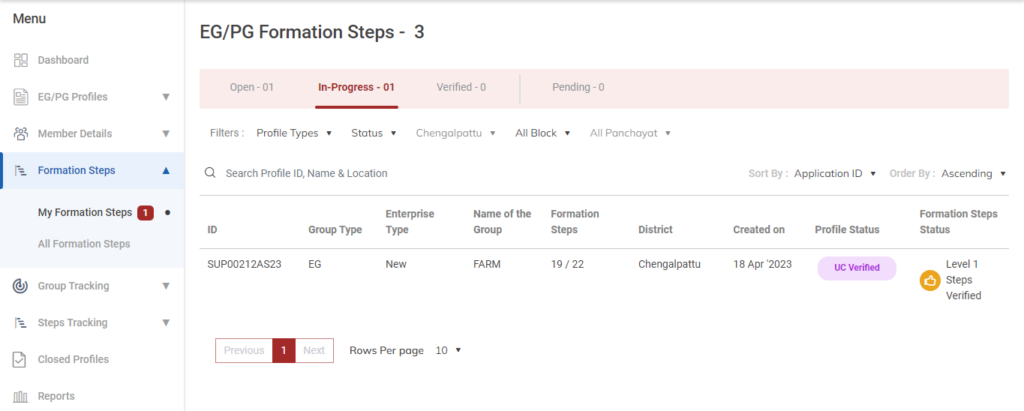
Step 4 : When logged in, click on the ‘Formation Steps’ on the left side menu
Step 5 : On the ‘Inprogress’ tab, click the ‘My Formation Steps’ tab to view the list of verified Level 1 steps verified by the EO-ED and view the status of the formation steps
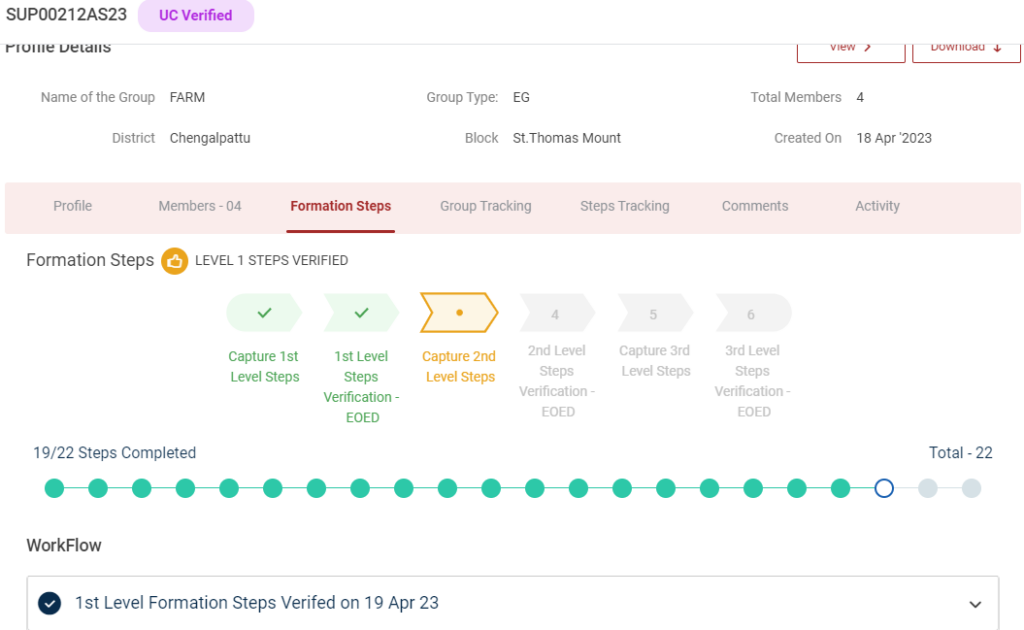
Step 6 : Select the profile to view the application details more
16. How to Verify Level 2 Formation Steps EG :
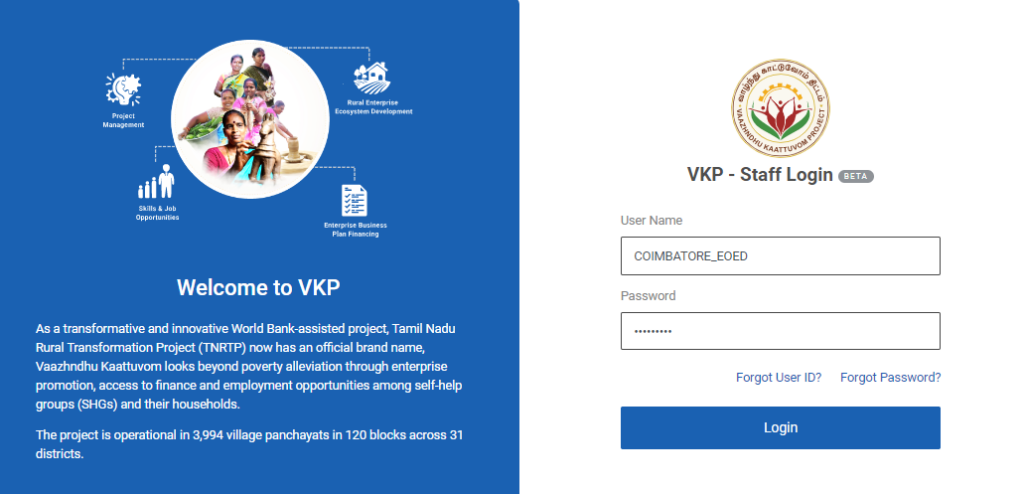
Step 1 : Log in with their respective EO-ED username and password and click Login
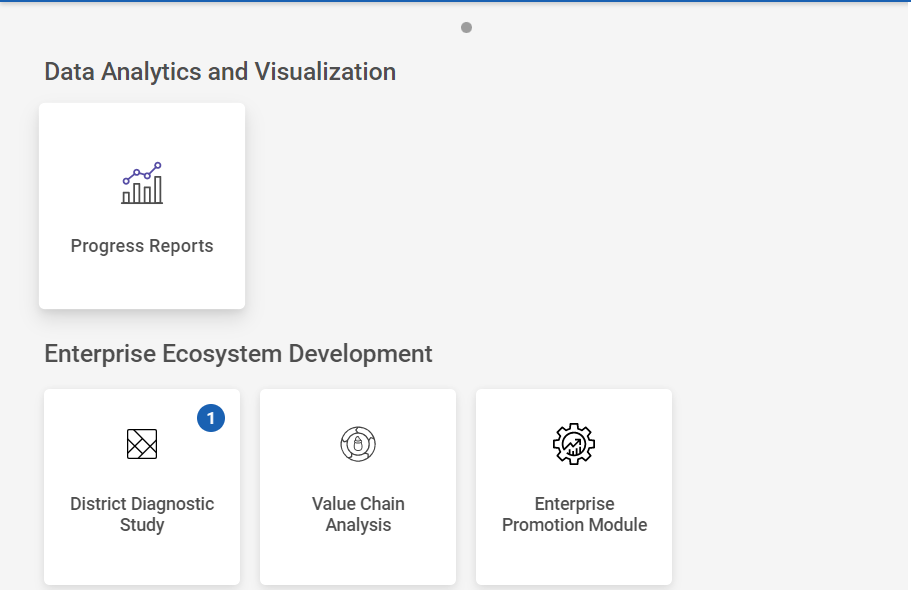
Step 2 : After logging in to the VKP staff portal, select the Enterprise Promotion Module name
Step 3 : After selecting the EPM module, the user will be redirected to the respective home page
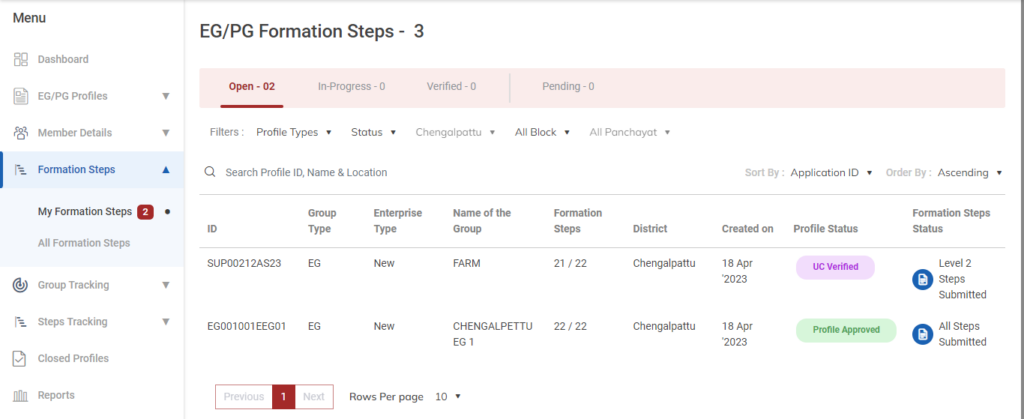
Step 4 : When logged in, click on the ‘Formation Steps’ on the left side menu
Step 5 : On the ‘Open’ tab, click the ‘My Formation Steps’ tab to view the list of Level 2 steps submitted or reworked by the BTL and view the status of the formation steps
Step 6 : To Verify profile, select the profile it will get redirected to the respective profile detail page
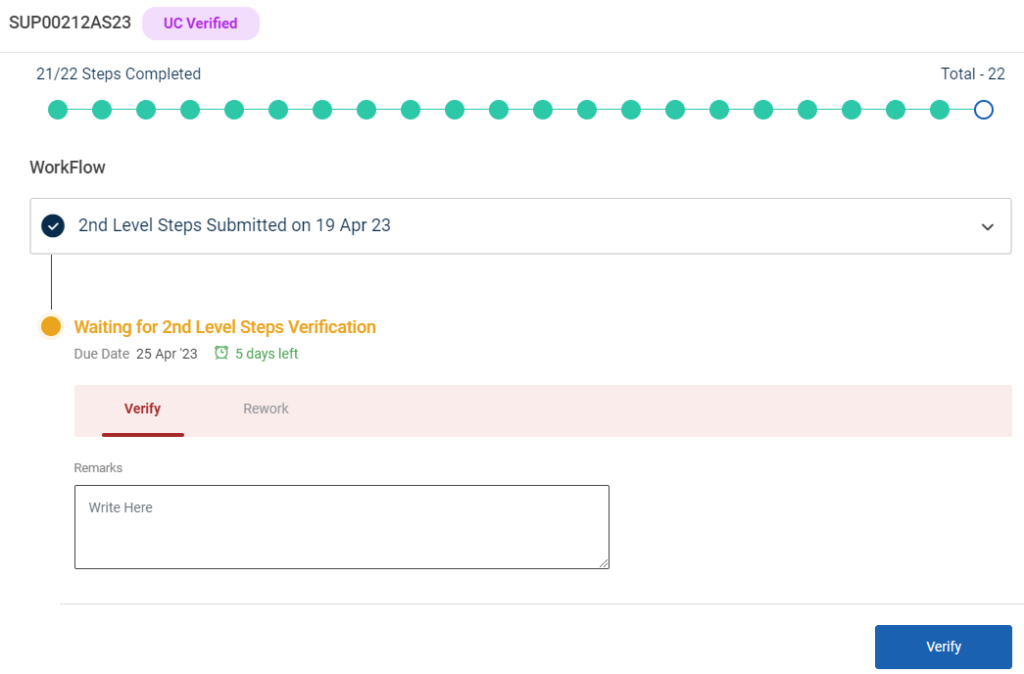
Step 7 : To verify the formation steps profile click ‘Verify’ and enter the remarks in the remarks section
Step 8 : Once the EO-ED entered the remarks click ‘Verify’ and the toast message like ‘Formation Steps Level 2 Verified Successfully’ and the status of the profile has changed from ‘Open’ to ‘Inprogress’ status of the steps has changed from ‘Level 2 Steps Verified’
18. How to View the Verified Level 2 Formation Steps EG :
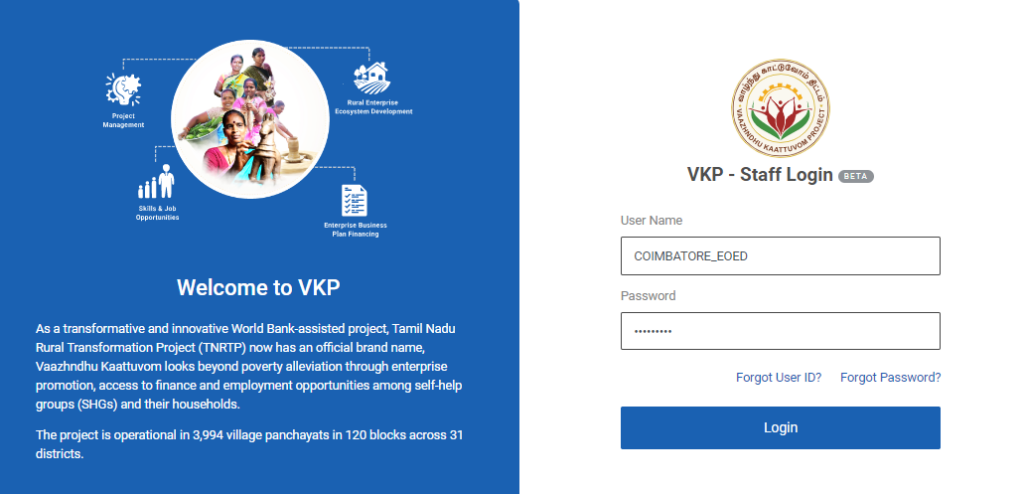
Step 1 : Log in with their respective EO-ED username and password and click Login
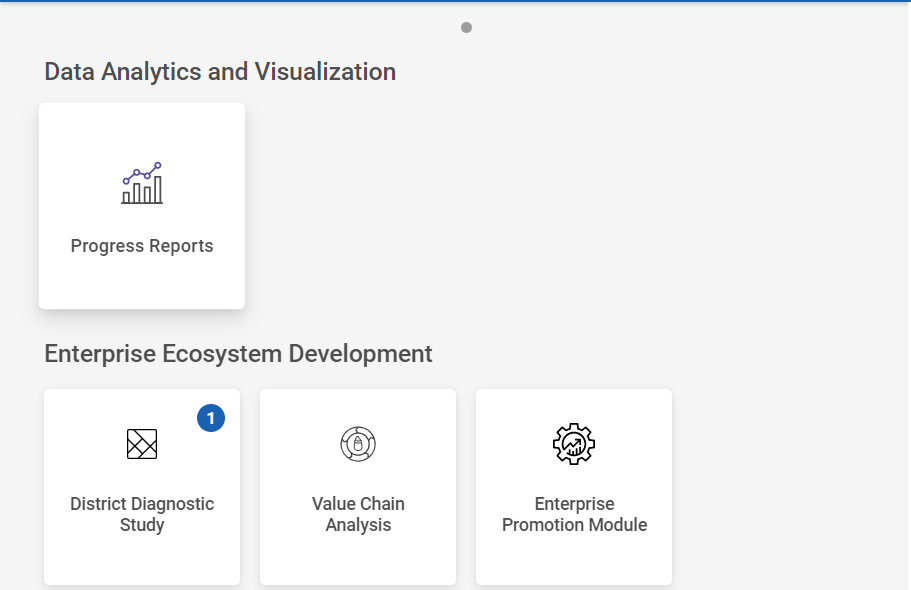
Step 2 : After logging in to the VKP staff portal, select the Enterprise Promotion Module name
Step 3 : After selecting the EPM module, the user will be redirected to the respective home page
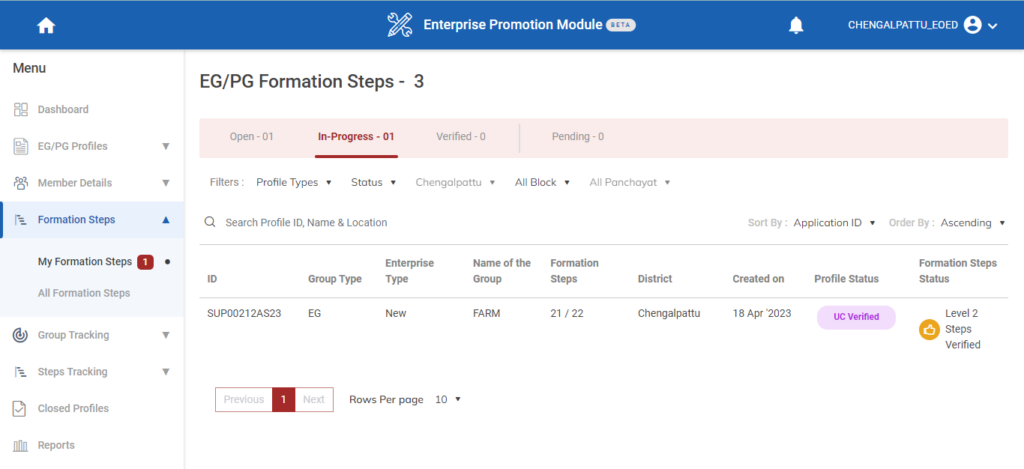
Step 4 : When logged in, click on the ‘Formation Steps’ on the left side menu
Step 5 : On the ‘Inprogress’ tab, click the ‘My Formation Steps’ tab to view the list of verified Level 2 steps verified by the EO-ED and view the status of the formation steps
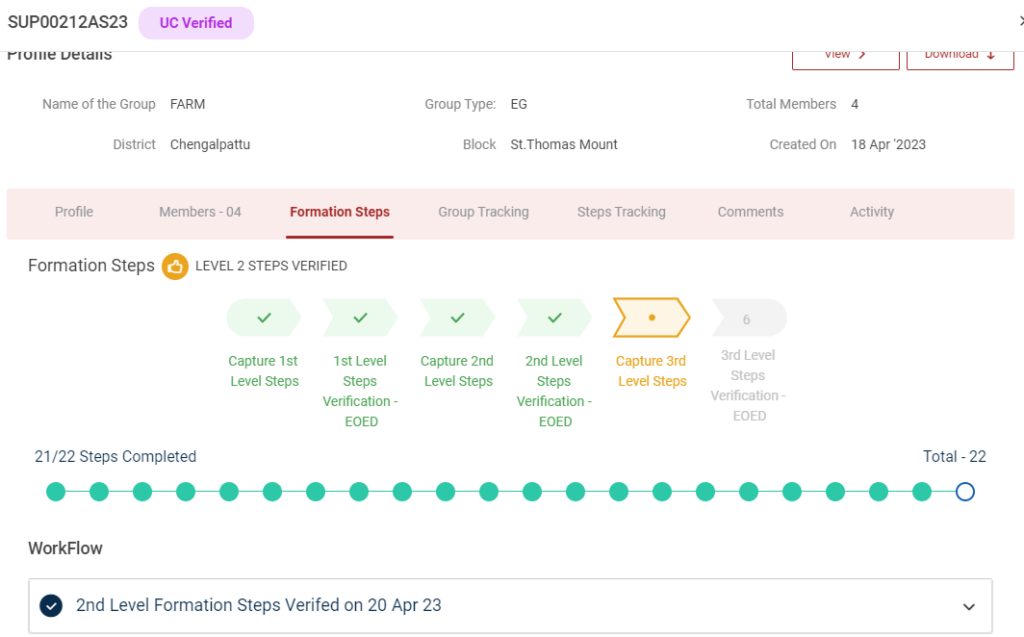
Step 6 : Select the profile to view the application details more
19. How to Send Rework to Level 3 Formation Steps EG :
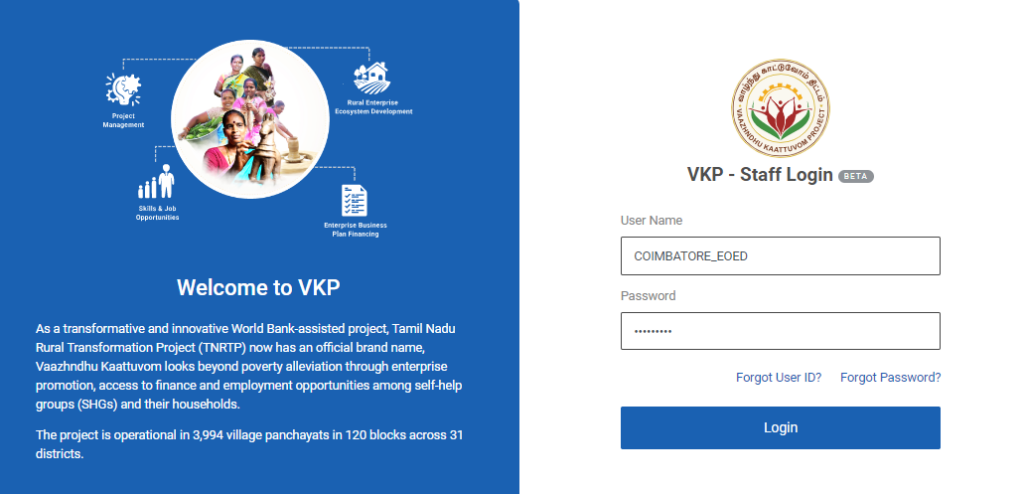
Step 1 : Log in with their respective EO-ED username and password and click Login
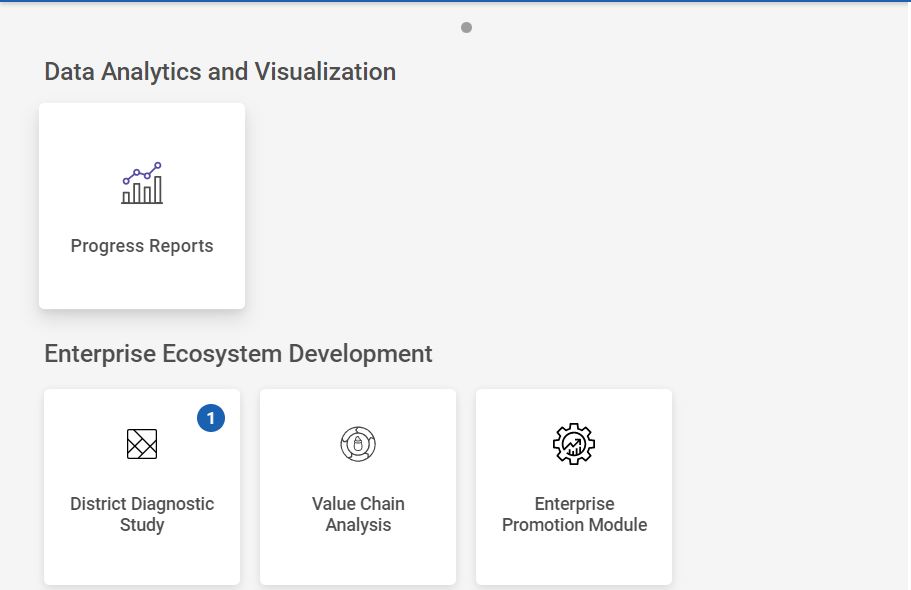
Step 2 : After logging in to the VKP staff portal, select the Enterprise Promotion Module name
Step 3 : After selecting the EPM module, the user will be redirected to the respective home page
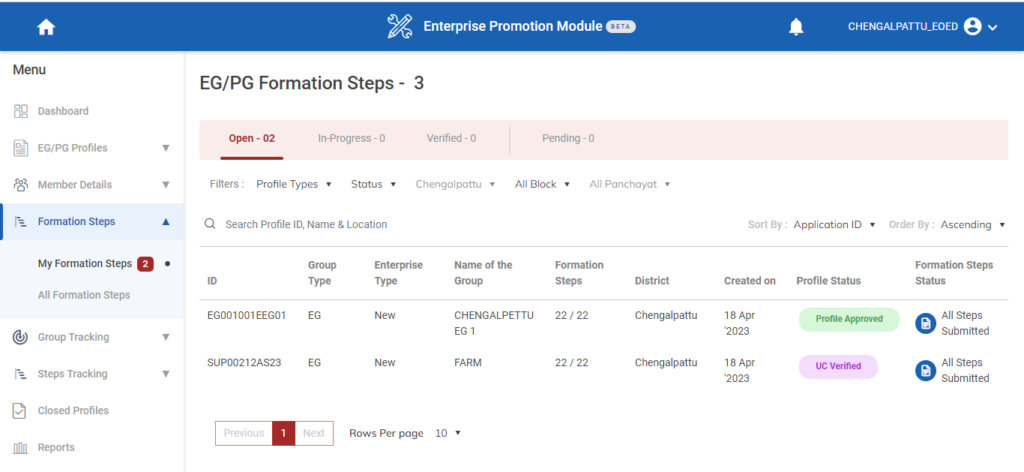
Step 4 : When logged in, click on the ‘Formation Steps’ on the left side menu
Step 5 : On the ‘Open’ tab, click the ‘My Formation Steps’ tab to view the list of All steps submitted or reworked by the BTL and view the status of the formation steps
Step 6 : To send rework profile, select the profile it will get redirected to the respective profile detail page
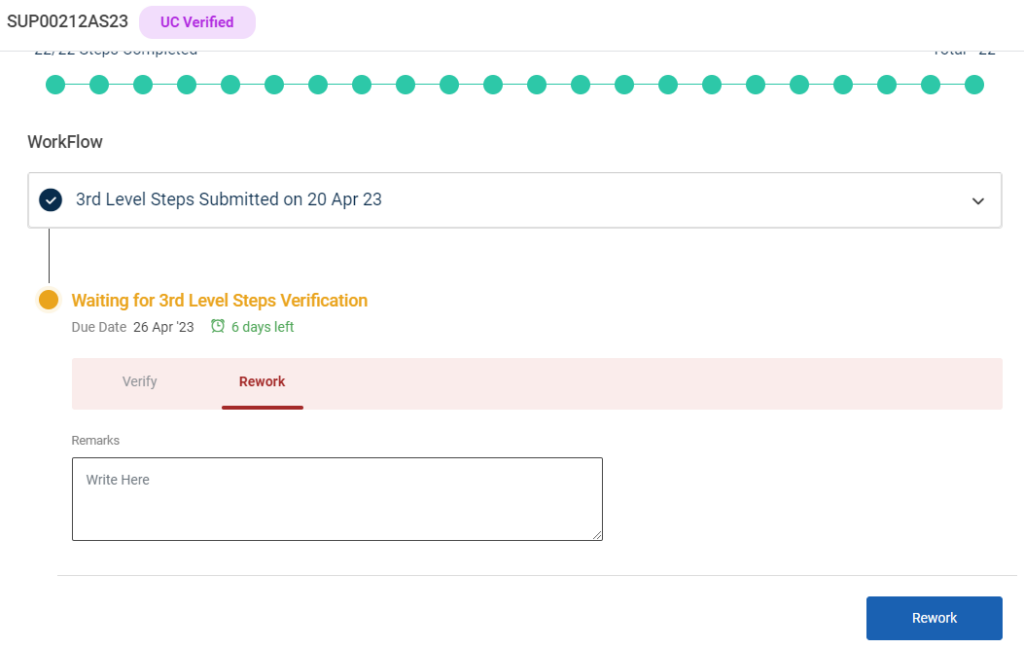
Step 7 : Click ‘Rework’ and enter the remarks in the remarks section
Step 8 : Once the EO-ED has entered the remarks click ‘Rework’
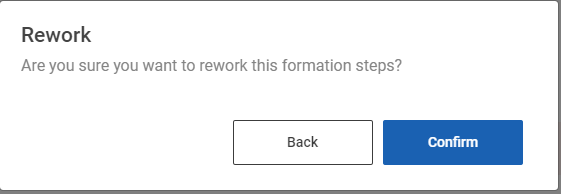
Step 9 : A confirmation popup will appear on the screen, Once the EO-ED confirm to send the profile to rework click ‘Confirm’ or choose ‘Back’
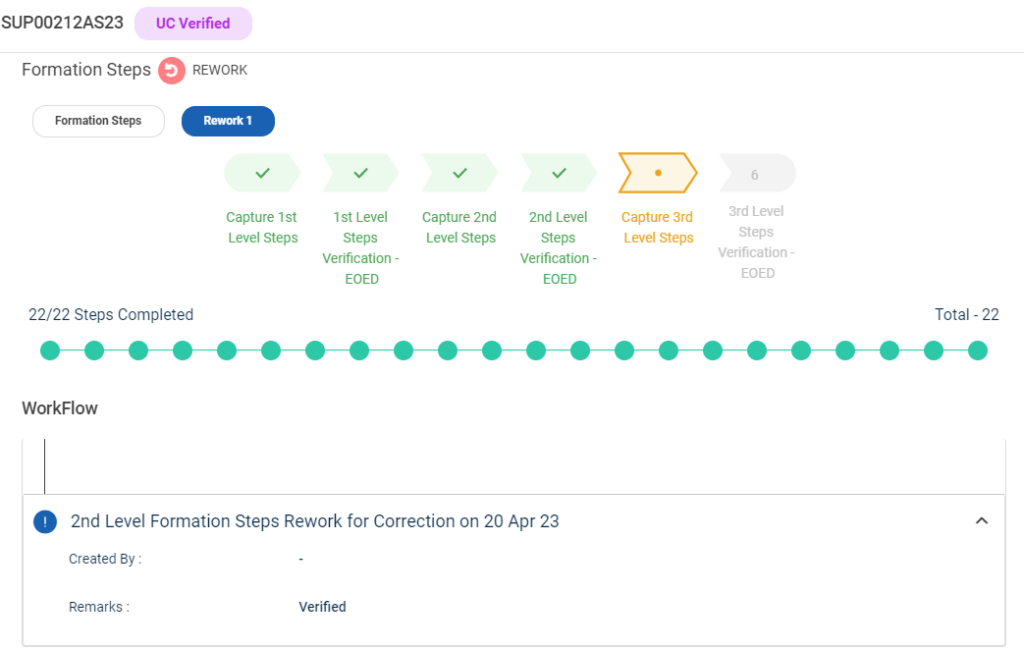
Step 10 : Once the EO-ED confirm the profile to send rework the toast message will appear like ‘Formation Steps send Rework Successfully’
Step 10 : The status of the profile has changed from ‘All Steps Submitted Successfully’ to ‘Rework’
20. How to Verify/ Rework the Level 3 Formation Steps EG :
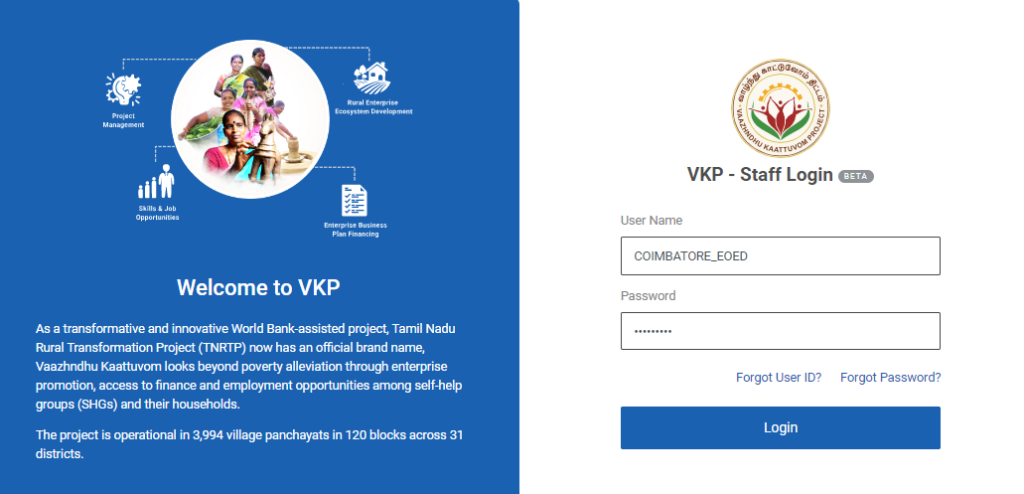
Step 1 : Log in with their respective EO-ED username and password and click Login
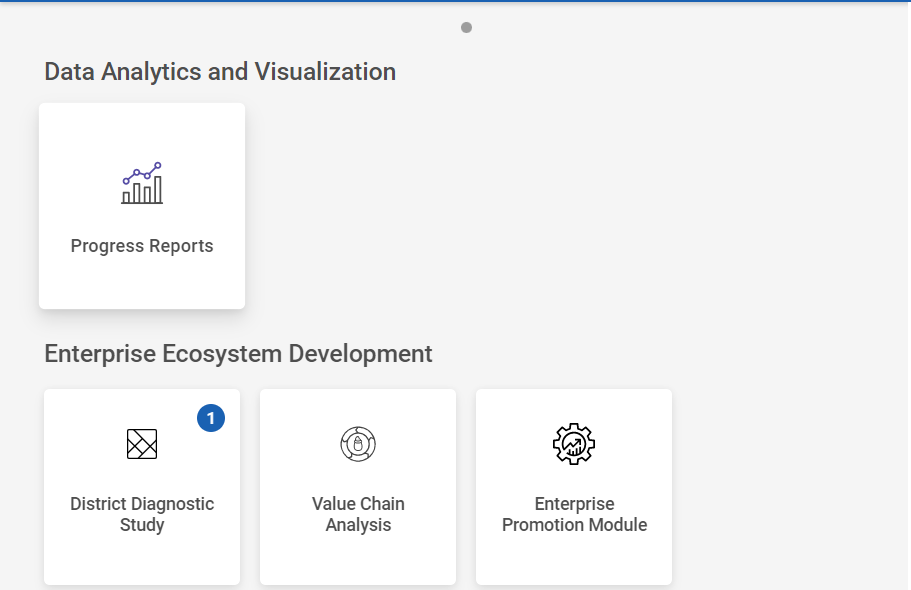
Step 2 : After logging in to the VKP staff portal, select the Enterprise Promotion Module name
Step 3 : After selecting the EPM module, the user will be redirected to the respective home page
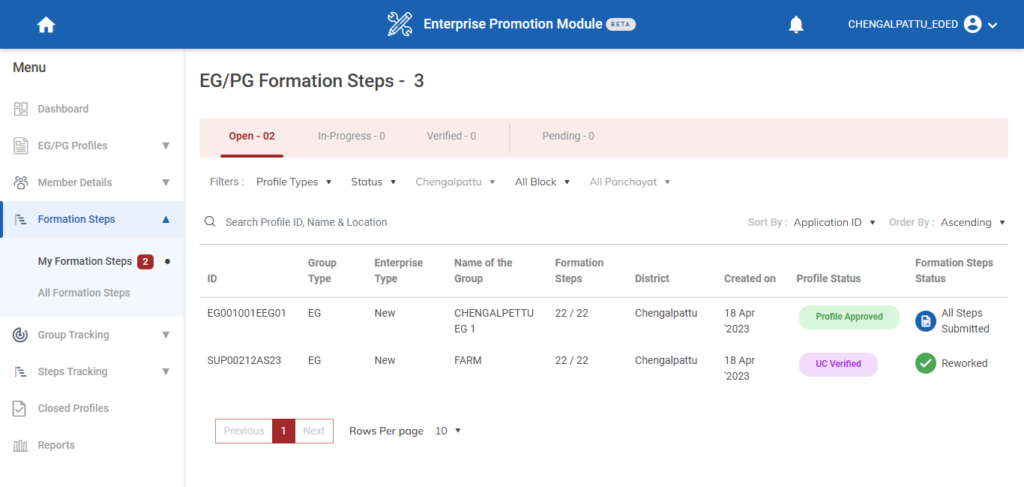
Step 4 : When logged in, click on the ‘Formation Steps’ on the left side menu
Step 5 : On the ‘Open’ tab, click the ‘My Formation Steps’ tab to view the list of Level 3 steps submitted or reworked by the BTL and view the status of the formation steps
Step 6 : To Verify profile, select the profile it will get redirected to the respective profile detail page
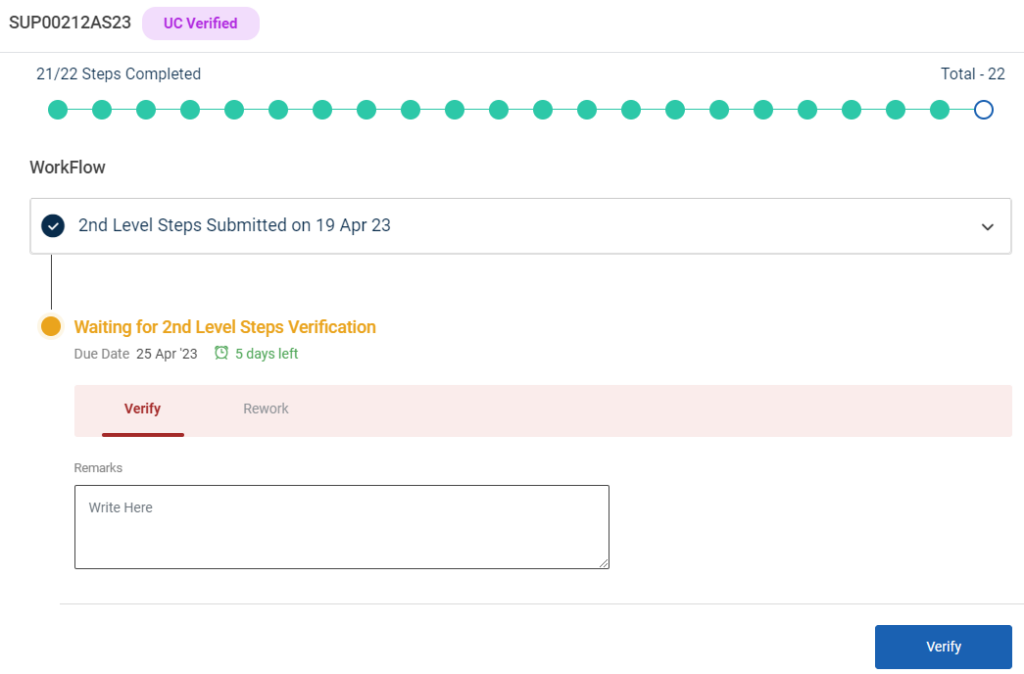
Step 7 : To verify the formation steps profile click ‘Verify’ or If the EO-ED wish to rework the profile click ‘Rework’
21. How to Verify Level 3 Formation Steps EG :
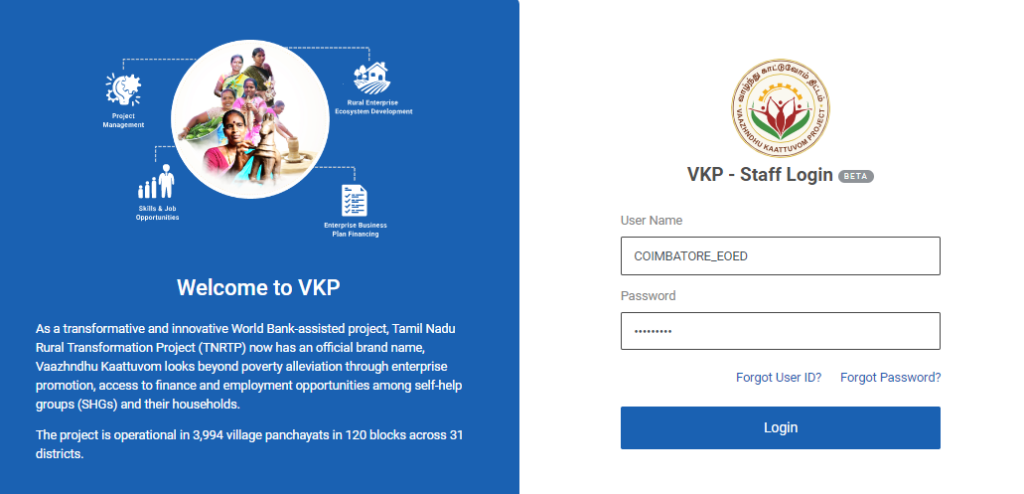
Step 1 : Log in with their respective EO-ED username and password and click Login
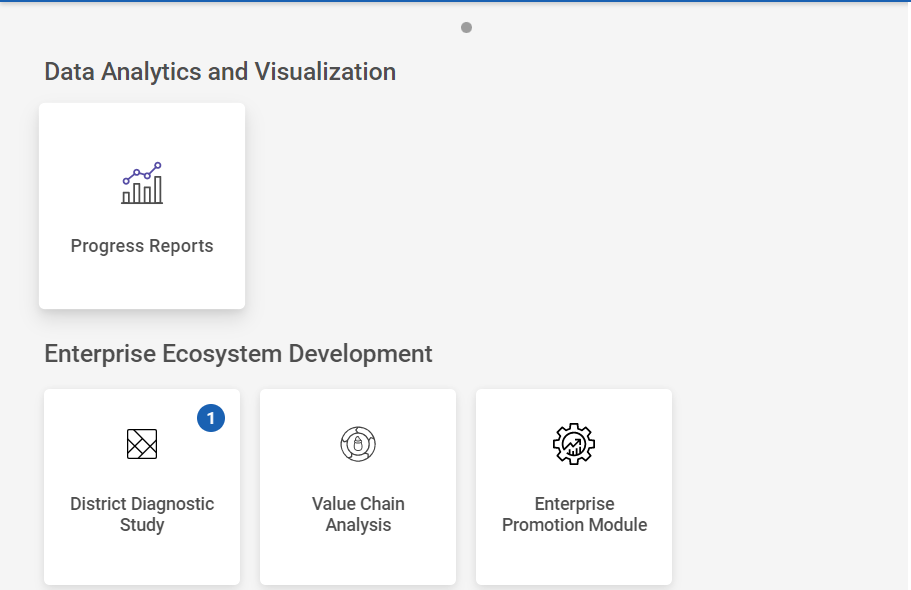
Step 2 : After logging in to the VKP staff portal, select the Enterprise Promotion Module name
Step 3 : After selecting the EPM module, the user will be redirected to the respective home page
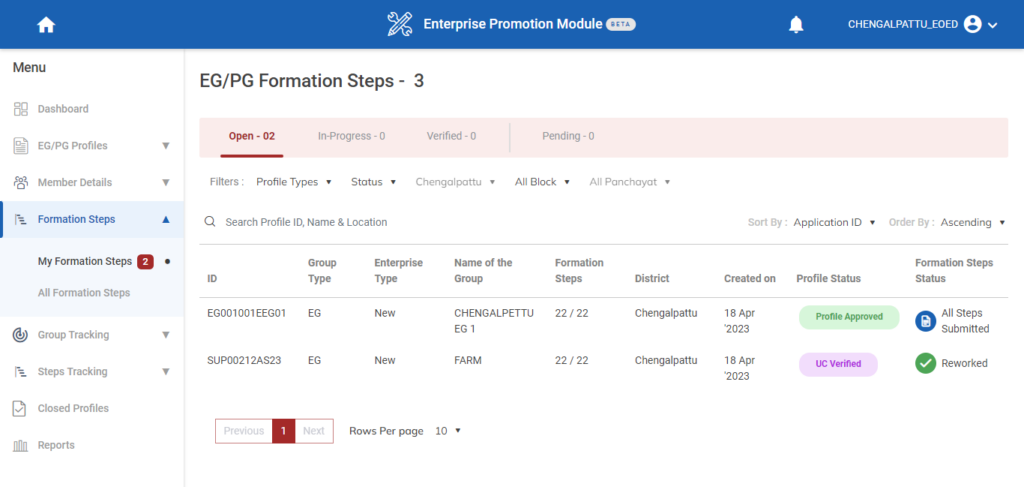
Step 4 : When logged in, click on the ‘Formation Steps’ on the left side menu
Step 5 : On the ‘Open’ tab, click the ‘My Formation Steps’ tab to view the list of Level 3 steps submitted or reworked by the BTL and view the status of the formation steps
Step 6 : To Verify profile, select the profile it will get redirected to the respective profile detail page
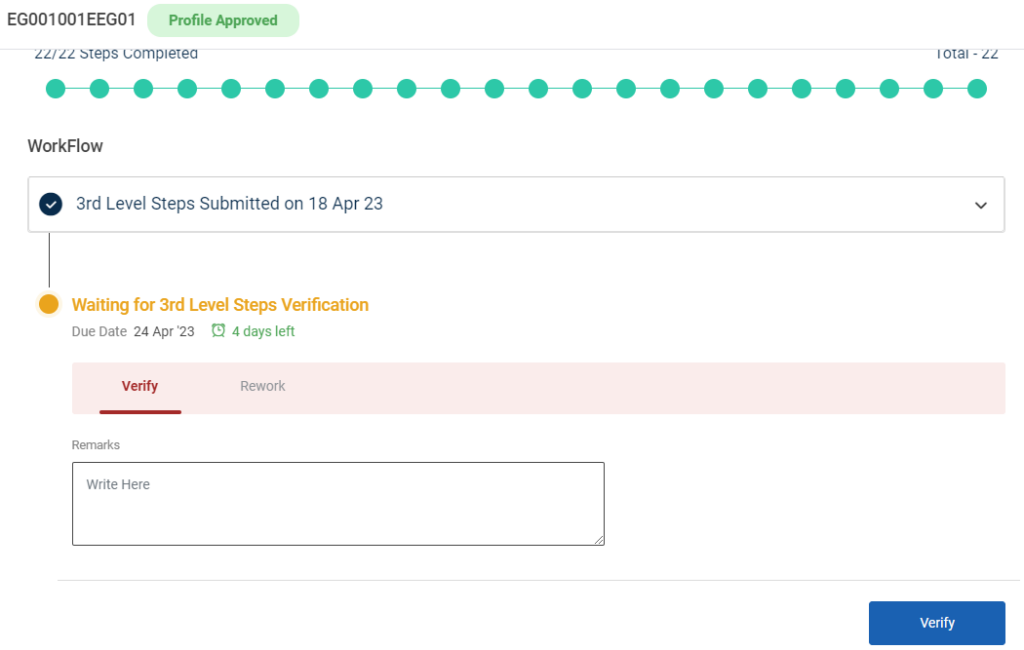
Step 7 : To verify the formation steps profile click ‘Verify’ and enter the remarks in the remarks section
Step 8 : Once the EO-ED entered the remarks click ‘Verify’ and the toast message like ‘Formation Steps Level 3 Verified Successfully’ and the status of the profile has changed from ‘Open’ to ‘Inprogress’ status of the steps has changed from ‘All Steps Verified’
22. How to View the Verified Formation Steps EG :
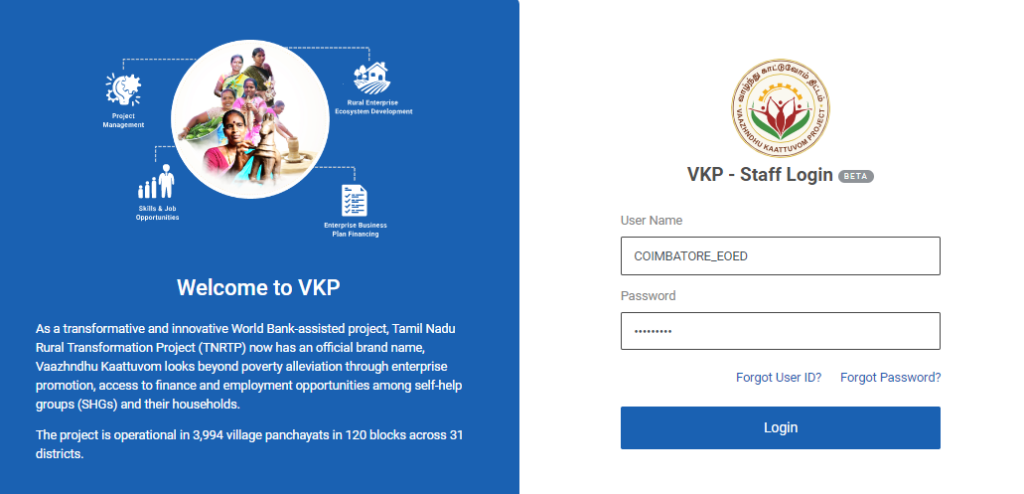
Step 1 : Log in with their respective EO-ED username and password and click Login
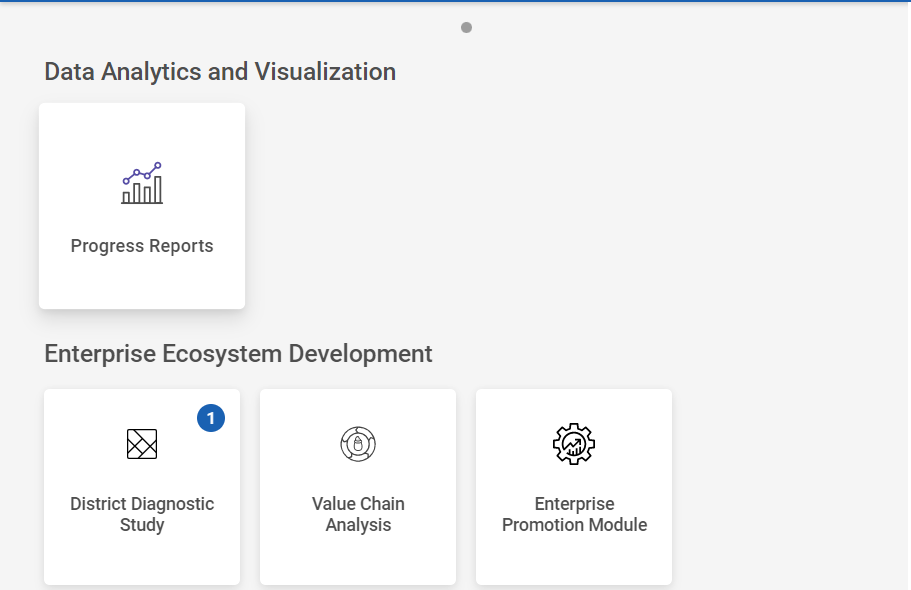
Step 2 : After logging in to the VKP staff portal, select the Enterprise Promotion Module name
Step 3 : After selecting the EPM module, the user will be redirected to the respective home page
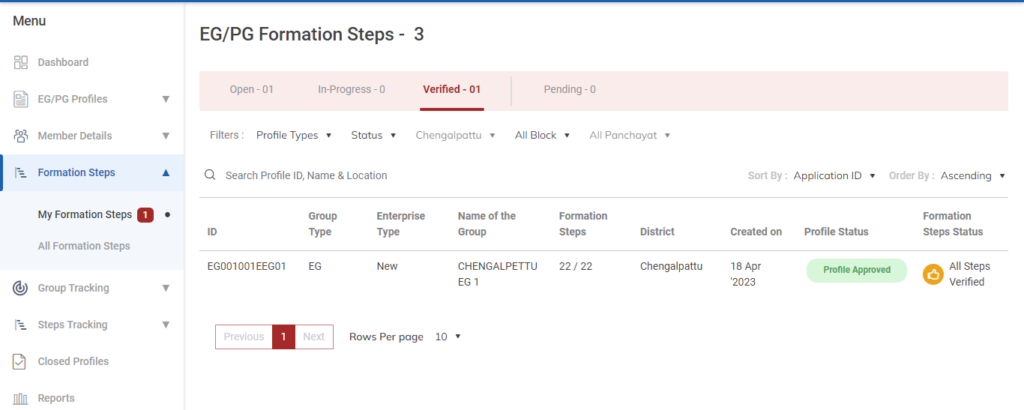
Step 4 : When logged in, click on the ‘Formation Steps’ on the left side menu
Step 5 : On the ‘Verified’ tab, click the ‘My Formation Steps’ tab to view the list of all steps verified profile along with the status of the formation steps
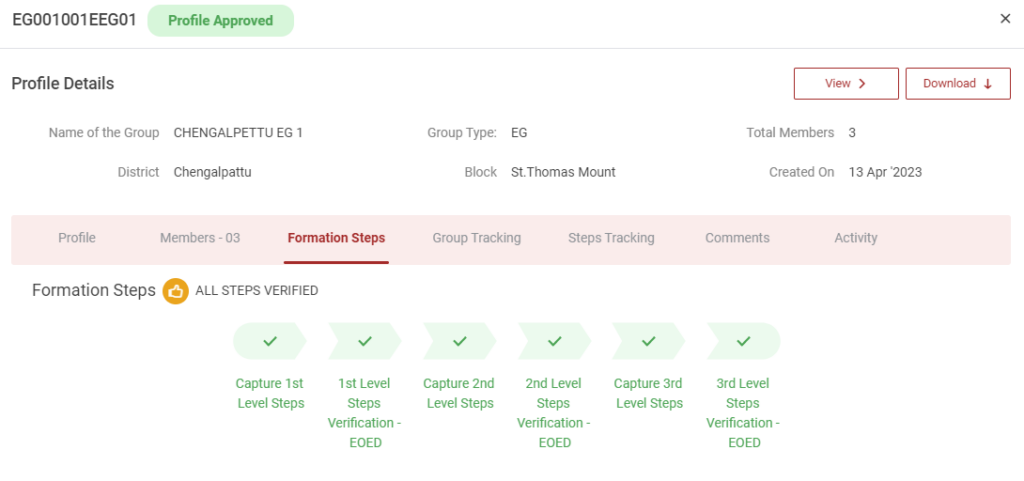
Step 6 : Select the profile to view the formation steps details more.
23. How to Verify Level 1 Formation Steps PG :
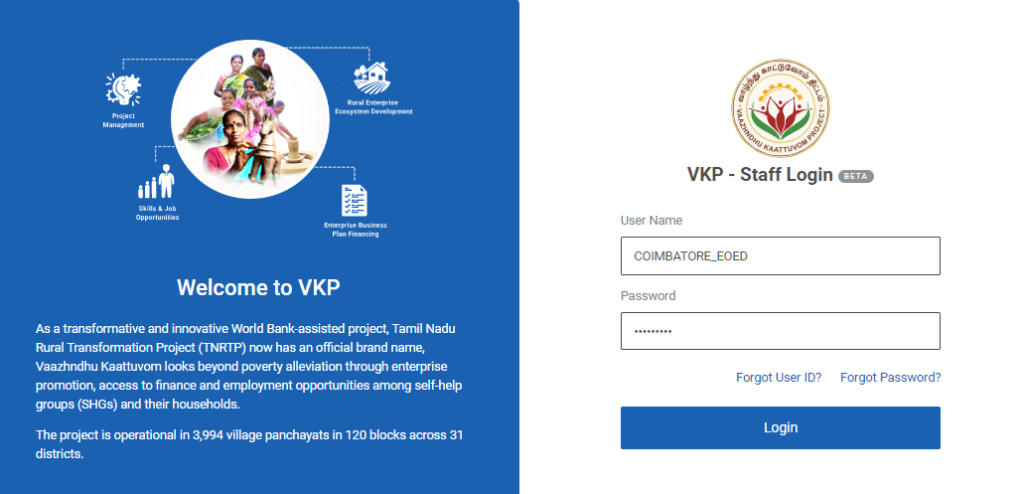
Step 1 : Log in with their respective EO-ED username and password and click Login
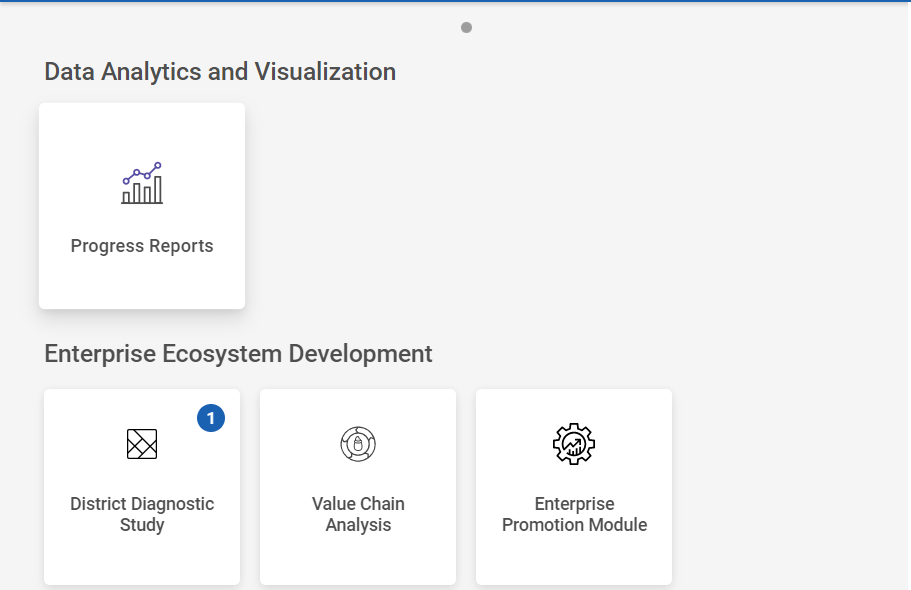
Step 2 : After logging in to the VKP staff portal, select the Enterprise Promotion Module name
Step 3 : After selecting the EPM module, the user will be redirected to the respective home page
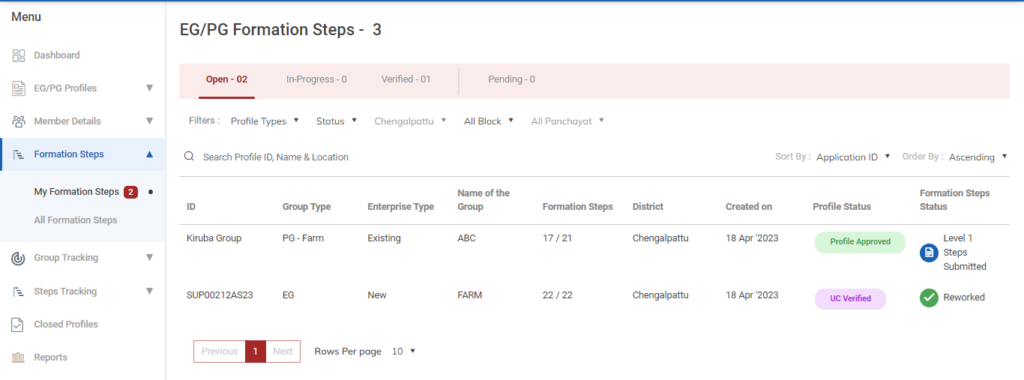
Step 4 : When logged in, click on the ‘Formation Steps’ on the left side menu
Step 5 : On the ‘Open’ tab, click the ‘My Formation Steps’ tab to view the list of Level 1 steps submitted or reworked by the BTL and view the status of the formation steps
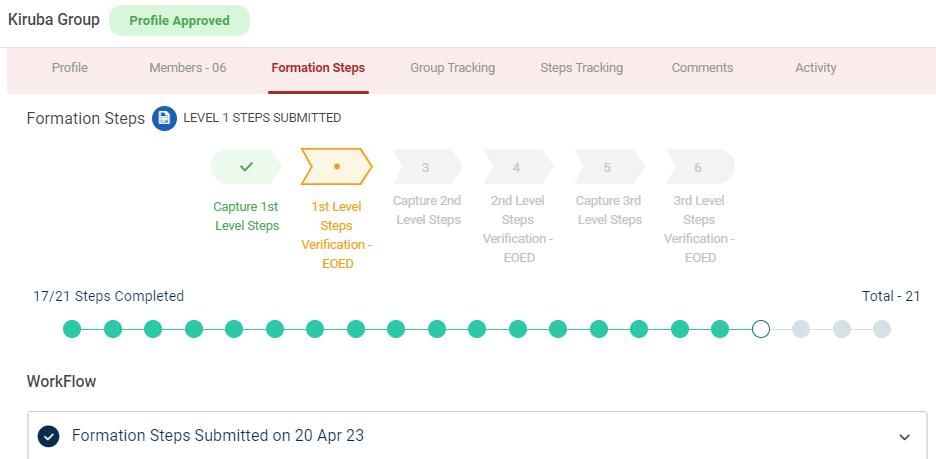
Step 6 : To Verify profile, select the profile it will get redirected to the respective profile detail page
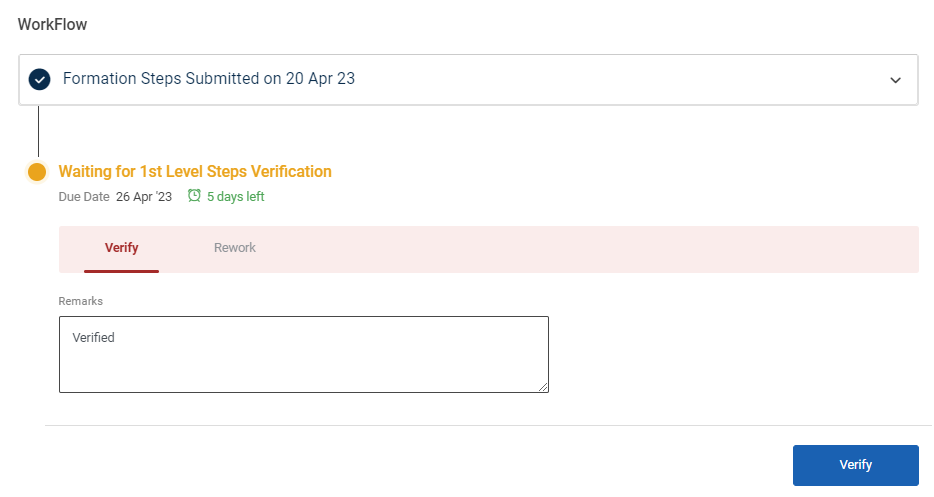
Step 7 : To verify the formation steps profile click ‘Verify’ and enter the remarks in the remarks section
Step 8 : Once the EO-ED entered the remarks click ‘Verify’ and the toast message like ‘Formation Steps Level 1 Verified Successfully’ and the status of the profile has changed from ‘Open’ to ‘Inprogress’ status of the steps has changed from ‘Level 1 Steps Verified’
24. How to View the Verified Level 1 Formation Steps PG :
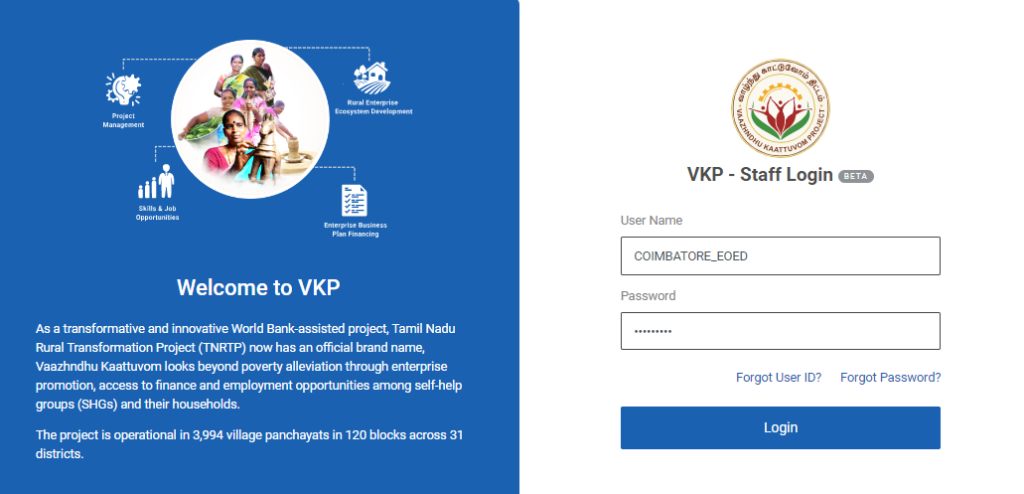
Step 1 : Log in with their respective EO-ED username and password and click Login
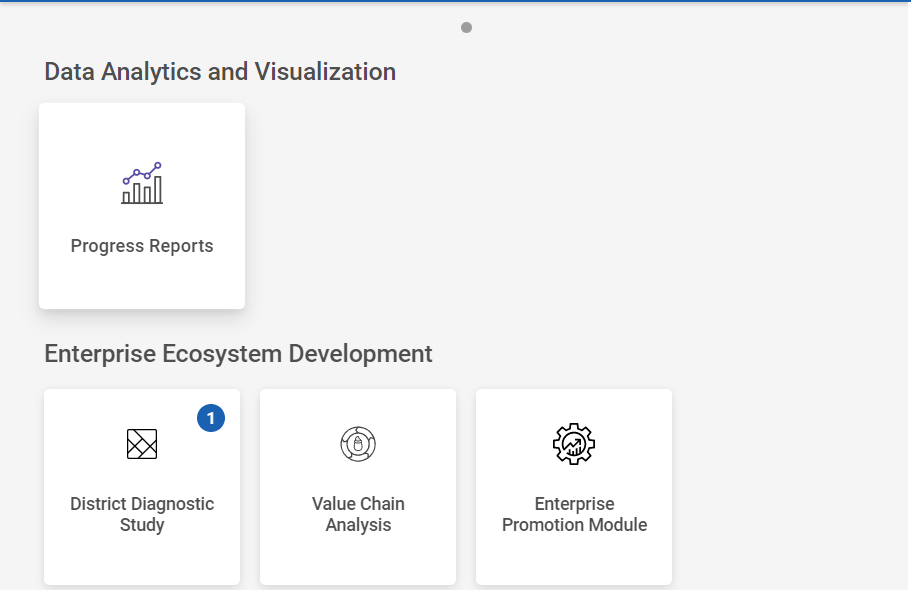
Step 2 : After logging in to the VKP staff portal, select the Enterprise Promotion Module name
Step 3 : After selecting the EPM module, the user will be redirected to the respective home page
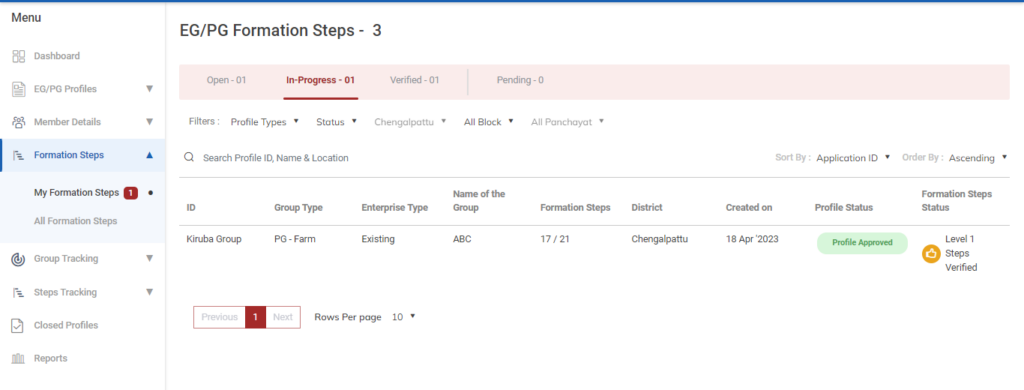
Step 4 : When logged in, click on the ‘Formation Steps’ on the left side menu
Step 5 : On the ‘Inprogress’ tab, click the ‘My Formation Steps’ tab to view the list of verified Level 1 steps verified by the EO-ED and view the status of the formation steps
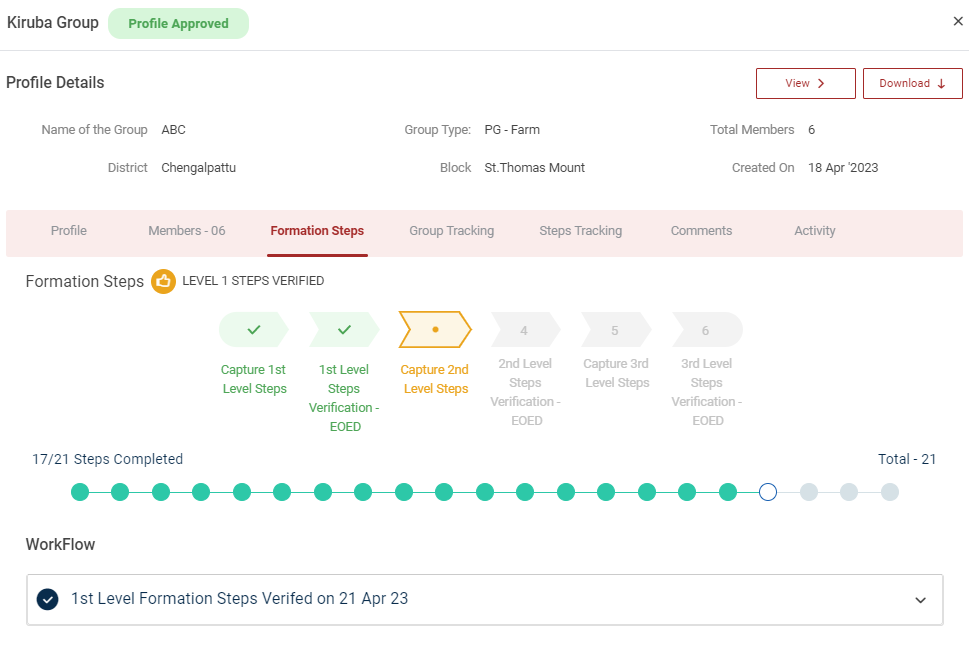
Step 6 : Select the profile to view the application details more
25. How to Verify Level 2 Formation Steps PG :
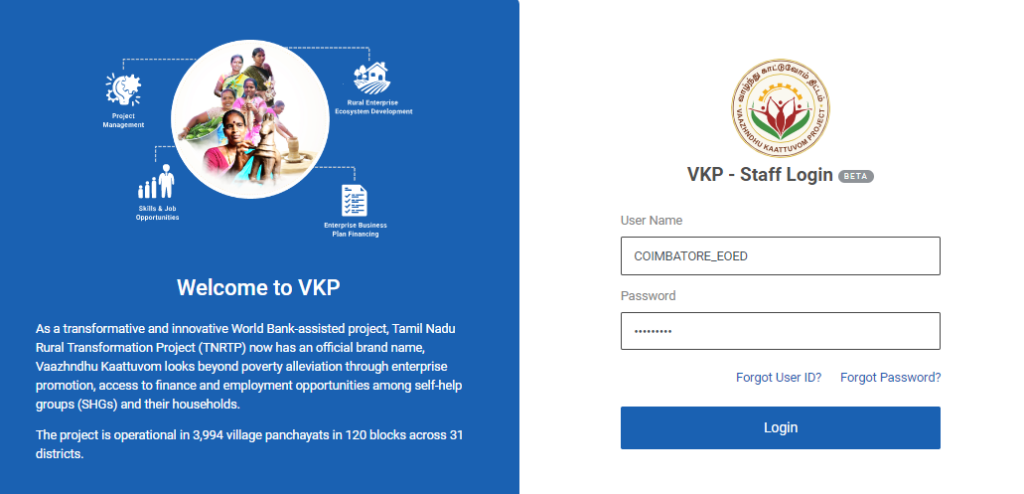
Step 1 : Log in with their respective EO-ED username and password and click Login
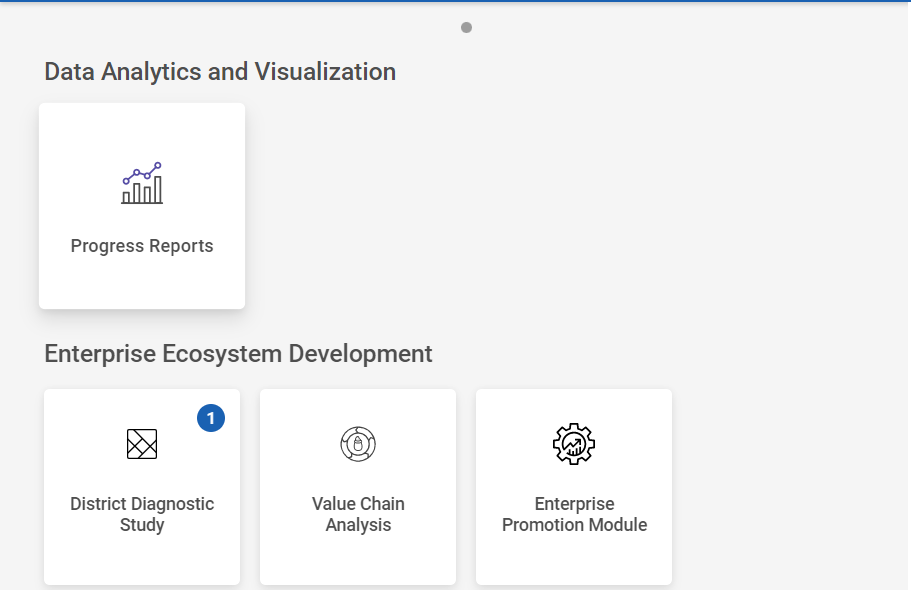
Step 2 : After logging in to the VKP staff portal, select the Enterprise Promotion Module name
Step 3 : After selecting the EPM module, the user will be redirected to the respective home page
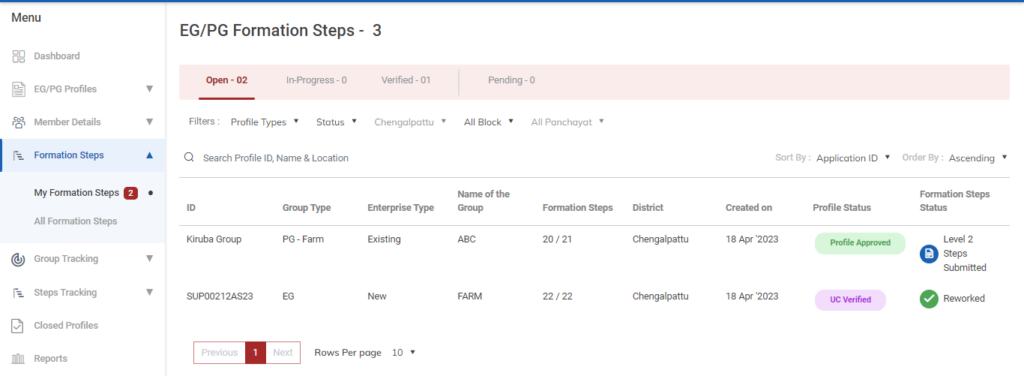
Step 4 : When logged in, click on the ‘Formation Steps’ on the left side menu
Step 5 : On the ‘Open’ tab, click the ‘My Formation Steps’ tab to view the list of Level 2 steps submitted or reworked by the BTL and view the status of the formation steps
Step 6 : To Verify profile, select the profile it will get redirected to the respective profile detail page
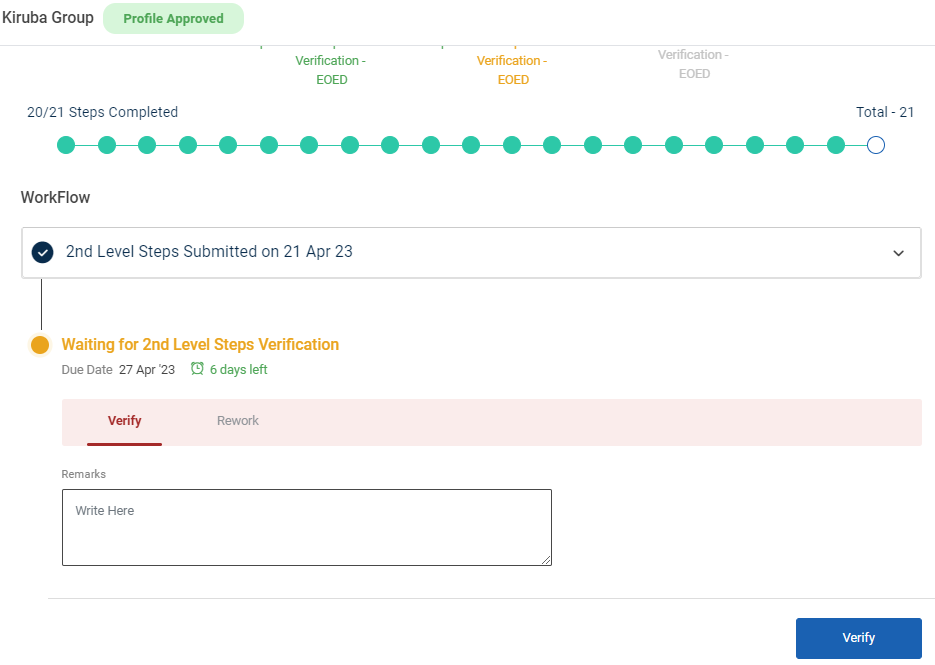
Step 7 : To verify the formation steps profile click ‘Verify’ and enter the remarks in the remarks section
Step 8 : Once the EO-ED entered the remarks click ‘Verify’ and the toast message like ‘Formation Steps Level 2 Verified Successfully’ and the status of the profile has changed from ‘Open’ to ‘Inprogress’ status of the steps has changed from ‘Level 2 Steps Verified’
26. How to View the Verified Level 2 Formation Steps PG :
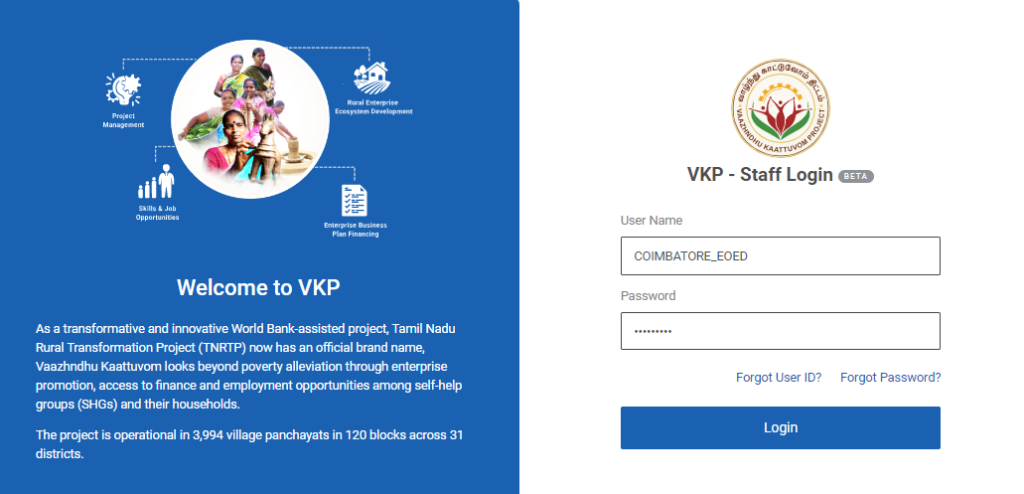
Step 1 : Log in with their respective EO-ED username and password and click Login
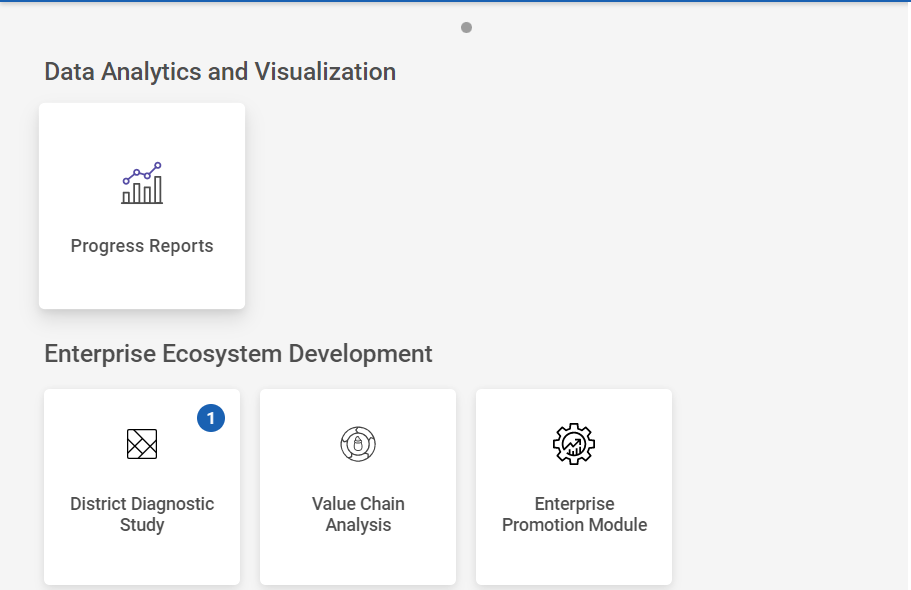
Step 2 : After logging in to the VKP staff portal, select the Enterprise Promotion Module name
Step 3 : After selecting the EPM module, the user will be redirected to the respective home page
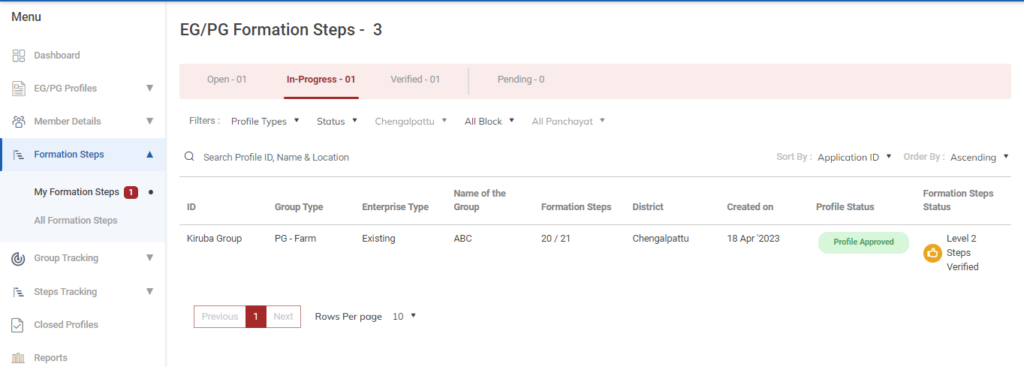
Step 4 : When logged in, click on the ‘Formation Steps’ on the left side menu
Step 5 : On the ‘Inprogress’ tab, click the ‘My Formation Steps’ tab to view the list of verified Level 2 steps verified by the EO-ED and view the status of the formation steps
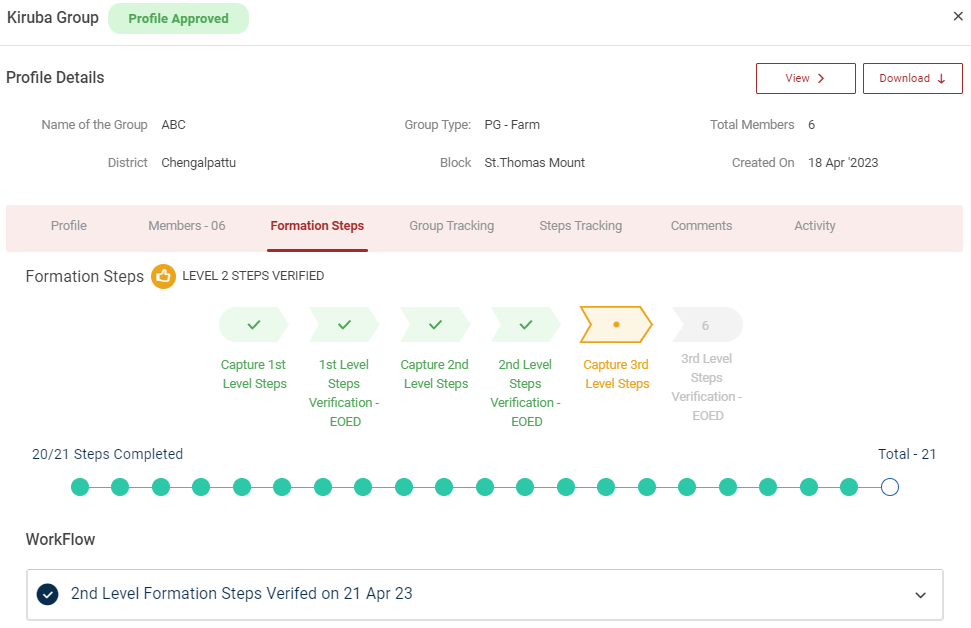
Step 6 : Select the profile to view the application details more
27. How to Verify Level 3 Formation Steps PG :
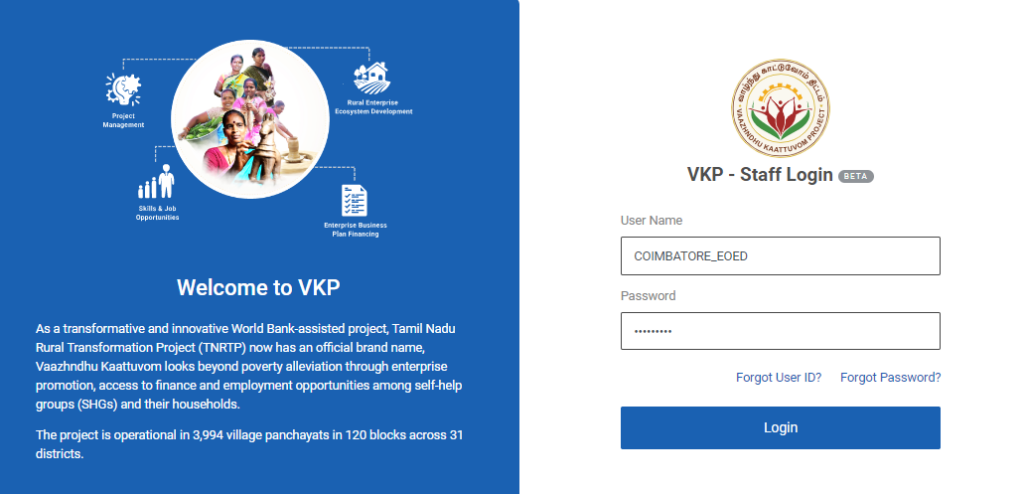
Step 1 : Log in with their respective EO-ED username and password and click Login
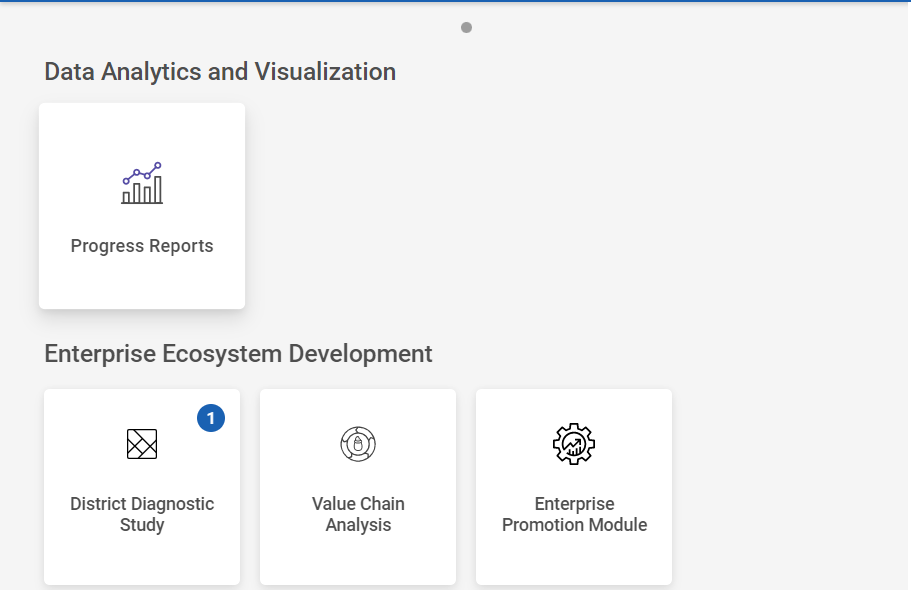
Step 2 : After logging in to the VKP staff portal, select the Enterprise Promotion Module name
Step 3 : After selecting the EPM module, the user will be redirected to the respective home page
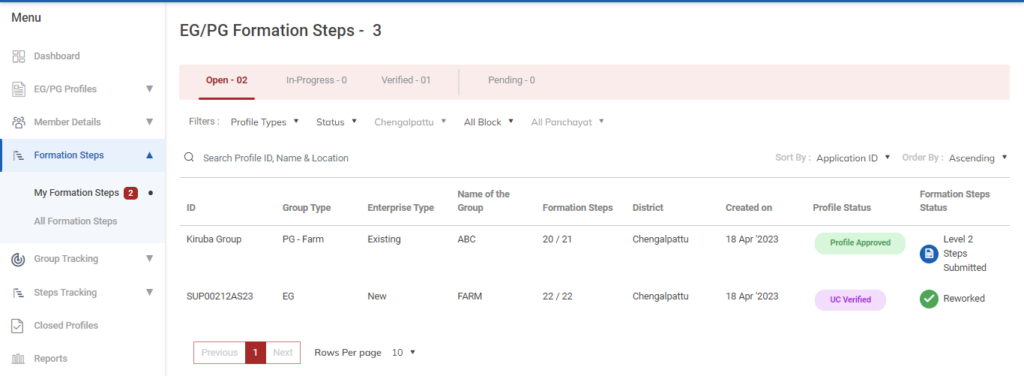
Step 4 : When logged in, click on the ‘Formation Steps’ on the left side menu
Step 5 : On the ‘Open’ tab, click the ‘My Formation Steps’ tab to view the list of Level 3 steps submitted or reworked by the BTL and view the status of the formation steps
Step 6 : To Verify profile, select the profile it will get redirected to the respective profile detail page
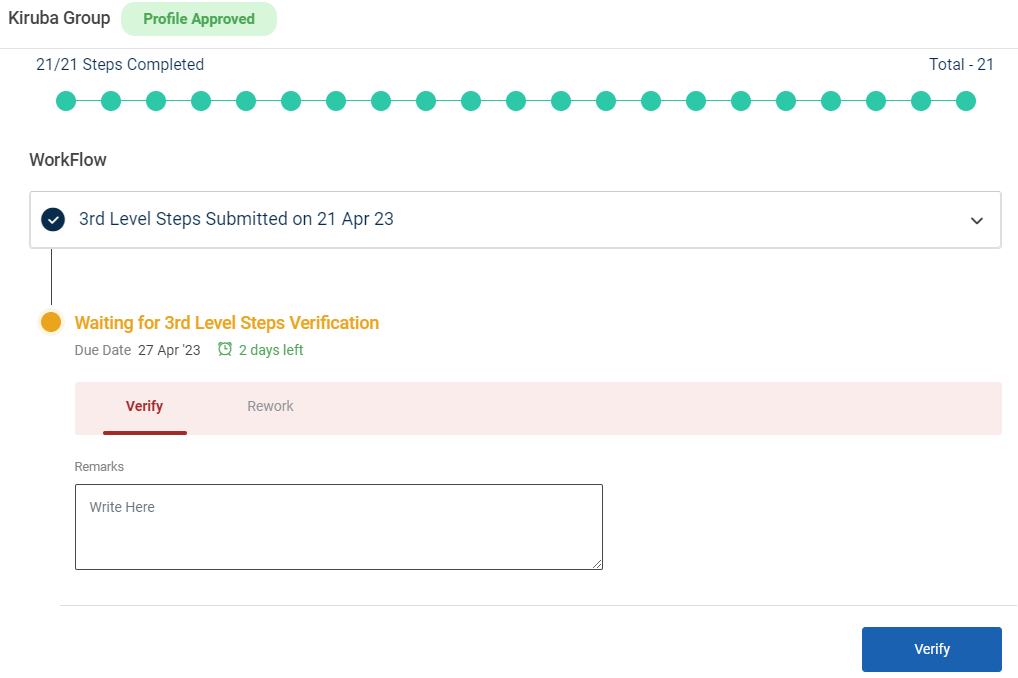
Step 7 : To verify the formation steps profile click ‘Verify’ and enter the remarks in the remarks section
Step 8 : Once the EO-ED entered the remarks click ‘Verify’ and the toast message like ‘Formation Steps Level 3 Verified Successfully’ and the status of the profile has changed from ‘Open’ to ‘Inprogress’ status of the steps has changed from ‘All Steps Verified’
28. How to View the Verified Level 3 Formation Steps PG :
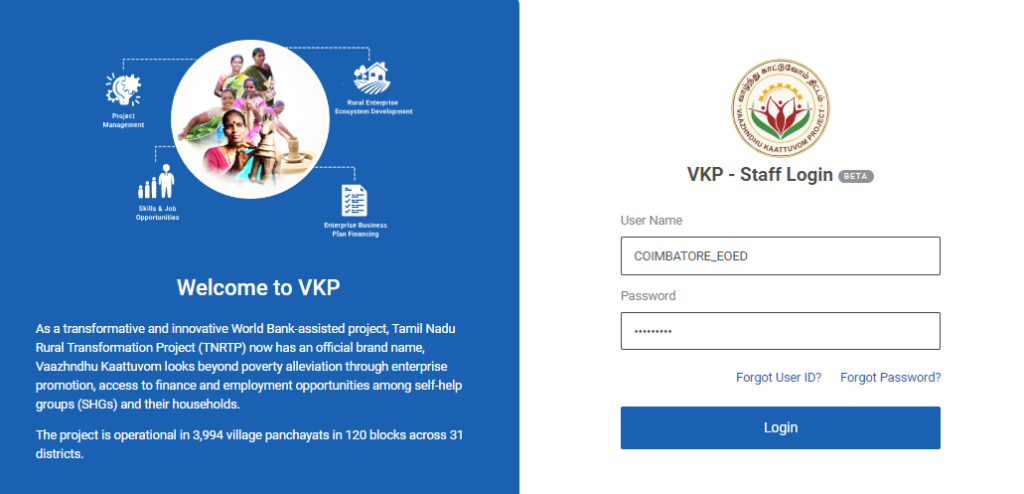
Step 1 : Log in with their respective EO-ED username and password and click Login
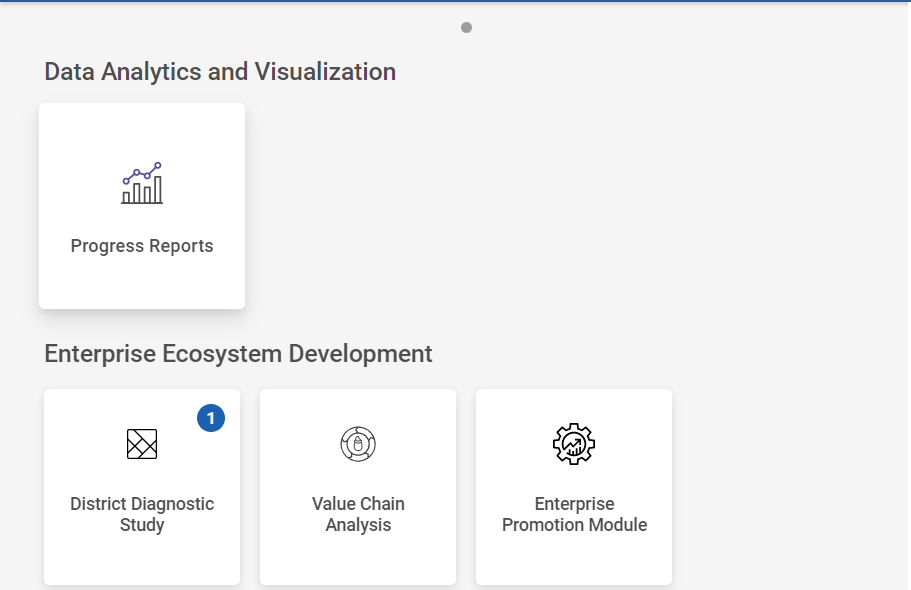
Step 2 : After logging in to the VKP staff portal, select the Enterprise Promotion Module name
Step 3 : After selecting the EPM module, the user will be redirected to the respective home page
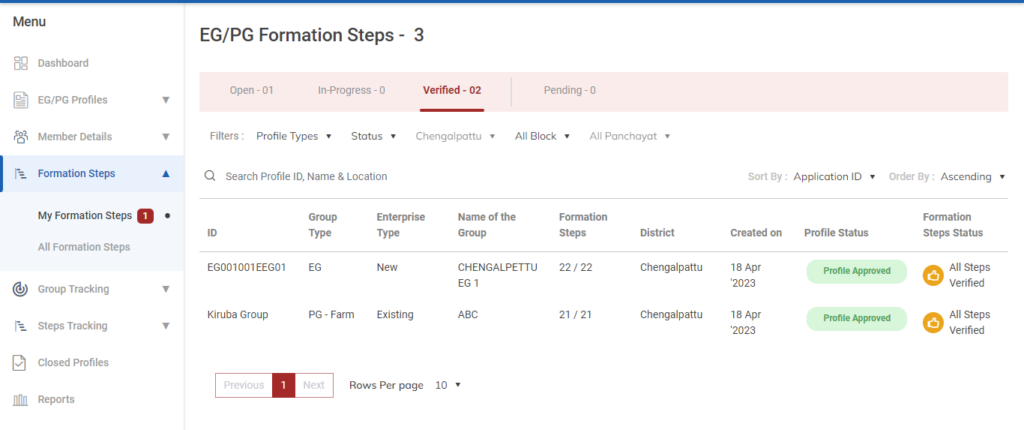
Step 4 : When logged in, click on the ‘Formation Steps’ on the left side menu
Step 5 : On the ‘Verified’ tab, click the ‘My Formation Steps’ tab to view the list of verified Level 3 steps verified by the EO-ED and view the status of the formation steps
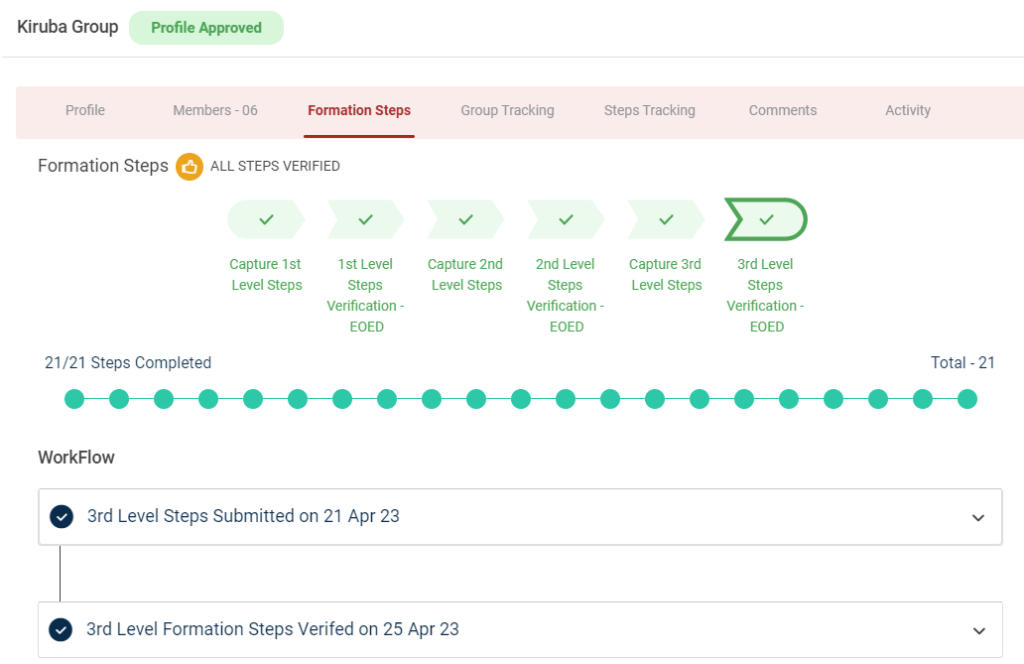
Step 6 : Select the profile to view the application details more
29. How to Verify the Steps Tracking EG/PG :
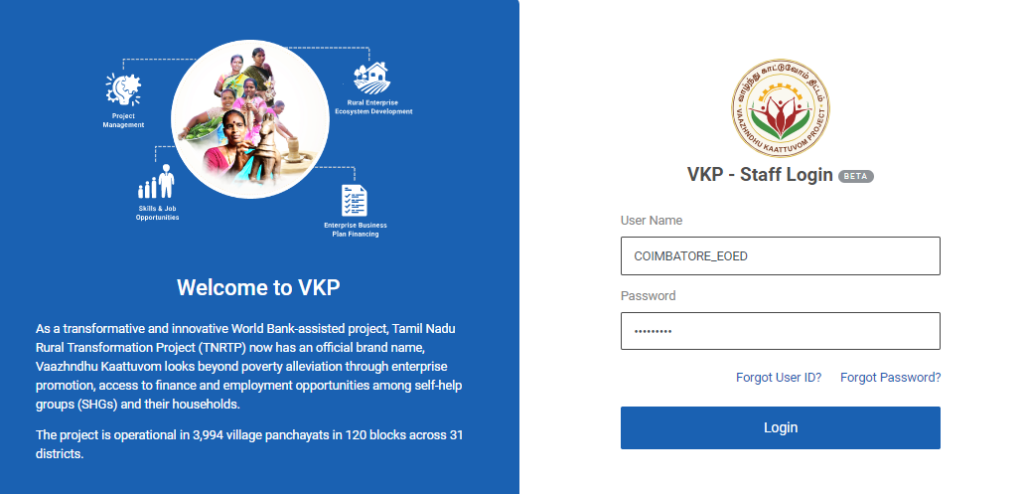
Step 1 : Log in with their respective EO-ED username and password and click Login
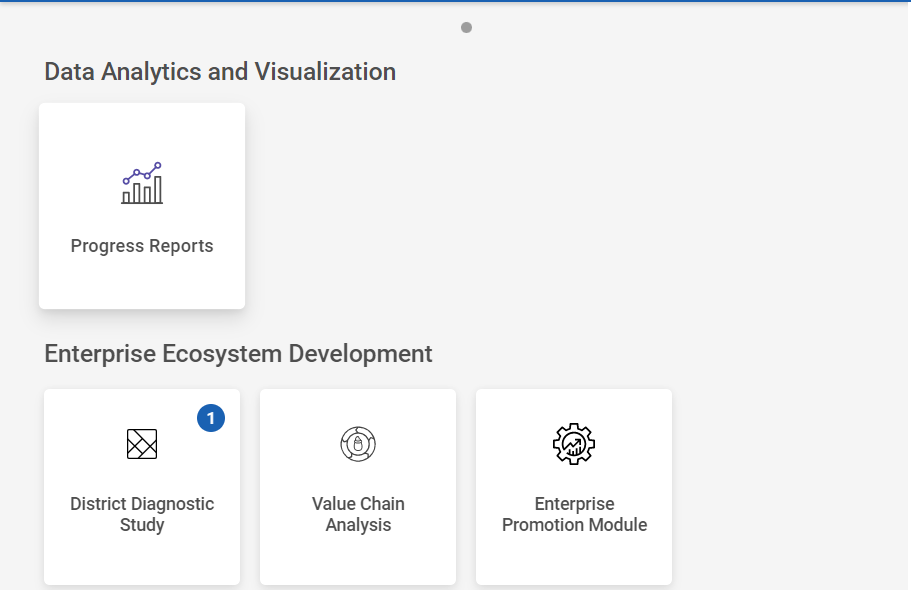
Step 2 : After logging in to the VKP staff portal, select the Enterprise Promotion Module name
Step 3 : After selecting the EPM module, the user will be redirected to the respective home page
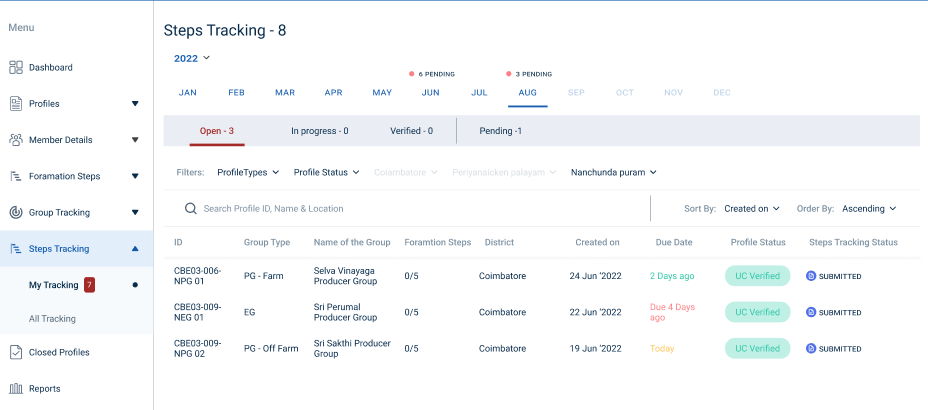
Step 4 : When logged in, click on the ‘Steps Tracking’ on the left side menu
Step 5 : On the ‘Open’ tab, click the ‘My Tracking’ tab to view the list of level 1 verified or reworked by the BTL and view the status of the formation steps
Step 6 : To Verify profile, select the profile it will get redirected to the respective profile detail page
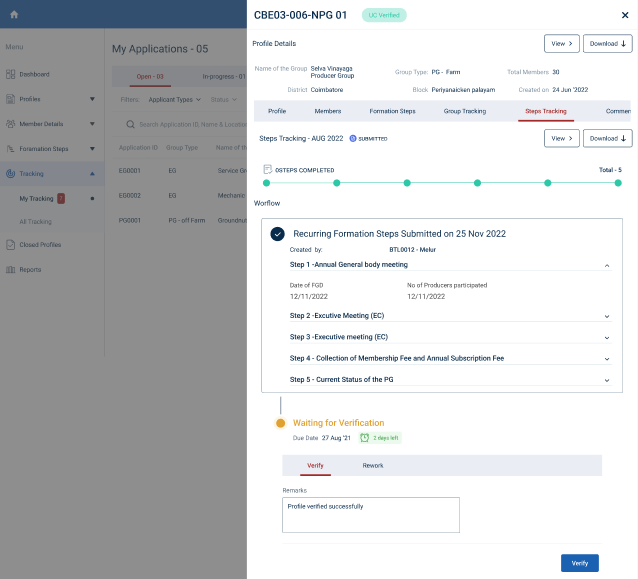
Step 7 : To verify the recurring formation steps profile click ‘Verify’ and enter the remarks in the remarks section
Step 8 : Once the EO-ED entered the remarks click ‘Verify’ and the toast message like ‘Recurring Steps Verified Successfully’ and the status of the profile has changed from ‘Open’ to ‘Inprogress’ status of the steps has changed from ‘Recurring Steps Verified’
30. How to Send Rework to the Steps Tracking EG/PG :
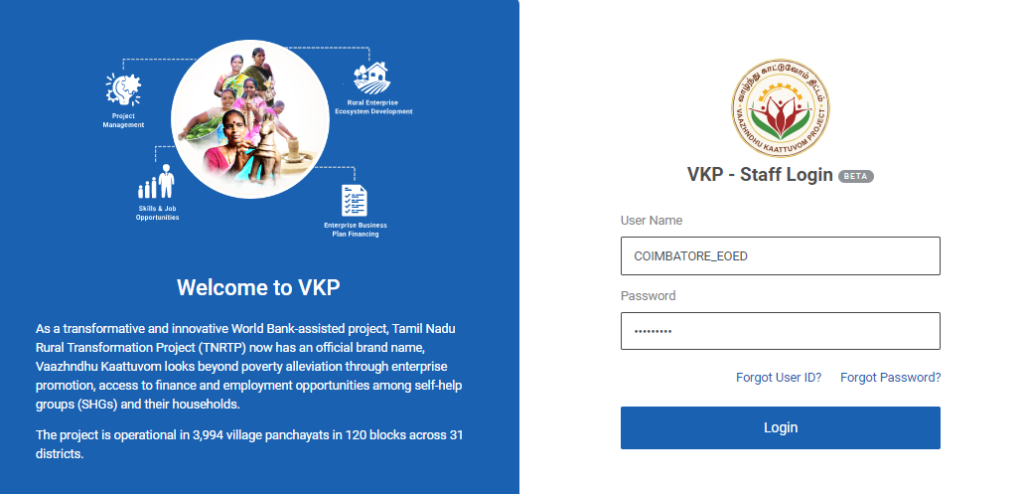
Step 1 : Log in with their respective EO-ED username and password and click Login
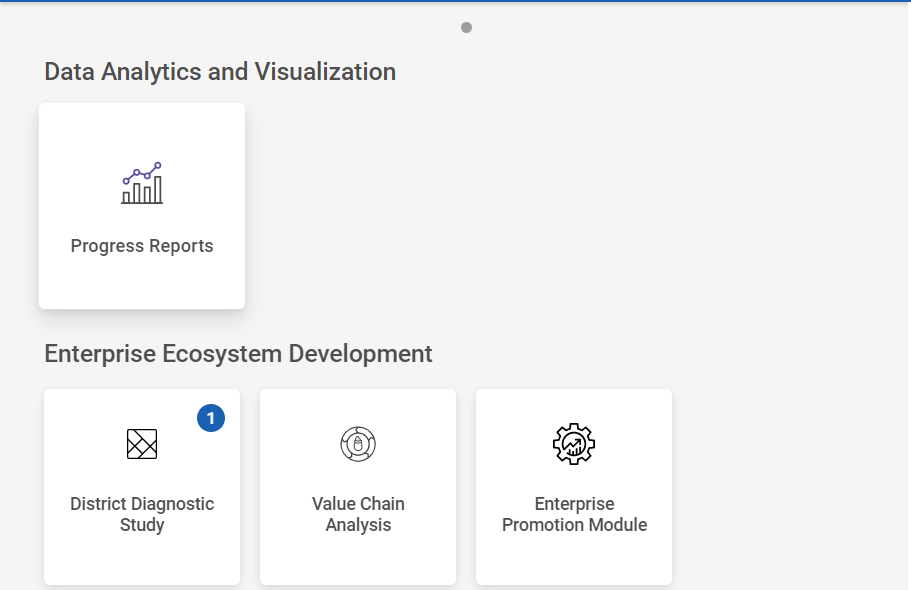
Step 2 : After logging in to the VKP staff portal, select the Enterprise Promotion Module name
Step 3 : After selecting the EPM module, the user will be redirected to the respective home page
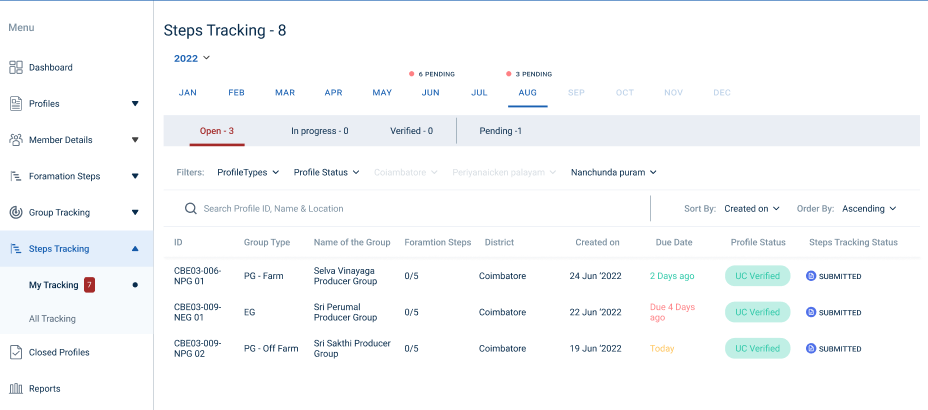
Step 4 : When logged in, click on the ‘Steps Tracking’ on the left side menu
Step 5 : On the ‘Open’ tab, click the ‘My Tracking’ tab to view the list of level 1 verified or reworked by the BTL and view the status of the formation steps
Step 6 : To Verify profile, select the profile it will get redirected to the respective profile detail page
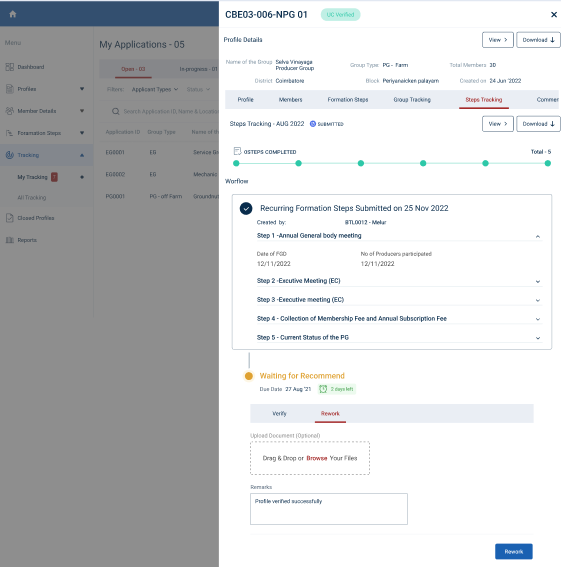
Step 7 : To rework the recurring formation steps profile click ‘Rework’ and click ‘Browse’ to upload the document enter the remarks in the remarks section
Step 8 : Once the EO-ED entered the remarks click ‘Rework’ and the toast message like ‘Recurring Steps Reworked Successfully’ and the status of the profile has changed from ‘Open’ to ‘Rework’