


1.How to Login into the Application:
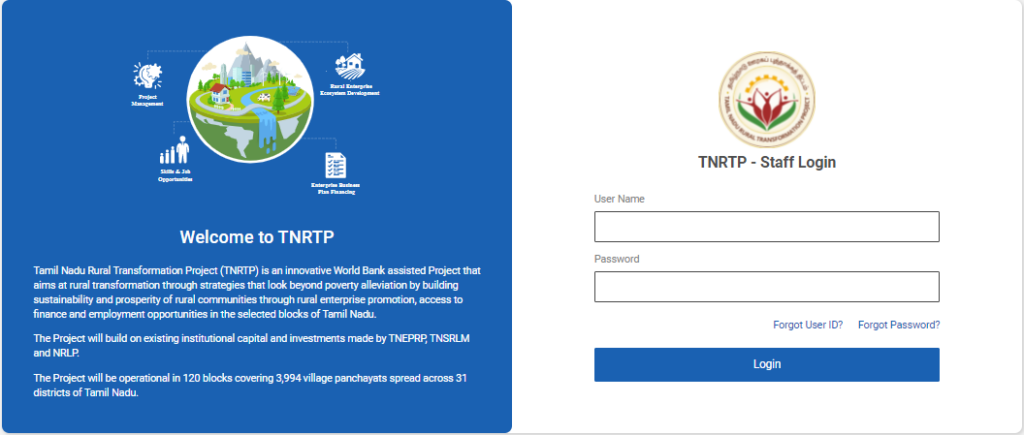
Step 1 : Please enter the respective staff username and password (Applicable for all the internal staff users Eg : DEO, DYCOO, YP etc…)
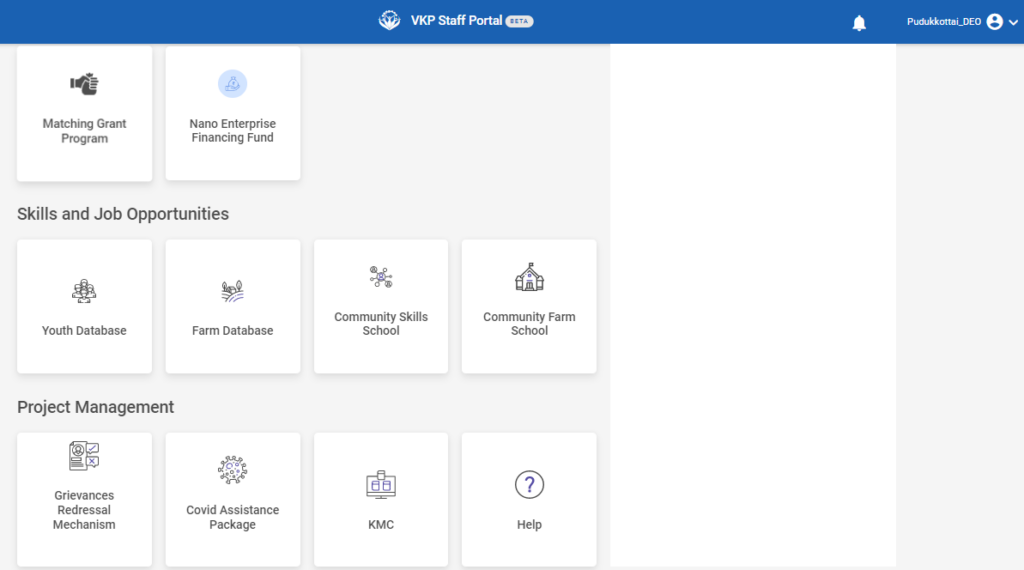
Step 2 : After logging in to the VKP staff portal, select the module name
Step 3 : After selecting the Knowledge Management Repository, the user will be redirected to the respective home page
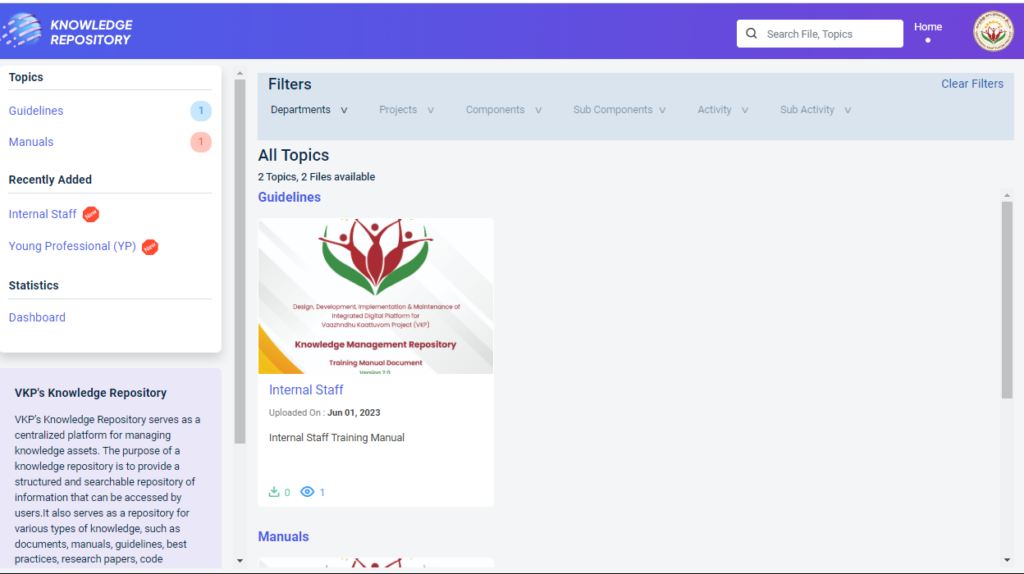
Step 4 : When logged in, it will be redirected to the respective KMR dashboard page
2.How to View the KMR Manual Document:
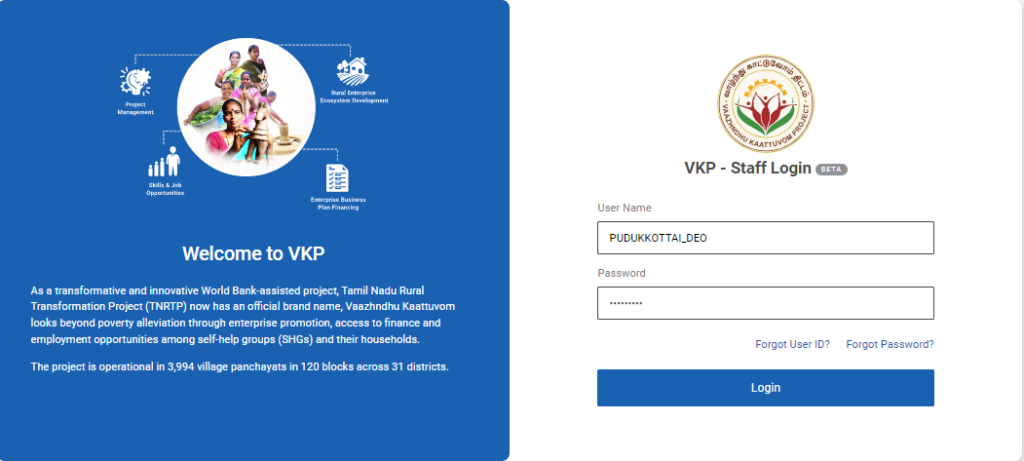
Step 1 : Log in with their respective YPs username and password and click ‘Login’
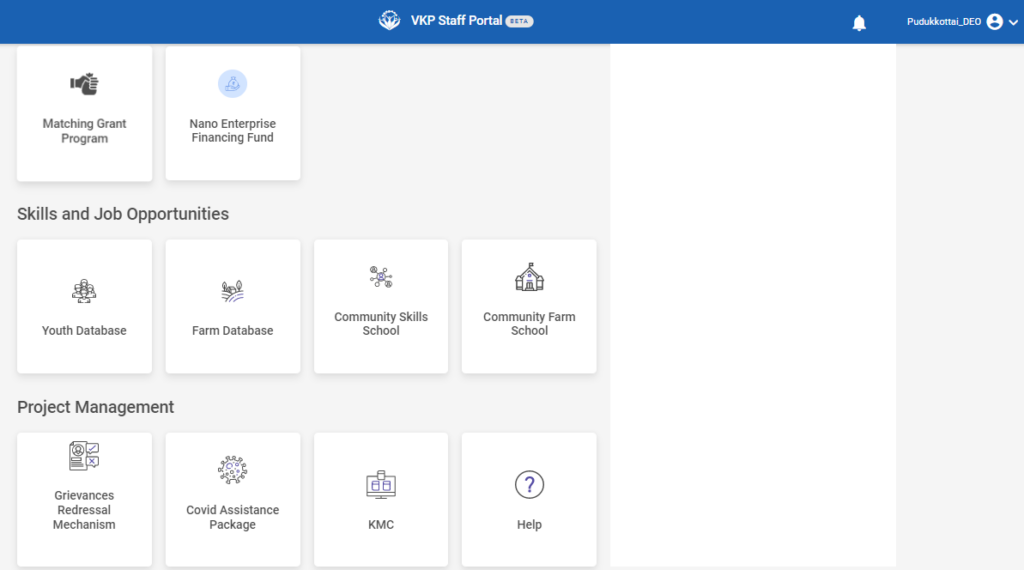
Step 2 : After logging in to the VKP staff portal, select the module name
Step 3 : After selecting the Knowledge Management Repository, the user will be redirected to the respective home page
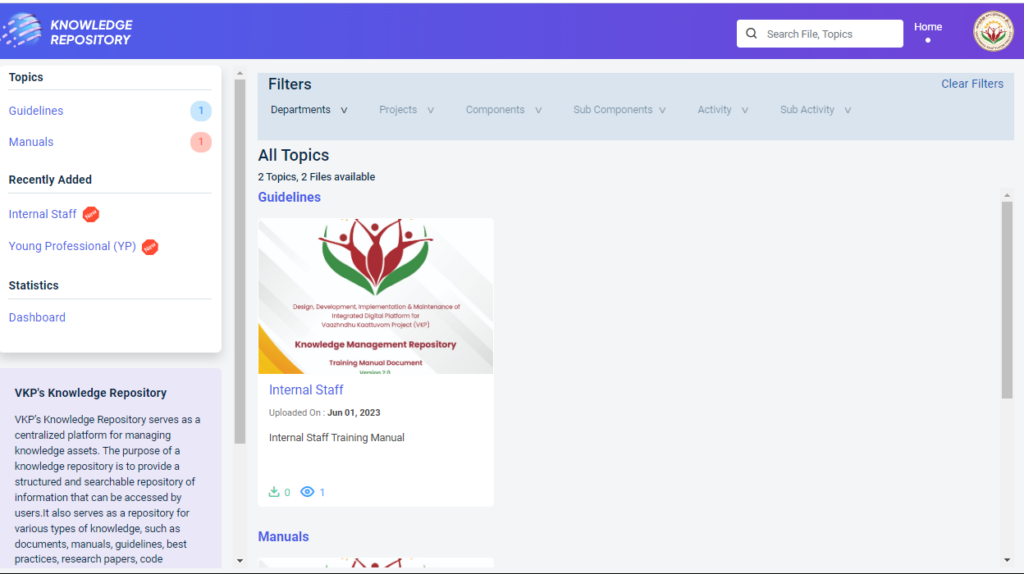
Step 4 : When logged in, it will be redirected to the respective KMR dashboard page
Step 5 : Select the component type, and staff can view the document relevant to that component using filters
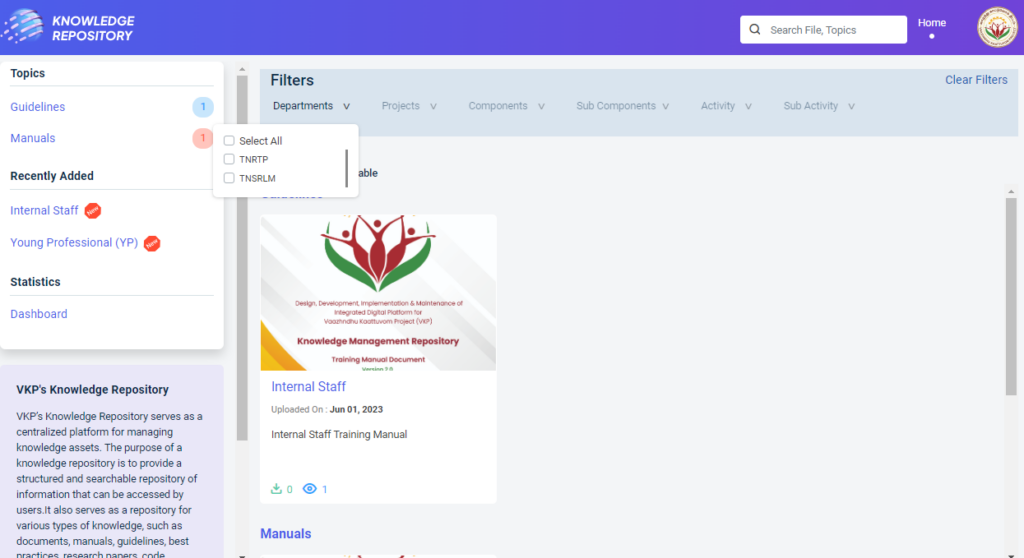
Step 6 : After the staff applies the filter, the relevant document will appear
Step 7 : Select the type of the document and it will get redirected to the document detail page.
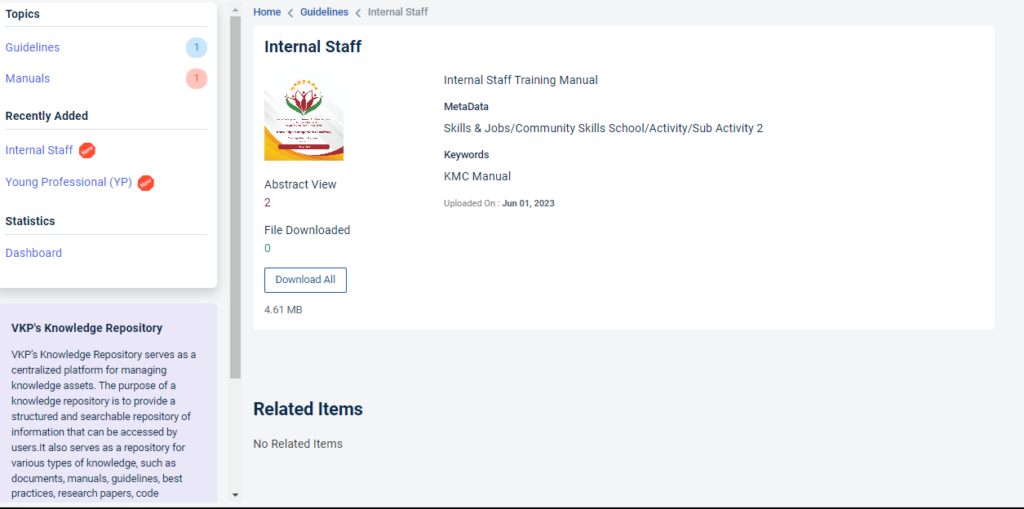
Step 8 : When the staff selects the document, they can view more details about it
Step 9 : Click ‘Download All’ to download the PDF
Step 10 : Under ‘Statistics’ menu click ‘Dashboard’
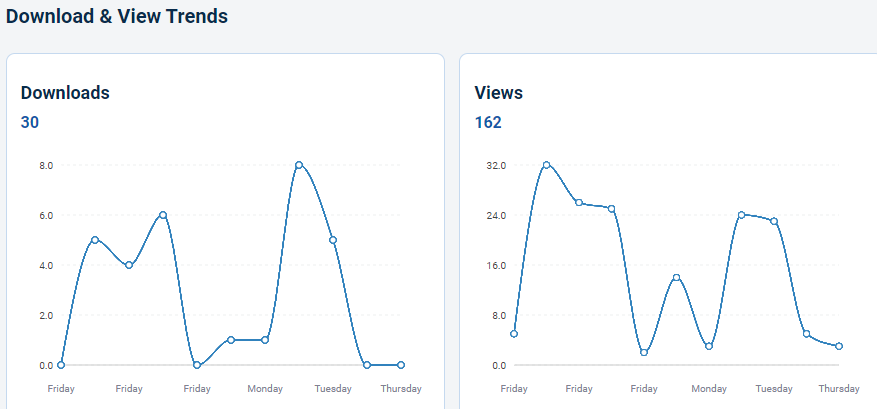
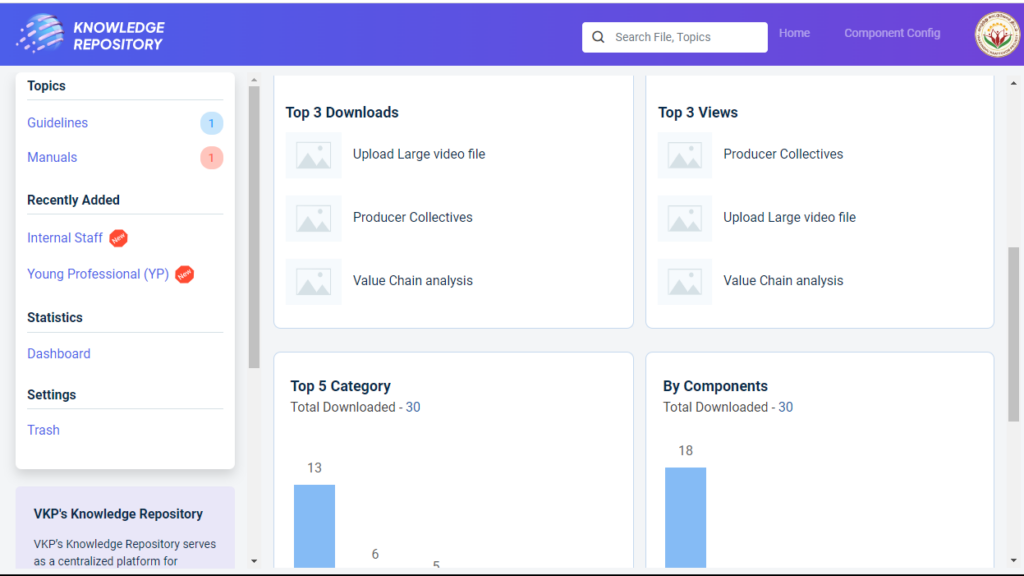
Step 11 : Under the dashboard to view the downloads
Step 12 : By choosing the districts and calendar to view the top 3 downloads and top 3 views.
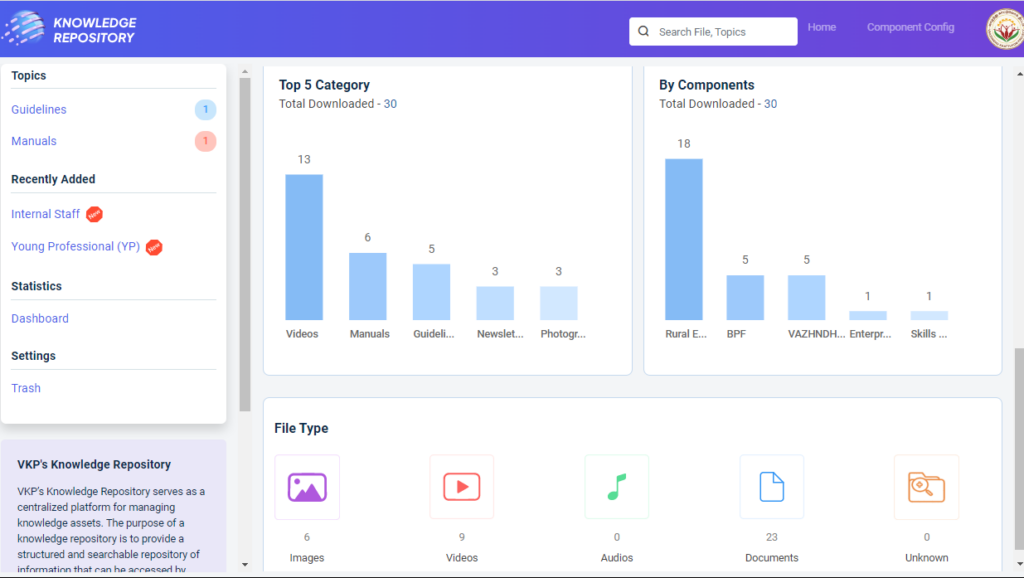
Step 13 : By choosing the districts and calendar to view the top 5 categories and by components and file type like images, videos, audios, documents and unknown.