


1. How to Login into the Application:
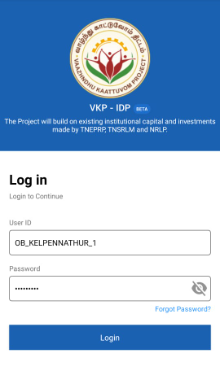
Step 1 : Launch the app, Enter your respective Office Bearer username and password
Step 2 : To view the password, click the show password icon and it will display
Step 3 : Click Login
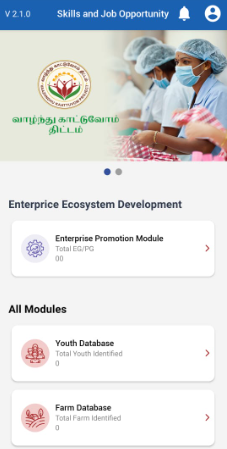
Step 4 : Following your login, a list of Enterprise Ecosystem Development modules will appear on the screen. When you select the Enterprise Promotion Module, you will be taken to the EPM home page.
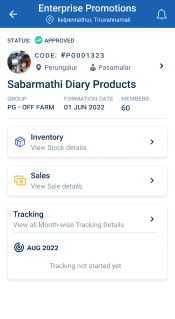
Step 5 : If the ECP has not captured the monthly capturing details it throws the message like ‘Tracking Not Started Yet’
2. How to Verify the Monthly Capture Details:
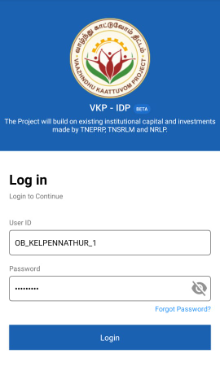
Step 1 : Launch the app, Enter your respective Office Bearer username and password
Step 2 : To view the password, click the show password icon and it will display
Step 3 : Click Login
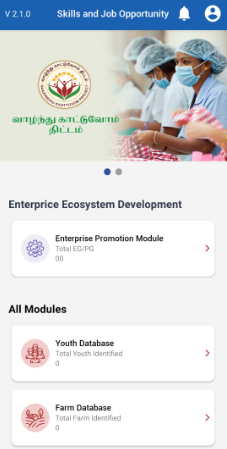
Step 4 : Following your login, a list of Enterprise Ecosystem Development modules will appear on the screen. When you select the Enterprise Promotion Module, you will be taken to the EPM home page.
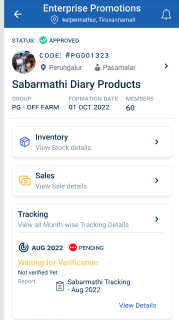
Step 5 : Once the ECP has submitted the monthly capture details the profile will be submitted for the office bearer login
Step 6 : Click ‘View Details’ to view the application details more
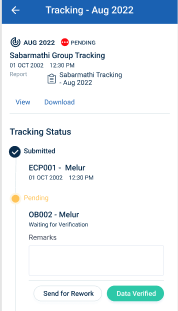
Step 7 : Remarks : Enter the remarks in the remarks section
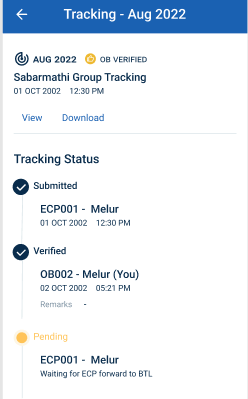
Step 8 : Once the office bearer has verified the application click ‘Data Verified’
Step 8 : Once the office bearer has verified the data the status of the profile has changed from ‘Submitted’ from ‘OB Verified’
3. How to Send Rework for the Monthly Capture Details:
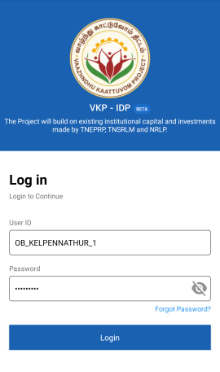
Step 1 : Launch the app, Enter your respective Office Bearer username and password
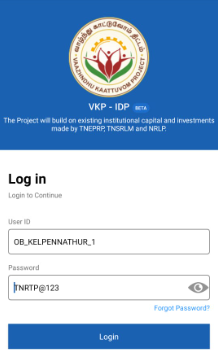
Step 2 : To view the password, click the show password icon and it will display
Step 3 : Click Login
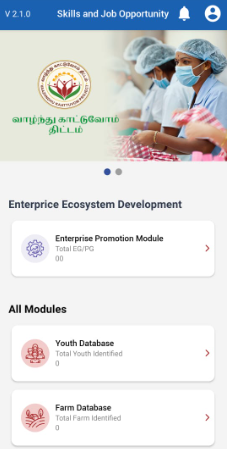
Step 4 : Following your login, a list of Enterprise Ecosystem Development modules will appear on the screen. When you select the Enterprise Promotion Module, you will be taken to the EPM home page.
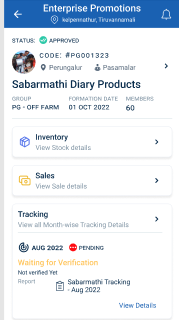
Step 5 : Once the ECP has submitted the monthly capture details the profile will be submitted for the office bearer login
Step 6 : Click ‘View Details’ to view the application details more
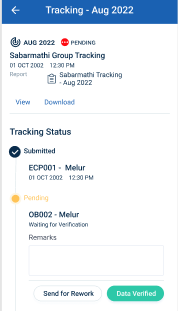
Step 7 : Remarks : Enter the remarks in the remarks section
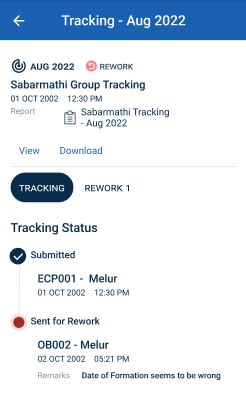
Step 8 : Once the office bearer has send rework the application click ‘Send for Rework’
Step 8 : Once the office bearer has sent rework the monthly tracking data the status of the profile has changed from ‘Submitted’ from ‘Rework’
4. How to Checked the Reworked Profile for the Monthly Capture Details:
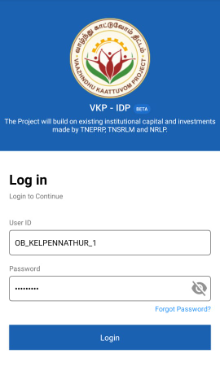
Step 1 : Launch the app, Enter your respective Office Bearer username and password
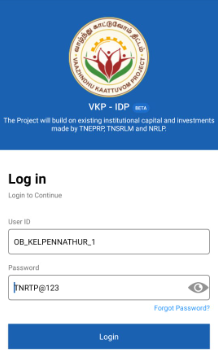
Step 2 : To view the password, click the show password icon and it will display
Step 3 : Click Login
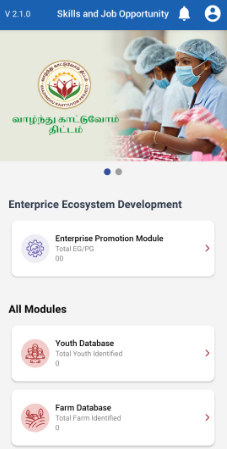
Step 4 : Following your login, a list of Enterprise Ecosystem Development modules will appear on the screen. When you select the Enterprise Promotion Module, you will be taken to the EPM home page.
Step 5 : Once the ECP has reworked the monthly capture details the profile will be submitted for the office bearer login
Step 6 : Click ‘View Details’ to view the application details more
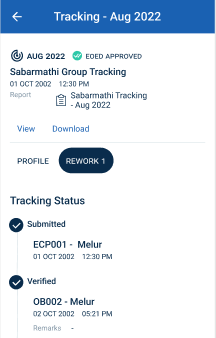
Step 7 : Click ‘Rework’ tab to view the list of profiles reworked by the ECP
Step 8 : Remarks : Enter the remarks in the remarks section
Step 9 : Either the OB has verified the data by clicking ‘Data verified’ or the data has send rework to ECP by clicking ‘Send for Rework’
Step 10 : Once the office bearer has sent rework the monthly tracking data the status of the profile has changed from ‘Reworked’ to ‘Rework’
Step 11 : Once the office bearer has verified the monthly tracking data the status of the profile has changed from ‘Reworked’ to ‘Verified’